
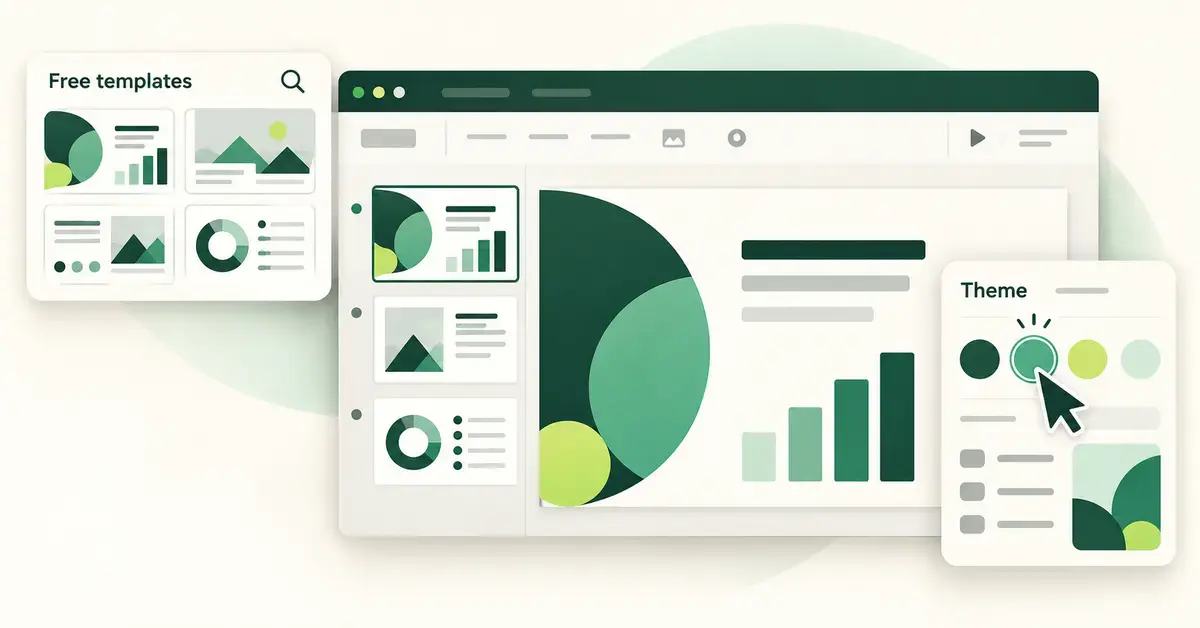
Free Google Slides templates let you start a polished presentation in seconds instead of designing every slide from a blank canvas. A template is a ready-made set of slides — colours, fonts, layouts and placeholder text already in place — that you copy and then fill with your own content. This guide shows you exactly where to find genuinely free templates, how to tell the licences apart so you stay on the right side of the rules, and how to customise a template step by step once you have it. Everything here works with a free Google account; you do not need a paid plan to follow along.
Key Points
- Google Slides and its built-in template gallery are free with any Google account — no download and no credit line required.
- For more variety, SlidesCarnival (no limits, Creative Commons), Slidesgo (3 free downloads a month) and SlidesMania (teacher-friendly) are the main free sites.
- Edit the theme once, via Slide > Edit theme, and every slide updates — far faster than changing slides individually.
- A theme in Google Slides always applies to the whole deck; you cannot apply one to only selected slides as you can in PowerPoint.
- Check the licence before publishing: most free templates require you to keep a credit line, and bundled photos may have separate terms.
What is a Google Slides template, and is it really free?
A Google Slides template is a pre-built presentation design you reuse. It defines the theme (the master set of colours, fonts and backgrounds) and a series of layouts (the arrangement of titles, text boxes and image frames on each slide type). When you open a template, you keep that design and simply replace the sample text and pictures with your own.
Google Slides itself is free for anyone with a Google account, and so are the templates in its built-in gallery. The word “free” needs a small caveat for templates you download from other websites: most are free to use, but many ask you to keep a small credit line on a slide, and a few charge for their best designs. The licence rules section below spells out what each source expects. If you want a broader introduction to the subject, our companion guide to free Google Slides templates and how to use them covers the basics; this article focuses on finding and customising them.
Where can you find free Google Slides templates?
There are three practical places to look: the gallery built into Google Slides, dedicated template websites, and design tools such as Canva. Each suits a different need, so it helps to know what you get from each before you start.
The built-in Google Slides template gallery
The quickest source is already inside the app. Open slides.google.com while signed in, and a row of templates appears across the top of the home screen. Click Template gallery to expand it. The designs are grouped into broad categories — general and personal (such as photo albums and portfolios), work (pitches, proposals, status reports) and education (lesson plans, book reports). Pick one and it opens as a new, fully editable copy in your Google Drive straight away.
The built-in gallery is the safest option because there is nothing to download and no credit line to keep. The trade-off is choice: Google offers only a few dozen designs, and because they are so widely used, your deck can look like everyone else’s. For many everyday presentations that is perfectly fine.
Dedicated free-template websites
When you want more variety or a specific style, specialist sites offer hundreds or thousands of designs. The three best known are Slidesgo, SlidesCarnival and SlidesMania. Each gives you a button that copies the template straight into your Google Drive (usually labelled something like “Open in Google Slides”), or lets you download a PowerPoint file you can then import.
- Slidesgo has the largest, most modern-looking library and themed packs for almost any topic. Registered free users can download three templates a month; heavier users need its paid Premium plan.
- SlidesCarnival is genuinely free with no registration and no download limit, and its templates are released under a Creative Commons licence that even allows commercial use as long as you keep the credit.
- SlidesMania is popular with teachers and offers free templates for personal, school and workplace use, provided you leave its small credit mark on the slides.
These sites also serve PowerPoint users, so most designs come in both formats. If you would rather work in Microsoft’s app, see our guide to free PowerPoint templates and how to use them.
Canva and other design tools
Design platforms such as Canva have enormous template libraries, but there is a catch worth knowing. Canva does not plug directly into Google Slides. You design in Canva, then export your work as a PowerPoint (.pptx) or PDF file and import that into Slides — and some animations or effects do not survive the trip. Canva is a strong choice for highly visual decks, but expect to tidy up the layout afterwards. Our walkthrough on building a Canva slides presentation explains the free and Pro differences in detail.
Comparison
| Source | Cost | Registration | Credit required? | Best for |
|---|---|---|---|---|
| Google Slides gallery | Free | Google account | No | Fast, reliable everyday decks |
| SlidesCarnival | Free | None | Yes (keep Credits slide) | Unlimited free downloads, commercial use |
| Slidesgo | Free (3/month) or Premium | Account for downloads | Yes on free plan | Largest, most modern library |
| SlidesMania | Free | None | Yes (keep site mark) | Teachers and classroom use |
| Canva | Free or Pro | Account | Varies | Visual decks (export to PPTX, then import) |
How do you open a template you have found?
How you get a template into Google Slides depends on where it came from. There are two common paths.
Opening a template directly
Templates from the built-in gallery, and the “Open in Google Slides” buttons on sites like SlidesCarnival, create an editable copy in your Drive with one click. This is the easiest route because the design arrives as a real Google Slides file, ready to edit. Rename it straight away (click the title at the top left) so you can find it later, and it will autosave as you work.
Importing a downloaded PowerPoint theme
If you downloaded a template as a PowerPoint (.pptx) file — common with Slidesgo and Canva exports — you can bring its design into an existing deck without losing your content. Open your presentation, go to the Slide menu and choose Change theme. In the panel that opens on the right, click Import theme, then upload the PowerPoint file. Google Slides reads its colours, fonts and layouts and applies them to your whole deck. Alternatively, you can upload the .pptx straight to Google Drive, right-click it and choose Open with > Google Slides to convert the entire file. Note that fonts not supported by Google may be swapped for the nearest match.
How do you customise a Google Slides template?
Customising a template is the step that makes it yours rather than an obvious off-the-shelf design. Work through the changes below in order, from the broadest to the finest, so you are not undoing earlier edits. The most important principle: edit the theme once and every slide updates automatically, which saves far more time than changing slides one by one.
Change the overall theme
If you like a template’s layouts but not its look, swap the theme first. Open the Slide menu, choose Change theme, and pick a different design from the panel on the right. Every slide in the deck updates to match. One important limit to remember: in Google Slides a theme always applies to the whole presentation — unlike PowerPoint, you cannot apply a theme to only a few selected slides.
Edit the theme (master slides and layouts)
The real control lives in the theme editor, which lets you change the design on every slide at once. Open the Slide menu and choose Edit theme (older versions call this “Edit master”). A new view appears with a list of slides on the left. The slide at the very top is the master: anything you change there — a background colour, a logo, a default font — appears on every slide in the deck. The smaller slides beneath it are layouts (title slide, section header, two-column, and so on), and editing one of those changes only the slides that use that particular layout.
This is where you add a company logo to the corner of every slide, set a consistent footer, or remove a design element you dislike. Right-click a layout in the left panel to duplicate or delete it. When you are finished, click the X in the top-right corner to close the editor and return to your slides.
Change the colours and fonts
To shift a template to your own brand colours, open the theme editor and look for the Colors option in the toolbar. Each theme colour (such as “Accent 1”) can be changed by entering a hex code — the six-character code like #1A73E8 that identifies an exact colour — or by picking from the colour selector. Because the template’s elements are linked to these theme colours, updating one colour recolours everything that uses it across the deck in a single move.
Fonts work the same way. In the theme editor, select the master slide’s text, then choose a new font from the toolbar to change it everywhere. Stick to one or two fonts for a clean, readable result, and prefer common web fonts so the deck looks the same on any device.
Swap images, logos and icons
Templates come with placeholder photos you should replace. Click a picture, then use Replace image (in the toolbar or the right-click menu) to drop in your own from your computer, Google Drive, Google Photos or a web search, keeping the original’s size and position. To add a logo or extra graphic, use Insert > Image. Watch the image resolution — stretching a small picture to fill a slide makes it blurry on a projector.
Add, duplicate and reorder slides
To build out your deck, right-click a slide in the left filmstrip and choose Duplicate slide to reuse a layout you like, or New slide to add a blank one in a chosen layout. Drag slides up or down in the filmstrip to reorder them. Using the template’s own layouts, rather than pasting in mismatched slides, keeps the design consistent from start to finish.
What are the licence and attribution rules?
The most common mistake with free templates is ignoring the small print, so check the licence before you publish. The rules vary by source, and “free” rarely means “do anything you like”.
- Google’s built-in gallery: free to use with no credit required — the simplest option of all.
- SlidesCarnival: released under Creative Commons Attribution 4.0, which allows personal and commercial use as long as you credit SlidesCarnival. In practice, keep the Credits slide that comes with the template or add a small line in the footer.
- Slidesgo: free users must keep the slide that shows the Slidesgo credits; paid Premium subscribers may remove it. You can use the templates for personal and commercial work, but you may not resell or redistribute the templates themselves.
- SlidesMania: free for personal, school and workplace presentations, provided you keep the small “SLIDESMANIA.COM” mark on the slides and credit any external resources bundled in.
Two extra points apply to almost every template. First, the photos and icons inside a template may carry their own, separate credit requirements — check the template’s Credits slide. Second, you generally cannot sell, sublicense or offer the template for download as if it were your own, even after editing it heavily.
Common mistakes to avoid
A few recurring errors trip people up when they work from templates. Knowing them in advance saves rework.
- Editing every slide by hand. If you find yourself changing the same colour or logo on slide after slide, stop and use the theme editor instead — one change there updates the whole deck.
- Deleting the credits slide too early. On free Slidesgo, SlidesCarnival and SlidesMania templates, removing the credit can breach the licence. Keep it unless you are on a paid plan that waives it.
- Overloading slides with text. Templates are designed for short, punchy points. Pasting paragraphs into a title placeholder breaks the layout and the readability.
- Using fonts that do not travel. An unusual font imported from a PowerPoint file may be substituted on other devices. Prefer Google’s own font list for reliability.
- Forgetting to check on a real screen. Colours and image sharpness look different on a projector or large display. Preview in presenter view-style playback before the day.
Who are free Google Slides templates best for?
Free templates suit anyone who values speed and consistency over bespoke design: students preparing assignments, teachers building lessons, small businesses pitching without a design budget, and anyone who presents only occasionally. The built-in gallery is ideal when you want something reliable in under a minute. Dedicated sites such as SlidesCarnival and Slidesgo are better when you need a particular theme or a more distinctive look, and you are comfortable keeping a credit line.
If you prefer to work offline or outside Google’s ecosystem, free desktop presentation software is a strong alternative. OpenOffice Impress opens and edits presentation files on your own computer, and because Google Slides can export to the OpenDocument format, it is worth understanding the ODP file format if you plan to move decks between tools.
Sources
- Slidesgo — Frequently Asked Questions (licence, attribution and download limits)
- SlidesMania — Can I use these templates?
- SlidesCarnival — free templates and Creative Commons licensing
- GCFGlobal — Google Slides: Editing Master Slides and Layouts
- Google Slides Help — Change the design and layout of a presentation
Frequently Asked Questions (FAQ)
Are Google Slides templates completely free?
The templates in the built-in Google Slides gallery are free with any Google account and need no credit. Templates from outside sites are mostly free to use too, but many require you to keep a small credit line on a slide, and some sites, such as Slidesgo, reserve their best designs or unlimited downloads for a paid plan.
How do I apply a template I downloaded as a PowerPoint file?
Open your presentation, go to Slide > Change theme, click Import theme in the panel, and upload the .pptx file to apply its design to your whole deck. Alternatively, upload the file to Google Drive, right-click it and choose Open with > Google Slides to convert the entire presentation.
Can I change a template’s colours across every slide at once?
Yes. Open Slide > Edit theme, choose the Colors option, and change a theme colour using a hex code or the colour picker. Because the template’s elements are linked to those theme colours, every slide that uses the colour updates at the same time.
Can I use free Google Slides templates for commercial or client work?
Usually yes, but it depends on the source. SlidesCarnival’s Creative Commons licence and Slidesgo both allow commercial use, provided free users keep the required credit. You generally may not resell or redistribute the template itself, and bundled photos or icons may carry their own terms, so check each template’s Credits slide.
Why can’t I apply a theme to only some of my slides?
Google Slides applies a theme to the entire presentation by design, unlike PowerPoint. If you need different looks within one deck, use different layouts within the same theme, or edit individual slides manually rather than trying to apply a second theme to a selection.
