
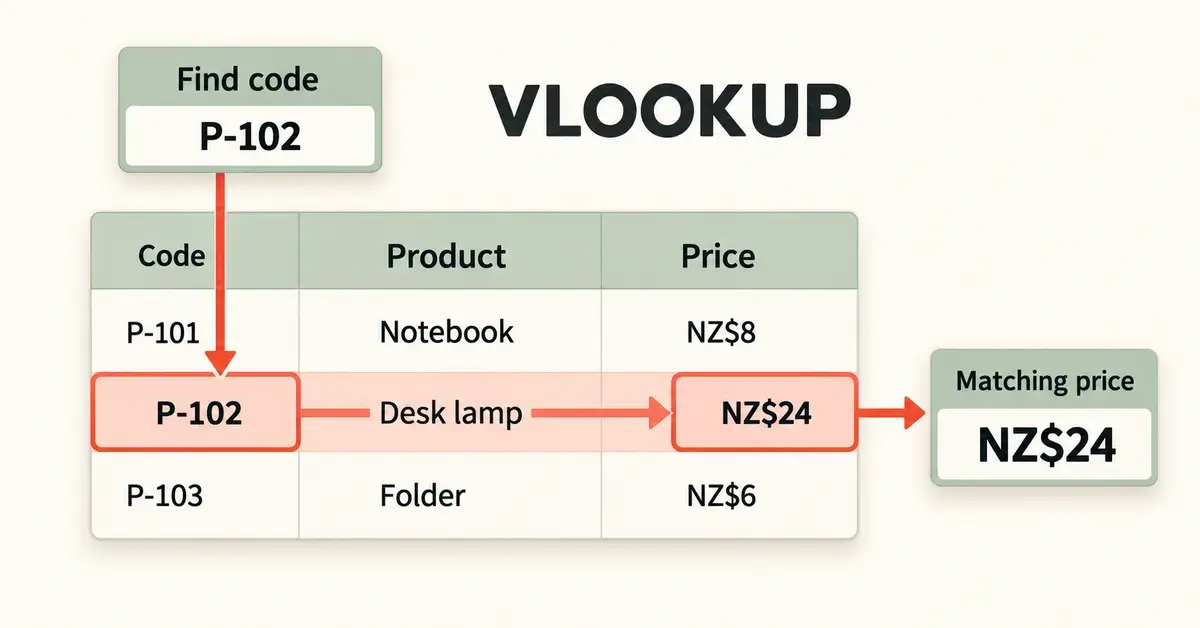
VLOOKUP is the function most people reach for when they need Google Sheets to find a value in one table and pull back matching information from another. Short for “vertical lookup”, it searches down the first column of a range for a key you give it, then returns a value from the same row in a column you choose. This guide explains the syntax in plain English, walks through a worked example, and shows how to handle exact matches, lookups across different sheets, wildcards and the errors that trip beginners up. Every rule below is drawn from Google’s own documentation for the function.
What is VLOOKUP in Google Sheets?
VLOOKUP looks up a value in a vertical table and returns a related value from the same row. Think of a price list where column A holds product codes and column C holds prices: VLOOKUP lets you type a code in one cell and have Sheets fetch the matching price automatically, without scrolling or copying by hand. It is the spreadsheet equivalent of looking a name up in a phone book and reading across to the number.
The key word is “vertical”. VLOOKUP always searches top-to-bottom down the first column of the range you give it. If your lookup values run across a row instead of down a column, HLOOKUP (horizontal lookup) is the matching function. VLOOKUP works the same way in Google Sheets, Microsoft Excel and LibreOffice Calc, so skills you build here carry across. If you are coming from Excel, our guide to how to use VLOOKUP in Excel covers the same function with Excel-specific notes.
Key points
- What it does: VLOOKUP searches down the first column of a table and returns a value from the same row in a column you choose.
- Syntax: =VLOOKUP(search_key, range, index, [is_sorted]).
- Always type FALSE as the last argument for an exact match; leaving it blank defaults to an approximate match that can return wrong values.
- Index counts from the first column of the range, not from column A of the sheet.
- It only looks right: the return column must sit to the right of the search column.
- Free in Google Sheets with any Google account — nothing to install.
The VLOOKUP syntax explained
The VLOOKUP function takes four arguments, written like this:
=VLOOKUP(search_key, range, index, [is_sorted])
Each part does one job. Understanding all four is the difference between a formula that works first time and one that quietly returns the wrong answer.
search_key
This is the value you are looking for. It can be typed directly (such as a number or text in quotation marks) or, more usefully, a reference to another cell such as A2. Whatever you put here, Sheets looks for it in the first column of your range only.
range
The range is the block of cells VLOOKUP searches, for example A2:C50. The first column of that range is where the search happens, so your search_key must live in that first column. The columns to its right are where your answers come from.
index
The index is the column number, counted from the left edge of the range, that holds the value you want returned. It must be a positive whole number. If your range is A2:C50, column A is index 1, B is 2 and C is 3. A common beginner error is counting from column A of the sheet rather than from the first column of the range.
is_sorted
This optional argument controls how the match works. FALSE means an exact match; TRUE means an approximate match. If you leave it out, Google Sheets defaults to TRUE, which is why unexpected results are so common. For almost all everyday lookups you should type FALSE, because its behaviour is consistent whether or not the first column is sorted.
A step-by-step VLOOKUP example
Suppose you have a product list in columns A to C: product codes in A, product names in B and prices in C, filling rows 2 to 20. In a separate cell you type the code you want to look up, say in cell E2, and you want the price to appear in F2.
- Click cell F2, where you want the answer.
- Type =VLOOKUP(E2, A2:C20, 3, FALSE) and press Enter.
- Google Sheets takes the code in E2, searches down column A for it, and when it finds a match returns the value three columns across — the price in column C.
Reading the formula back: look for the value in E2, inside the table A2:C20, return the value from column 3 of that table, and use an exact match. Change the code in E2 and the price updates instantly. To fetch the product name instead, change the index from 3 to 2. This simple pattern covers the vast majority of real-world lookups, from matching invoice numbers to customer names to pairing stock codes with quantities.
If you want the same formula to fill a whole column automatically rather than being copied down row by row, wrap it in ARRAYFORMULA, for example =ARRAYFORMULA(VLOOKUP(E2:E20, A2:C20, 3, FALSE)). For a wider tour of functions that pair well with VLOOKUP, see our guide to essential Google Sheets formulas.
Exact match vs approximate match
The fourth argument decides everything about accuracy, so it deserves its own explanation. The choice between TRUE and FALSE is the single most important decision in a VLOOKUP formula.
When to use exact match (FALSE)
Use FALSE whenever you are looking up a specific, unique identifier — a product code, an email address, an invoice number, a staff ID. With FALSE, VLOOKUP returns a value only when it finds an exact match in the first column; if nothing matches, it returns the #N/A error so you know the value is genuinely missing rather than being handed the nearest guess. This is the setting you should reach for by default.
When approximate match (TRUE) makes sense
Approximate match is useful for banding or bracketing — turning a score into a grade, or an income into a tax band. With TRUE, VLOOKUP finds the largest value that is less than or equal to your search key. The catch is that the first column must be sorted in ascending order first; if it is not, the formula can return a wrong value without any error to warn you. For a grade table sorted from 0 upward, =VLOOKUP(85, A2:B6, 2, TRUE) would return the grade attached to the highest threshold at or below 85. If you ever leave the fourth argument blank, Sheets assumes TRUE, so always type FALSE unless you specifically want banding.
How to use VLOOKUP across different sheets and files
VLOOKUP can pull data from another tab in the same spreadsheet or from an entirely separate file. To look up data on another tab, put the tab name and an exclamation mark in front of the range. If your data lives on a tab called “Products”, the formula becomes =VLOOKUP(E2, Products!A2:C20, 3, FALSE).
To pull from a different Google Sheets file, combine VLOOKUP with IMPORTRANGE, which imports a range from another spreadsheet by its URL. The pattern is =VLOOKUP(E2, IMPORTRANGE(“spreadsheet_url”, “Sheet1!A2:C20”), 3, FALSE). The first time you use IMPORTRANGE you will see a #REF! prompt asking you to allow access between the two files; click Allow Access once and the formula runs from then on. You also need at least view access to the source file. For large datasets, it is often faster to do the lookup in the source sheet and import only the finished result.
Using wildcards with VLOOKUP
Wildcards let you match partial text when you do not know the whole value. Google Sheets supports two: a question mark (?) stands for any single character, and an asterisk (*) stands for any sequence of characters. To find the first entry starting with “North”, you could use =VLOOKUP(“North*”, A2:C20, 2, FALSE).
One rule is essential: wildcards work only with an exact match, meaning the fourth argument must be FALSE. They are ignored under approximate match. Wildcards are handy for messy data where codes have inconsistent suffixes, but because VLOOKUP returns only the first match it finds, use them with care on lists where several rows could match the same pattern.
Common VLOOKUP errors and how to fix them
Most VLOOKUP problems show up as one of a handful of error messages. Knowing which error means what turns troubleshooting from guesswork into a quick fix.
#N/A — the value was not found
This is the most common error and it simply means VLOOKUP could not find your search key in the first column. Check for stray spaces, inconsistent formatting (a number stored as text will not match a real number), or a typo in either the lookup cell or the source table. If a blank or a friendly message is better than an error for your readers, wrap the formula in IFNA, for example =IFNA(VLOOKUP(E2, A2:C20, 3, FALSE), “Not found”). IFNA is preferable to IFERROR here because it hides only #N/A and lets structural errors such as #REF! stay visible.
#REF! — the index is too big
A #REF! error inside a VLOOKUP usually means the index number is greater than the number of columns in your range. If your range is A2:C20 (three columns) but you ask for index 4, there is no fourth column to return, so Sheets reports #REF!. Lower the index or widen the range. The same error also appears when a referenced range has been deleted.
#VALUE! — something is the wrong type
A #VALUE! error points to an argument of the wrong type, most often an index that is zero or a negative number, or a text value where Sheets expects a number. Check that the index is a positive whole number and that your arguments are in the right order.
A wrong answer with no error at all
The sneakiest problem is a formula that runs but returns the wrong value. This almost always comes from an approximate match (TRUE) on an unsorted column, or from leaving the fourth argument blank. Switch to FALSE for exact matches, or sort the first column in ascending order if you genuinely need banding.
VLOOKUP vs XLOOKUP vs INDEX/MATCH
VLOOKUP is the easiest lookup function to learn, but it is not the only option, and it has real limits. Its biggest one is that it can only look to the right: the return column must sit to the right of the search column, so VLOOKUP cannot fetch a value from a column to the left of your key. The table below compares the three main approaches so you can pick the right tool.
Comparison
| Feature | VLOOKUP | XLOOKUP | INDEX/MATCH |
|---|---|---|---|
| Ease of writing | Easiest | Easy | Moderate |
| Search direction | Right only | Any direction | Any direction |
| Default match | Approximate (TRUE) | Exact | Exact (with 0) |
| Built-in “not found” option | No (use IFNA) | Yes | No (use IFNA) |
| Survives inserted columns | No | Yes | Yes |
| Available in Google Sheets | Always | Since 2022 | Always |
XLOOKUP arrived in Google Sheets in the 2022 function rollout and is the modern successor to VLOOKUP. It can search in either direction, defaults to an exact match, and lets you set a custom “not found” message without wrapping it in IFNA. INDEX/MATCH is the older flexible alternative: it also looks in any direction and does not break when columns are inserted. VLOOKUP remains the simplest to write and is perfectly reliable for straightforward left-to-right lookups.
Common mistakes to avoid
A few errors come up again and again for new users. Avoiding them will save most of your troubleshooting time:
- Forgetting FALSE. Leaving the fourth argument blank triggers an approximate match and can return silently wrong values. Type FALSE for exact lookups.
- Counting the index wrongly. The index counts from the first column of your range, not from column A of the sheet.
- Not locking the range. When you copy a formula down, use dollar signs ($A$2:$C$20) so the range stays fixed and does not drift.
- Expecting a left-side lookup. VLOOKUP cannot return a value to the left of the search column; use XLOOKUP or INDEX/MATCH instead.
- Ignoring case sensitivity. VLOOKUP ignores upper and lower case, so “SH101a” and “SH101A” are treated as the same key. For a case-sensitive lookup, combine ARRAYFORMULA with the EXACT function.
- Mismatched data types. A number stored as text will not match a real number. Clean the data or use VALUE/TEXT to align the types.
If your lookup values come from an imported file such as a spreadsheet exported from another program, double-check the formatting first — our guide to opening a CSV file explains why numbers and dates can arrive as text and how to fix them.
Who should use VLOOKUP in Google Sheets?
VLOOKUP suits anyone who needs to match records between tables without manual copying — small-business owners pairing products with prices, teachers matching student IDs to results, or anyone merging two lists into one. Because Google Sheets is free with any Google account and runs in a browser, there is nothing to install and nothing to pay. It is an ideal first lookup function to learn because the four-argument pattern is easy to remember and transfers directly to Excel and LibreOffice Calc.
Power users handling large or frequently restructured datasets may prefer XLOOKUP or INDEX/MATCH for their flexibility, and anyone building drop-down menus to feed a lookup can pair VLOOKUP with a drop-down list in Google Sheets. But for the everyday job of finding one value and returning another, VLOOKUP remains the fastest function to reach for. If you also work in Microsoft’s spreadsheet, our round-up of essential Excel formulas covers the same ground there.
Sources
Frequently Asked Questions (FAQ)
Is VLOOKUP free to use in Google Sheets?
Yes. VLOOKUP is a built-in function in Google Sheets, which is free to use with any standard Google account. There is no add-on to buy, nothing to install, and the function works the same in the free browser version as in paid Google Workspace plans.
Why does my VLOOKUP return #N/A when the value clearly exists?
The usual causes are hidden spaces, a number stored as text that will not match a real number, or an inexact entry. Make sure the fourth argument is FALSE for an exact match, trim any stray spaces with the TRIM function, and confirm both cells hold the same data type.
Can VLOOKUP look to the left of the search column?
No. VLOOKUP can only return a value from a column to the right of the one it searches. To look up a value and return something from a column on the left, use XLOOKUP or the INDEX and MATCH combination, both of which search in any direction.
Should I use VLOOKUP or XLOOKUP in Google Sheets?
XLOOKUP, added to Google Sheets in 2022, is more flexible: it defaults to an exact match, searches in both directions and has a built-in not-found option. VLOOKUP is simpler to write and fine for straightforward left-to-right lookups, so many people still use it for quick jobs.
How do I use VLOOKUP across two different Google Sheets files?
Combine VLOOKUP with IMPORTRANGE, placing the other file’s URL and range inside the IMPORTRANGE call as the range argument. The first time you run it, click Allow Access to link the two files. You need at least view access to the source spreadsheet for it to work.
