
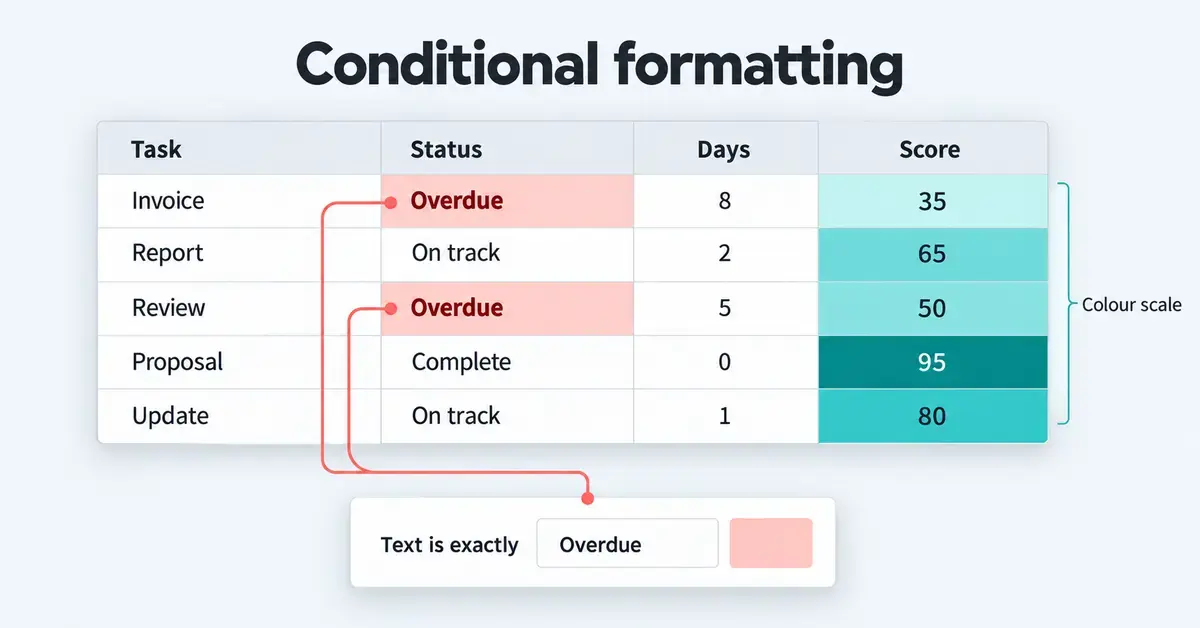
Conditional formatting in Google Sheets automatically changes the look of a cell — its fill colour, text colour, bold or italic styling — when the cell’s value meets a rule you set. Instead of scanning a long list by eye, you let the spreadsheet highlight overdue dates in red, flag duplicates, shade a sales column from low to high, or tint whole rows based on a single column. It is free, built in, and works in any web browser. This guide explains what the feature does, walks through every step, shows real custom-formula examples, and covers the mistakes that trip people up.
Key Points
- What it does: automatically styles cells — fill, text colour, bold — when a value meets a rule, without changing the data itself.
- Where to find it: Format > Conditional formatting opens a panel on the right of the screen.
- Two rule types: single colour (one format when a condition is true) and colour scale (a gradient heatmap across a range).
- Custom formulas let you highlight whole rows and flag duplicates; lock the column with a dollar sign and keep the row relative.
- Rule order matters: Sheets checks rules top to bottom and the first true rule sets the format.
- Mobile: Android can create and edit rules; iPhone and iPad can only view existing ones.
- Cost: completely free with any Google account.
What is conditional formatting in Google Sheets?
Conditional formatting is a rule that tells Google Sheets, “if a cell’s value meets this condition, display it this way.” The underlying data never changes — only the appearance does. Turn the rule off and the colours disappear, leaving your numbers and text exactly as they were.
It is most useful when you want patterns to jump out of a large block of data. Common uses include turning a stock figure red when it drops below a threshold, shading a column of test scores from light to dark, marking paid and unpaid invoices, and highlighting cells that contain a particular word. Because the formatting updates the instant a value changes, a dashboard or tracker effectively colours itself as you type.
Google Sheets offers two styles of rule. A single-colour rule applies one fixed format to every cell that meets a condition. A colour scale spreads a gradient across a range so the smallest and largest numbers sit at opposite ends of a colour band — a quick heatmap. You can stack as many single-colour rules on the same range as you need. If you are still learning the basics of the app, our guide to Google Sheets formulas is a useful companion, because custom-formula rules reuse the same functions.
How to use conditional formatting in Google Sheets step by step
The whole process takes four steps on a computer. Open any sheet in a web browser and follow along.
Step 1: Select the cells you want to format
Click and drag to select the range you want the rule to cover — for example, the cells B2 to B100, or an entire column by clicking its letter heading. You can change this range later, so an approximate selection is fine to start with. Selecting the exact range you care about keeps the rule efficient and avoids formatting empty rows.
Step 2: Open Format and choose Conditional formatting
In the top menu, click Format, then Conditional formatting. A panel titled “Conditional format rules” opens on the right-hand side of the window. This is where every rule for the sheet is created, edited and removed. You can see Google’s own reference for this panel in the Docs Editors Help.
Step 3: Pick single colour or colour scale, then set the condition
At the top of the panel are two tabs: Single colour and Colour scale. Leave it on Single colour for a straightforward rule. Under Format cells if, open the drop-down and choose a condition — such as “Greater than”, “Text contains” or “Is empty” — then type the value the condition needs (a number, a word or a date).
Step 4: Choose the formatting style and click Done
Under Formatting style, decide what the matching cells should look like. You can set a fill colour, change the text colour, and switch on bold, italic, underline or strikethrough. A live preview shows the effect. Click Done to save the rule. Matching cells update immediately, and any time a value changes the formatting recalculates on its own.
The condition types you can choose from
The “Format cells if” drop-down holds around nineteen built-in conditions, grouped by the kind of data they test. Knowing which one to reach for saves you from writing a formula.
- Cell state: Is empty, Is not empty.
- Text: Text contains, Text does not contain, Text starts with, Text ends with, Text is exactly.
- Dates: Date is, Date is before, Date is after — each with options such as today, yesterday, tomorrow, in the past week/month/year, or an exact date.
- Numbers: Greater than, Greater than or equal to, Less than, Less than or equal to, Is equal to, Is not equal to, Is between, Is not between.
- Custom formula is: the option that unlocks everything the built-in conditions cannot do.
The text conditions accept wildcards: a question mark (?) stands for any single character, an asterisk (*) for any number of characters, and a tilde (~) escapes a literal ? or *. So “Text contains” with the value “INV-2026-*” would match every invoice number that starts with that prefix.
How to use a colour scale to build a heatmap
A colour scale shades a range of numbers along a gradient so highs and lows are instantly visible. Select your range, open the panel, and click the Colour scale tab. Under “Preview” you can pick a ready-made palette — for example, green for high values fading to red for low ones.
Below that, set the Minpoint, an optional Midpoint and the Maxpoint. Each can use the lowest/highest value in the range, a fixed number, a percentage or a percentile, and each has its own colour. Leaving them on “Min value” and “Max value” lets the scale adjust automatically as your data grows. Colour scales suit temperature-style data such as scores, revenue by month or survey ratings, where the relative size matters more than a single pass/fail threshold.
How to highlight a whole row with a custom formula
The built-in conditions only colour the cells that match. To shade an entire row based on one column’s value, you need the Custom formula is option. This is the single most useful trick in conditional formatting.
Lock the column, let the row float
Say you have a table in A2:D100 and you want to highlight every row where the status in column D says “Overdue”. Select the full range A2:D100, open the panel, choose Custom formula is, and enter: =$D2=”Overdue”. The dollar sign in front of D locks the column so every cell in the row looks at column D, while the row number 2 stays relative so it moves down with each row. Pick a fill colour and click Done, and every overdue row shades in one go.
The pattern is always the same: lock the column you are testing with a dollar sign, keep the row number relative, and point the rule at the whole table in “Apply to range”. You can combine tests, too — =AND($D2=”Overdue”,$C2>100) highlights overdue rows worth more than 100.
How to highlight duplicates
To flag repeated entries in column A, select A2:A100, choose Custom formula is, and enter: =COUNTIF($A$2:$A$100,$A2)>1. Here the range $A$2:$A$100 is fully locked so every cell counts across the same list, while $A2 floats so each row checks itself. Any value that appears more than once is highlighted. If you only want to mark the second and later copies and leave the first clean, use a growing range instead: =COUNTIF($A$2:$A2,$A2)>1. Highlighting duplicates pairs well with a drop-down list in Google Sheets, which prevents inconsistent entries in the first place.
How to edit, reorder and delete rules
Every rule for the current sheet lives in the same Conditional format rules panel. Reopen it from Format > Conditional formatting at any time.
- Edit: click a rule in the list to open it, change the condition, range or style, then click Done.
- Reorder: drag a rule up or down by the handle on its left. Order matters — Sheets checks rules from top to bottom and the first one that is true sets the format, so put your most specific rules above general ones.
- Delete: hover over a rule and click the rubbish-bin (Remove) icon. This removes only the rule; your data is untouched.
- Copy to other cells: copy a formatted cell and use Edit > Paste special > Conditional formatting only to apply the same rules elsewhere.
Three practical examples you can copy
Seeing real rules in context makes the feature click. Each example below assumes your data starts in row 2, with a header in row 1.
Flag low stock in red
To warn when a quantity in column C falls below 10, select column C, choose “Less than”, type 10, and pick a red fill. The moment a cell drops under the threshold it turns red, and climbs back to white when restocked. Swap in “Greater than” and a green fill to celebrate healthy numbers instead.
Shade overdue dates automatically
To mark deadlines that have already passed in a date column, select the column, choose “Date is before”, and pick “Today” from the drop-down. Overdue dates highlight on their own and clear themselves the moment a task is dated in the future. This is far more reliable than re-checking a list by hand each morning.
Tick off a checklist
If you use tickboxes (Insert > Tickbox) in column A alongside tasks in column B, select the task column, choose “Custom formula is”, and enter =$A2=TRUE. Completed tasks then grey out or strike through automatically as you tick them, giving a clear visual of what is left to do.
Conditional formatting on mobile: Android and iPhone
The experience differs sharply between the two mobile platforms. On the Android Google Sheets app you can create and edit rules: tap and select your cells, then tap the format icon and choose Conditional formatting. On iPhone and iPad, the app can display conditional formatting that already exists in a sheet, but you cannot create or change rules there — you need a computer for that. Because app menus shift between updates, trust what you see on screen over any written step list if the layout differs.
Common mistakes to avoid
A few errors account for most conditional-formatting frustration. Watching for them saves a lot of guesswork.
- Locking the comparison cell by mistake. Writing =COUNTIF($A$2:$A$100,$A$2)>1 — with the last reference fully locked — makes every row compare against cell A2 alone, producing false positives. Keep the self-reference relative ($A2).
- Applying the rule to the wrong range. If “Apply to range” covers only one column, whole-row highlighting will not work. Set it to the full table, excluding the header row.
- Forgetting rule order. Because the first true rule wins, a broad rule placed above a specific one can hide it. Drag the specific rule to the top.
- Referencing another sheet directly. Custom formulas can only read cells on the same sheet. To use a value from another tab, wrap it in the INDIRECT function.
- Typing a value that does not match. Trailing spaces, different capitalisation in exact-match tests, or text-versus-number mismatches stop a rule firing. Check the cell’s real content.
- Over-formatting. Too many colours make a sheet harder to read, not easier. Reserve highlighting for the few things that genuinely need attention.
Google Sheets vs Excel vs LibreOffice Calc conditional formatting
Conditional formatting is not unique to Google Sheets. Microsoft Excel and the free, open-source LibreOffice Calc both offer it, and the core idea — colour a cell when a rule is true — is the same in all three. The differences are in the interface, the ready-made presets and how reliably rules survive when you move a file between programs. If you work across suites, our comparison of the free spreadsheet option in OpenOffice Calc and the wider look at Excel formulas add more detail on each app.
Comparison
| Feature | Google Sheets | Microsoft Excel | LibreOffice Calc |
|---|---|---|---|
| Menu path | Format > Conditional formatting | Home > Conditional Formatting | Format > Conditional > Condition |
| Single-colour rules | Yes | Yes | Yes |
| Colour scales / data bars | Colour scales (no data bars or icon sets) | Colour scales, data bars and icon sets | Colour scales, data bars and icon sets |
| Custom formula rules | Yes (same-sheet references; INDIRECT for others) | Yes | Yes (via formula / cell style) |
| “Stop if true” option | Effectively via rule order | Yes (explicit setting) | No direct equivalent |
| Cost | Free | Paid (Microsoft 365 or Office) | Free and open source |
| Works in a browser | Yes | Limited (Excel for the web) | No (desktop app) |
One practical caution: conditional-formatting rules do not always survive a round trip between formats. Rules built in LibreOffice Calc and saved as an Excel .xlsx file can be altered or dropped when the file is opened in Excel, and Excel’s “Stop if true” setting has no exact equivalent in Calc. If a shared spreadsheet relies on colour rules, keep everyone on the same app where you can, or re-check the rules after converting.
Who conditional formatting suits
Conditional formatting earns its place for anyone who reads data rather than just stores it. Teachers shading grade books, small-business owners tracking unpaid invoices, project leads flagging overdue tasks, and anyone building a tracker, roster or budget all benefit from colour that updates itself. It is equally at home on a personal habit tracker and a shared team dashboard.
It is less useful when a spreadsheet is purely a data store that nobody scans visually, or when the same highlighting could be achieved more clearly with a filter or a pivot table. For heavy analysis you will often pair it with other Google tools — a Google Sheets calendar template, for instance, becomes far easier to read once weekends or deadlines are colour-coded. As a free, no-install feature that works on any computer, it is one of the quickest wins in the whole app.
Sources
Frequently Asked Questions (FAQ)
Is conditional formatting in Google Sheets free?
Yes. It is a standard, built-in feature of Google Sheets and costs nothing. You only need a free Google account and a web browser, or the Google Sheets app on Android to create and edit rules.
How do I remove conditional formatting from a cell or sheet?
Open Format then Conditional formatting to show the rules panel, hover over the rule you no longer want, and click the Remove (rubbish-bin) icon. To clear everything from a selection quickly, choose Format then Clear formatting, though that also removes manual formatting such as borders and fonts.
Can I highlight an entire row based on one cell’s value?
Yes. Select the whole table, choose “Custom formula is”, and write a formula that locks the tested column with a dollar sign but keeps the row relative, such as =$D2=”Overdue”. Set “Apply to range” to the full table so the colour fills across each matching row.
Why is my conditional formatting rule not working?
The usual causes are a wrong “Apply to range”, a value that does not exactly match (extra spaces or different capitalisation), a custom formula with the self-reference locked by mistake, or a higher rule in the list firing first. Check each of these, as rules are evaluated from top to bottom and the first true one wins.
Can I use conditional formatting on the Google Sheets mobile app?
On Android you can create and edit rules in the app. On iPhone and iPad you can only view conditional formatting that already exists; to create or change rules you need to use a computer.
