
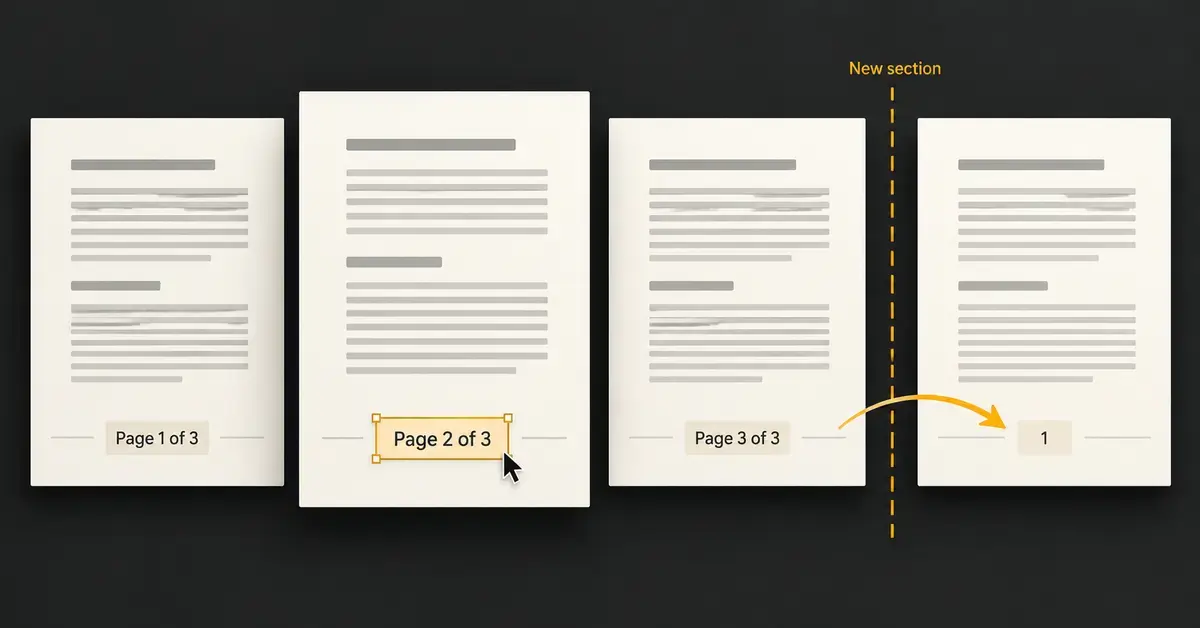
Adding page numbers in Google Docs takes only a few clicks, but the keyword “every method” hides a lot of detail: numbering can start on a later page, restart inside long reports, show a running total, or refuse to appear at all when a document is set to the wrong layout. This guide walks through each method in order, from the one-click insert to section-based numbering and the mobile app, and explains the limits Google Docs still has in 2026 so you can pick the right approach the first time.
Key Points
- The fastest method is Insert > Page elements > Page number, then pick a header or footer placement.
- Page numbers only work in Pages layout — if the option is greyed out, switch away from Pageless under the Format menu.
- Build “Page X of Y” by combining the Page number and Page count fields (desktop only).
- To start numbering on a later page, use a section break, unlink it, and set a Start at value.
- The mobile app offers four placements but no page count; turn on Print layout to see the numbers.
- Roman numerals are not supported natively — only manual entry, add-ons, or a desktop suite.
Before you start: Pages format vs Pageless
Page numbers only work when a document uses the Pages layout, so this is the first thing to check. Google Docs offers two layouts: Pages, which shows discrete sheets with margins, headers and footers; and Pageless, a continuous scroll with no page breaks. Page numbers, headers and footers are all disabled in Pageless mode, which is the single most common reason the option looks greyed out.
To check or change the layout, open Format > Switch to pages format. If the menu already reads “Switch to pageless format,” you are in Pages mode and can carry on. You can also set it through File > Page setup, where a Set as default button makes Pages the standard for every new document you create. Switching is per-document, so changing one file does not affect the others in your Drive.
Method 1: The fastest way to add page numbers (desktop)
The quickest method is the Insert menu, which drops a numbering field into the header or footer in one step. In a browser on a computer:
- Open your document and place the cursor anywhere in the body.
- Click Insert in the top-left toolbar.
- Hover over Page elements, then choose Page number.
- Pick one of the placement previews that appears.
Note the current path is Insert > Page elements > Page number. Older tutorials point to “Insert > Page numbers” or “Header & page number” — Google reorganised the menu, so use the Page elements submenu.
Choosing where the number appears
The preview thumbnails give you four standard choices, and each one sets both the position and whether the first page is numbered:
- Top of page, every page — number in the header on all pages, including the cover.
- Top of page, not the first — header number from page 2 onward (useful for a title page).
- Bottom of page, every page — number in the footer on all pages.
- Bottom of page, not the first — footer number from page 2 onward.
Whichever you choose, the number updates automatically as you add or delete pages — you never retype it.
Method 2: Show a running total (Page X of Y)
To display a count such as “Page 3 of 12,” you combine two separate fields rather than one. Google Docs keeps the current page number and the total page count as distinct inserts:
- Click into the header or footer where you want the text.
- Type Page (with a trailing space).
- Go to Insert > Page elements > Page number and add the number field.
- Type of after it.
- Go to Insert > Page elements > Page count to add the total.
The result reads “Page 1 of 10” and both figures recalculate as the document grows. The Page count field is desktop-only, which matters if you also edit on a phone (covered below).
Method 3: Start page numbers on a later page
Starting numbers later is the method people search for most after the basics, usually to keep a title page or table of contents unnumbered. There are two scenarios, and they need different tools.
Skip the number on the first page only
If you simply want page 1 blank, use one of the “not the first” presets in Method 1, or turn on the header/footer option directly. Double-click the header or footer, then tick Different first page. The first page keeps its own empty header and footer while numbering continues on page 2 as “2.”
Start numbering on page 2 or 3 with a section break
If you want the numbering to begin at 1 on, say, page 3, a single “Different first page” checkbox is not enough — you need a section break so the later pages count as a new region:
- Click at the very start of the page where numbering should begin.
- Go to Insert > Break > Section break (next page).
- Double-click the footer (or header) in the new section and turn off Link to previous so it no longer copies the earlier section.
- Insert the page number with Method 1, then open the More options dialog (Method 4) and set Start at 1.
The front pages stay unnumbered, and the body restarts cleanly at 1.
Method 4: Change the starting number and alignment
The More options dialog is where you control the exact figure, scope and alignment, and it is the key to anything beyond the presets. Open it with Insert > Page elements > Page number > More options. Inside you can:
- Choose the position — header or footer.
- Tick or untick Show on first page of this section.
- Set Apply to — the whole document, this section, or this section forward.
- Enter a Start at number — handy when a report continues from an earlier file (start at 25, for example).
Alignment (left, centre or right) is set like normal text: click the number field and use the alignment buttons in the toolbar.
Method 5: Different numbering in each section
Long documents often need numbering that restarts or changes per section, and section breaks make that possible. After inserting a Section break (next page) at each boundary, you can give every section its own numbering by unlinking its header/footer and setting a fresh Start at value in More options. Typical uses include restarting at 1 for each chapter, or leaving an appendix running on from the main body. Because each section is independent, you can even number one section and leave another blank.
Method 6: Add page numbers in the Google Docs mobile app
The Android and iPhone/iPad apps can add page numbers, but with fewer options than the desktop. The steps are the same on both platforms:
- Open the document and tap the + (Insert) icon in the top toolbar.
- Tap Page number.
- Choose one of four styles: Header, Header (leave first page), Footer, or Footer (leave first page).
Two limits are worth knowing on mobile. First, there is no Page count field, so you cannot build “Page X of Y” on a phone — do that part on the desktop. Second, if the numbers do not seem to appear, open the three-dot menu > Print layout and switch it on; with Print layout off, headers, footers and page numbers are hidden from view even though they are saved.
Method 7: Roman numerals and custom numbering
Google Docs does not support Roman numerals or lettered page numbers natively, so there is no built-in i, ii, iii option. This is a genuine gap compared with Microsoft Word, and there are only workarounds:
- Type them manually. In a front-matter section (separated by a section break and unlinked), delete the automatic field and type “i,” “ii,” “iii” by hand. This breaks the auto-update, so only use it for a short, fixed front section.
- Use an add-on. Some third-party add-ons from the Google Workspace Marketplace extend numbering formats; vet any add-on’s permissions before installing, since it gains access to your documents.
- Finish in Word or LibreOffice. If Roman numerals are essential, download the file and apply true Roman numbering in a desktop suite that supports it.
How to remove or change page numbers
Removing page numbers is as simple as deleting the field, because the numbers live inside the header or footer. Double-click the header or footer, select the number, and press Delete or Backspace. To clear the header or footer area entirely, click into it, then use the Options menu that appears and choose Remove header or Remove footer. To change the style instead of removing it, just re-run Method 1 or adjust the figure in Method 4 — you do not need to delete the old one first.
Page numbers you add this way carry through when you export. A File > Download to PDF (.pdf) or to Microsoft Word (.docx) keeps the numbering in place, so what you see on screen is what prints or shares.
Why the page numbers option is greyed out
A greyed-out Page number option almost always means the document is in Pageless format, as covered at the top. Switch back with Format > Switch to pages format and the option becomes active again, along with any headers and footers that were hidden. A second, rarer cause is editing a file you only have view or comment access to — you need edit rights to change headers and footers. Make a copy (File > Make a copy) if you cannot get edit access to the original.
Page numbers for academic and formal documents
Academic and formal documents usually have numbering rules that go beyond a single running count, and Google Docs can meet most of them with the methods above. A typical thesis or long report has three regions: a title page with no number, front matter (contents, acknowledgements) that some styles number separately, and the main body that starts at 1. Build this by placing a section break after the title page and another after the front matter, unlinking each section, and setting the Start at value for the body to 1.
Because Google Docs lacks Roman numerals, front matter that needs “i, ii, iii” has to be typed by hand in its unlinked section, or the whole document finished in a desktop suite. For most coursework that only requires a plain number from the first content page, the “not the first” preset plus a single section break is enough. Always confirm the exact requirement in your style guide or course brief before formatting, since margins, position (top or bottom) and whether the title page counts all vary between APA, MLA and institutional templates.
Who each method suits
Choosing the right method mostly depends on document length and where you are editing. For a one-page letter or a short note, you rarely need numbering at all, and if you do, Method 1 is instant. For multi-page essays, CVs and reports, the Insert preset plus “Different first page” covers almost every need. Only long structured documents — dissertations, manuals, contracts with appendices — call for section breaks, per-section numbering and the More options dialog. If you mostly draft on a phone or tablet, do the basic numbering in the app but switch to a computer for “Page X of Y” and anything section-based, since those tools are desktop-only.
Common mistakes to avoid
- Typing numbers by hand. Manually typed numbers do not renumber when pages shift. Always use the Insert field unless you are deliberately faking Roman numerals in a fixed section.
- Expecting “Different first page” to restart at 1. It only hides page 1’s header/footer; restarting the count needs a section break and a Start at value.
- Forgetting to unlink sections. If a new section still copies the old numbering, Link to previous is still on — turn it off before changing the start figure.
- Building “X of Y” on mobile. The Page count field is desktop-only; the phone app cannot create a running total.
- Numbers “missing” on mobile. They are usually just hidden — switch Print layout on.
Page numbers in Google Docs vs other office suites
Google Docs covers the everyday cases well but trails the desktop suites on advanced numbering, mainly around number formats. The table compares how the main writing apps handle page numbers; for a wider feature comparison, see our Google Docs vs Microsoft Word guide and our overview of LibreOffice Writer.
| Suite | Menu path | Roman numerals | Per-section numbering | Cost |
|---|---|---|---|---|
| Google Docs | Insert > Page elements > Page number | No (workaround only) | Yes, via section breaks | Free with a Google account |
| Microsoft Word | Insert > Page Number | Yes, built in | Yes, via section breaks | Paid (Microsoft 365) or free web version |
| LibreOffice Writer | Insert > Page Number / Field | Yes, via page styles | Yes, via page styles | Free, open source |
| Apache OpenOffice | Insert > Field > Page Number | Yes, via page styles | Yes, via page styles | Free, open source |
In short, if you need Roman numerals, mixed number formats or chapter-aware numbering, Word and the OpenDocument suites still do it more directly. For everyday documents, reports and school work, the Google Docs methods above are more than enough.
Methods at a Glance
| What you want | Where to do it | Result |
|---|---|---|
| Add basic page numbers | Insert > Page elements > Page number | Numbers in header or footer, auto-updating |
| Skip the cover page | A “not the first” preset, or Different first page | Page 1 blank, page 2 shows “2” |
| Start the count at 1 later | Section break + unlink + Start at 1 | Numbering restarts at 1 on a chosen page |
| Show Page X of Y | Page number field + “of” + Page count field | Running total, e.g. “Page 3 of 12” |
| Change the starting figure | Page number > More options > Start at | Count begins from any number |
| Number pages on mobile | + (Insert) > Page number | Four placements; no page count |
| Remove numbers | Double-click header/footer, delete the field | Numbering cleared |
For other Google Docs formatting tasks, see our guide on how to strikethrough text in Google Docs, and if you are only after the quick basics of numbering, our companion guide to adding page numbers in Google Docs is the short version. You can also build interactive documents with our walkthrough on how to make a Google Form.
Sources
Frequently Asked Questions (FAQ)
Why can’t I add page numbers in my Google Doc?
The most likely reason is that the document is in Pageless format, which disables page numbers, headers and footers. Go to Format and choose Switch to pages format, then insert the numbers. If the option is still unavailable, check that you have edit access to the file rather than view-only.
How do I start page numbers on page 2 or 3?
To skip the cover only, tick Different first page in the header or footer. To make numbering begin at 1 further in, place your cursor where it should start, insert a Section break (next page), turn off Link to previous in that section’s footer, then set Start at 1 under Insert, Page elements, Page number, More options.
Can I show “Page 1 of 10” in Google Docs?
Yes, on the desktop. Type “Page”, insert the Page number field, type “of”, then insert the Page count field from Insert, Page elements. Both figures update automatically. The mobile app cannot add a page count, so build this part in a browser.
Does Google Docs support Roman numeral page numbers?
No. Google Docs has no built-in Roman numeral or lettered numbering. You can type them by hand in an unlinked front section, use a third-party add-on, or finish the document in Microsoft Word or LibreOffice, which support Roman numerals directly.
How do I add page numbers in the Google Docs app?
Open the document, tap the plus icon, choose Page number, and pick Header, Header (leave first page), Footer, or Footer (leave first page). If the number does not appear, open the three-dot menu and turn on Print layout so headers and footers are visible.
