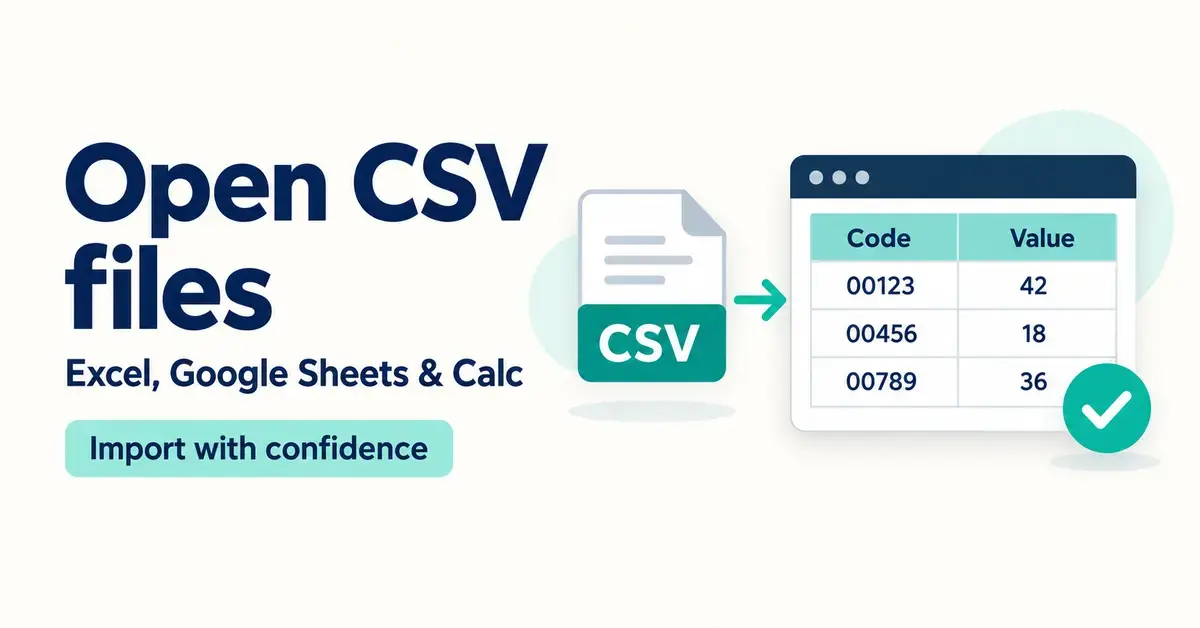
A CSV file is a plain-text file that stores a table of data as rows of values separated by commas, and you can open one free in almost any spreadsheet program. The catch is that opening a CSV badly — usually by double-clicking it — can silently change your data: leading zeros disappear, long numbers turn into scientific notation and text that looks like a date gets rewritten. This guide shows you how to open a CSV file correctly in Microsoft Excel, Google Sheets and LibreOffice or OpenOffice Calc, how to open one when you have no spreadsheet at all, and how to avoid the mistakes that quietly corrupt your figures.
Key Points
- A CSV (Comma-Separated Values) file is plain text: rows of data with each value separated by a comma, semicolon or tab.
- Double-clicking a CSV lets the program guess everything — the fastest way to lose leading zeros or scramble dates.
- The safe method is to import: open your spreadsheet first, then set the delimiter, encoding and column types yourself.
- Excel: use Data > From Text/CSV. Google Sheets: File > Import. LibreOffice/OpenOffice Calc: File > Open shows a Text Import dialog automatically.
- Set fragile columns (IDs, codes, phone numbers) to Text, and choose UTF-8 if accents or macrons look garbled.
- You can open any CSV for free — Google Sheets, Calc and a plain text editor all cost nothing.
What is a CSV file?
CSV stands for Comma-Separated Values, and the name describes exactly what it is: a text file in which each line is one row of a table and each value in that row is separated from the next by a comma. The format is defined by RFC 4180, an informational specification published in October 2005 that also registered the official text/csv media type. Because a CSV holds nothing but text, it has no fonts, colours, formulas, charts or multiple sheets — only raw data.
That simplicity is the whole point. A CSV is the lowest common denominator for moving tabular data between programs that otherwise cannot read each other’s files. Online banking exports, point-of-sale systems, accounting packages, survey tools, email marketing lists and e-commerce platforms almost all offer a “download as CSV” option, because practically every spreadsheet and database on earth can read it. If you have ever exported transactions from your bank or a contact list from a web app, you have almost certainly handled a CSV.
Why CSV files sometimes look like a mess
Two things make CSV files look more complicated than they are. First, the “comma” is not guaranteed. Files created on computers set to some European locales use a semicolon (;) instead, because the comma is already the decimal separator in those regions; others use a tab or a pipe (|) character. If your spreadsheet expects a comma and the file uses a semicolon, every row lands squished into a single column.
Second, there is the question of character encoding — the way letters are stored as numbers. Modern files use UTF-8, which supports macrons, accents and other characters. If a program opens a UTF-8 file assuming an older encoding, names such as “Māori” or “Zoë” come out as garbled symbols. Knowing about delimiters and encoding is what separates opening a CSV cleanly from fighting with it.
How do you know a file is a CSV?
The clearest sign is the file name ending in .csv. If your computer hides extensions, right-click the file and check its properties or “Get Info” for a file type of “CSV” or “Text”. You can also open it in a plain text editor: a genuine CSV shows readable lines of values separated by commas or semicolons, with no strange binary characters. If what you see is a wall of unreadable symbols, the file is probably a true spreadsheet (.xlsx or .ods) that has simply been renamed, and it needs a spreadsheet program rather than the import steps below.
CSV File at a Glance
| Full name | Comma-Separated Values |
|---|---|
| File extension | .csv |
| Media (MIME) type | text/csv |
| Specification | RFC 4180 (informational, October 2005; updated by RFC 7111) |
| File type | Plain-text data file (no formatting or formulas) |
| Common delimiters | Comma (,), semicolon (;), tab or pipe (|) |
| Opens with | Excel, Google Sheets, LibreOffice & OpenOffice Calc, Apple Numbers, any text editor |
| Cost to open | Free (several options) |
The quick way versus the reliable way
There are two broad ways to open any CSV file. The quick way is to double-click it so it opens in whatever program is set as the default — usually Excel on Windows. This works, but it hands every decision to the software: Excel guesses the delimiter, guesses the encoding and guesses the data type of each column, and some of those guesses permanently alter your data the moment the file opens.
The reliable way is to open your spreadsheet program first, then import the CSV through a dialog that lets you confirm the delimiter, the encoding and how each column should be read. It takes a few more clicks, but it is the only way to be sure an account number keeps its leading zero or a product code does not turn into a date. For anything containing IDs, phone numbers, codes or dates, always use the import route described below.
A useful habit is to keep an untouched copy of the original CSV before you open it anywhere. Because the raw file is only text, it is tiny and easy to duplicate, and having the original means that if an import mangles something you can simply start again rather than trying to reverse changes that may already be permanent.
How to open a CSV file in Microsoft Excel
Excel opens CSV files instantly, which is convenient and also the source of most CSV horror stories. Microsoft’s own guidance is that for anything beyond throwaway data you should import rather than double-click, so that you control how the file is read.
Method 1: Data > From Text/CSV (recommended)
This modern importer, built on the Power Query engine, is the cleanest option in Excel 2016 and later, including Microsoft 365:
- Open a blank workbook in Excel.
- Go to the Data tab and, in the Get & Transform Data group, click From Text/CSV (older builds show it under Get Data > From File).
- Browse to your .csv file, select it and click Import.
- In the preview window, check three things: the Delimiter (switch it from Comma to Semicolon or Tab if the preview columns look wrong), the File Origin (choose 65001: Unicode (UTF-8) if accented characters look broken), and the data preview itself.
- Click Load to drop the data straight into the sheet, or Transform Data to set a column’s type — for example, flag an ID column as Text — before loading.
Method 2: the legacy Text Import Wizard
The older step-by-step wizard still gives the finest control over individual columns. From Excel 2016 onwards it is tucked away: go to Data > Get Data > Legacy Wizards > From Text (Legacy). If that item is greyed out, enable it first under File > Options > Data > Show legacy data import wizards. Choose Delimited, pick your delimiter, and on the final step click each column that holds codes, phone numbers or leading zeros and set its Column data format to Text. Then click Finish.
Opening a UTF-8 CSV so special characters display correctly
Microsoft notes that a UTF-8 CSV only opens cleanly on a double-click if it was saved with a “byte order mark” (BOM), a small hidden marker many systems omit. If names or symbols appear scrambled, do not try to fix them by hand — close the file without saving, then reopen it with the From Text/CSV importer above and set the File Origin to UTF-8. Saving over a scrambled file locks the corruption in permanently.
How to open a CSV file in Google Sheets
Google Sheets is a free, browser-based option that needs only a Google account, and it handles encoding well, so it is often the easiest way to open a stubborn CSV that misbehaves in Excel. Nothing installs on your computer.
Importing a CSV step by step
- Open sheets.google.com and start a blank spreadsheet.
- Choose File > Import.
- Click the Upload tab and drag your CSV in, or click Browse to pick it from your device.
- In the Import file box, set Import location (usually “Replace spreadsheet” or “Create new spreadsheet”).
- Set the Separator type. “Detect automatically” usually works, but if your columns come in jumbled, switch it manually to Comma, Semicolon or Tab.
- Decide whether to tick Convert text to numbers, dates and formulas. Leave it unticked if you need to preserve leading zeros or raw codes exactly as they are.
- Click Import data.
Once your data is in a sheet you can clean, sort and calculate on it with the full range of spreadsheet tools — see our guide to Google Sheets formulas for the functions worth knowing.
Opening a CSV straight from Google Drive
If the file is already in Google Drive, double-click it to preview, then choose Open with > Google Sheets from the top of the preview. Drive converts the CSV into an editable Sheet. This is quick, but it uses automatic detection rather than the import dialog, so for data with fragile codes the File > Import route gives you more control.
How to open a CSV file in LibreOffice Calc and OpenOffice Calc
LibreOffice Calc and Apache OpenOffice Calc are the two free, installable spreadsheet programs most people mean by “Calc”, and both are excellent for CSV work because they always show an import dialog instead of guessing. If you do not have either, you can download Apache OpenOffice free; our comparison of LibreOffice versus OpenOffice explains which suits you better.
The steps are nearly identical in both:
- Open Calc and choose File > Open.
- Select your .csv file and click Open. If the file has a different extension such as .txt, choose Text CSV in the file-type box first.
- The Text Import dialog appears automatically.
Setting the delimiter and encoding
At the top of the Text Import dialog, set the Character set (choose Unicode (UTF-8) for modern files) and, under Separator Options, tick the delimiter your file actually uses — Comma, Semicolon, Tab or a custom character you type in yourself. The live preview at the bottom of the dialog updates as you change settings, so you can see the data snap into neat columns before you commit. This instant feedback is what makes Calc so forgiving with awkward files.
Forcing a column to be read as text
In the preview area, click the heading of any column that holds leading zeros, long numbers or codes and set its Column type to Text; Calc will then import those values exactly as written instead of converting them. There is also a Detect special numbers option: leave it off and anything that is not a plain number stays as text, which is the safest choice for mixed data. Click OK to finish. To keep your spreadsheet’s formatting and formulas afterwards, save it in the native OpenDocument Spreadsheet (ODS) format rather than back to CSV.
How to open a CSV file without a spreadsheet
You do not strictly need a spreadsheet at all. Because a CSV is plain text, any text editor will open it and show the raw contents — useful for a quick peek, for checking which delimiter a file uses, or for editing a single value without triggering any auto-conversion.
- Windows: right-click the file, choose Open with > Notepad.
- macOS: open it in TextEdit, or right-click and choose Open With.
- Any system: free editors such as Notepad++ or Visual Studio Code show the encoding and let you change it, which helps when a file is garbled.
The trade-off is that a text editor shows no columns — just commas and text — so it is for inspecting and light editing, not analysis. On a phone, most built-in Files apps can preview a CSV, and the free mobile versions of Google Sheets, Excel and the office suites open them too.
Common mistakes when opening CSV files
Most CSV trouble is not the file’s fault; it is the program making an unwanted decision on open. These are the pitfalls to watch for, with the fix for each.
- Dropped leading zeros. A postcode or account number like 00123 becomes 123 because Excel reads it as a number. Fix: import the column as Text rather than double-clicking the file.
- Numbers turned into dates. A code such as 3-4 or 03/2026 can be rewritten as a calendar date that cannot be undone. Fix: set the column type to Text on import.
- Long numbers in scientific notation. A 16-digit card or barcode number shows as 1.23457E+15 and the final digits are rounded away for good. Fix: import that column as Text; never let it load as a number.
- Everything in one column. The file uses a semicolon or tab but the program expected a comma. Fix: open the file in a text editor to see the real separator, then choose it in the import dialog.
- Garbled accents and macrons. The encoding is wrong. Fix: re-import and set the character set/File Origin to UTF-8.
- Saving over the original. If a file opened with mistakes and you save it, the errors become permanent. Fix: close without saving, then reopen using the correct import settings.
- Ambiguous dates. 03/04/2026 can mean 3 April or 4 March depending on your computer’s locale. Fix: import date columns as Text and convert them deliberately, or confirm your regional date setting first.
Which program should you use?
All four options open a CSV for free; the best choice depends on what you already have and how fragile your data is. The table below compares them on the points that matter for opening a CSV cleanly.
| Program | Cost | Import dialog? | Best for |
|---|---|---|---|
| Microsoft Excel | Paid (part of Microsoft 365 or Office) | Yes, via Data > From Text/CSV | Users who already have Office and large datasets |
| Google Sheets | Free with a Google account | Yes, via File > Import | Quick access anywhere and tricky encodings |
| LibreOffice Calc | Free, open source | Yes, always on open | Offline work with the most import control |
| Apache OpenOffice Calc | Free, open source | Yes, always on open | Offline work on older or lighter systems |
| Text editor (Notepad, etc.) | Free, built in | N/A (raw text) | Inspecting the file or a one-off edit |
For everyday viewing, use whatever you already have. For data with IDs, codes, phone numbers or dates, a program that shows an import dialog — Calc, Google Sheets, or Excel’s From Text/CSV tool — is the safe choice because it lets you protect those columns before anything is converted.
Sources
- Microsoft Support — Opening CSV UTF-8 files correctly in Excel
- LibreOffice Help — Opening and Saving Text CSV Files
- LibreOffice Help — Text Import dialog options
- Apache OpenOffice Wiki — Open and Save CSV files in Calc
- Google Docs Editors Help — Import and convert files in Google Sheets
- RFC 4180 — Common Format and MIME Type for CSV Files
Frequently Asked Questions (FAQ)
Why does my CSV open with all the data in one column?
The program assumed the wrong delimiter. Your file probably separates values with a semicolon or tab rather than a comma. Open it through the import dialog in your spreadsheet (File > Import in Google Sheets, Data > From Text/CSV in Excel, or File > Open in Calc) and manually select the correct separator so the data splits into columns.
How do I stop Excel from removing leading zeros or changing my dates?
Do not double-click the file. Instead open Excel first and use Data > From Text/CSV, or the Legacy Text Import Wizard, and set any affected column’s data format to Text before loading. That tells Excel to keep the value exactly as written instead of reading it as a number or date.
Can I open a CSV file for free?
Yes. Google Sheets, LibreOffice Calc and Apache OpenOffice Calc are all free, and every computer has a built-in text editor that will open a CSV as plain text. You only pay if you choose Microsoft Excel, which is part of the paid Microsoft 365 or Office packages.
Is a CSV file the same as an Excel file?
No. A CSV is a plain-text file holding only raw data, with no formatting, formulas, charts or multiple sheets. An Excel file (.xlsx) stores all of those. Excel can open and save CSVs, but when you save a workbook as CSV everything except the values on the active sheet is discarded.
How do I open a CSV file on a phone?
Most phones preview a CSV from the Files app. To work with the data, install the free Google Sheets, Microsoft Excel or an office-suite app, then open the file from your downloads or cloud storage; the app imports it into an editable sheet much as the desktop versions do.
