
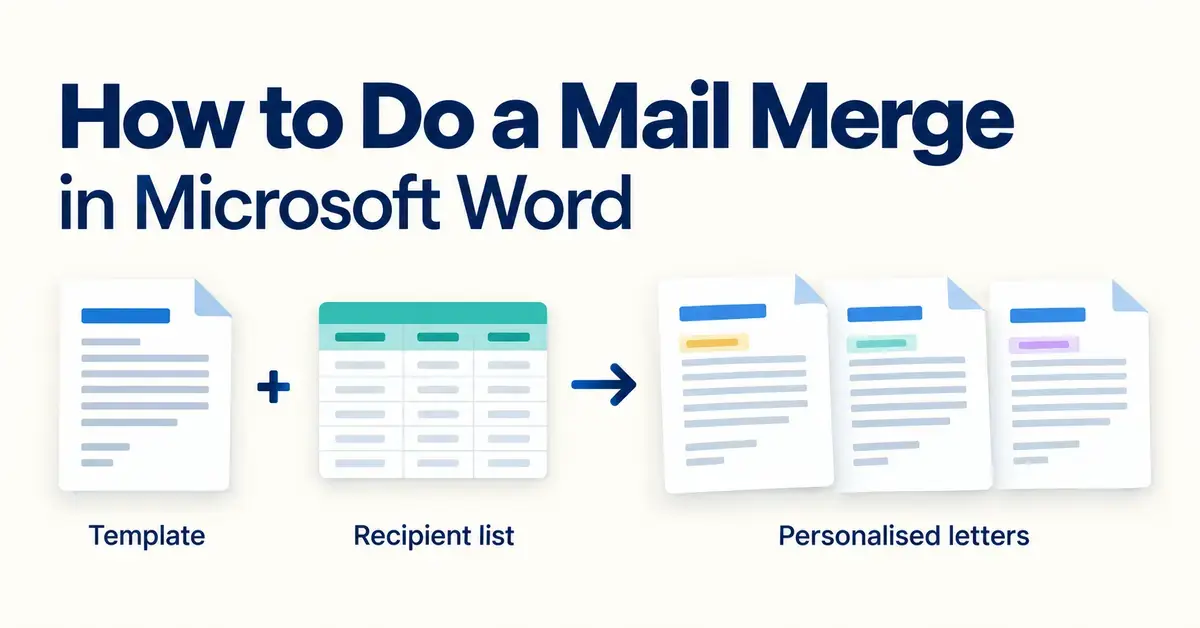
A mail merge in Microsoft Word lets you produce a batch of personalised documents — letters, emails, labels or envelopes — from a single template and a list of names and details. Instead of typing every recipient’s information by hand, you write the document once, connect it to a list (usually an Excel spreadsheet), and Word fills in the right name, address and other details for each person automatically. This guide walks through the whole process step by step for current versions of Word, covers the main variants, explains the formatting problem that trips most people up, and shows the free alternatives if you do not have Word.
Key Facts
| What it is | A Word feature that builds many personalised documents from one template and one list |
|---|---|
| Where to find it | The Mailings tab > Start Mail Merge |
| Word versions | Microsoft 365, Word 2024, 2021, 2019 and 2016 (Windows and Mac) |
| Data sources | Excel spreadsheet, Outlook contacts, a connected database, or a list typed in Word |
| Document types | Letters, email messages, envelopes, labels and directories |
| Cost | Included with any paid Word licence; free in LibreOffice and OpenOffice Writer |
What is a mail merge in Word?
A mail merge combines one template document with one list of data to create many finished documents at once. Think of a school sending the same newsletter to 300 families: the wording is identical, but each copy needs a different family name and address. Rather than editing 300 copies, you build one document with placeholders, point Word at a list, and let it generate a personalised version for every row in that list. The same approach handles invoices, appointment reminders, membership renewals, certificates and address labels — anything where the layout stays fixed but the details change from one recipient to the next.
Every mail merge involves three parts, and it helps to keep them clear from the start:
- The main document — the template you write in Word, containing your fixed text plus merge fields (placeholders such as «First_Name» that Word swaps for real data).
- The data source — the list of recipients and their details. Each column is a field (First Name, Address, Amount Owing) and each row is one recipient.
- The merged document — the finished result: one personalised copy for every row in your data source, which you can print, email or save.
Mail merge is built into Word for Microsoft 365, Word 2024, Word 2021, Word 2019 and Word 2016, on both Windows and Mac. The steps below describe the Windows ribbon; the Mac version uses the same Mailings tab with slightly different wording.
What you need before you start
The quality of a mail merge depends almost entirely on the data source, so prepare that first. The most common source is an Excel spreadsheet, but Word can also pull from your Outlook contacts, a connected database, or a short list you type inside Word itself.
If you use Excel, set it up cleanly before you open Word:
- Put the column headings in the first row — for example First Name, Last Name, Address, Postcode, Amount. Word uses these headings as the field names.
- Keep all the data on a single worksheet, with no blank rows or merged cells inside the list.
- Format numbers, dates, currency and postcodes in Excel exactly as you want them to read, then save and close the file before you begin the merge.
- Double-check spelling in the names and addresses — whatever is in the list is what prints, mistakes included.
Spending a few minutes tidying the spreadsheet saves far more time than fixing a merge that has gone wrong. If you need to sharpen your spreadsheet skills first, the same tidy-data principles apply whether you use Excel or free tools such as Google Sheets formulas.
Using Outlook contacts or a list typed in Word
You do not need a spreadsheet at all. If your recipients are already saved as Outlook contacts, choose Select from Outlook Contacts when you connect the data source, and Word reads names and addresses straight from your contact folders. For a small, one-off job, choose Type a New List instead: Word opens a simple table where you enter each recipient, and saves it as a reusable address list. Both options follow exactly the same insert-fields, preview and finish steps as an Excel merge.
How to do a mail merge in Word step by step
The clearest route for most people is the Step-by-Step Mail Merge Wizard, which walks you through the task in order. You can also work straight from the buttons on the Mailings tab once you know the sequence. Here is the full process for a personalised letter.
Step 1: Start the mail merge
Open a new blank document in Word, go to the Mailings tab, click Start Mail Merge, then choose Step-by-Step Mail Merge Wizard. A panel opens on the right. Choose the document type — Letters for this example — and click Next. On the next screen leave Use the current document selected and continue.
Step 2: Connect your data source
Choose Use an existing list, click Browse, and select your Excel file. Word asks which worksheet to use and whether the first row contains column headings — tick that box. The Mail Merge Recipients dialog then appears, listing everyone in your file. Here you can untick people you want to skip, sort the list, or filter it (for example, only recipients in Wellington). Click OK when the list is right.
Step 3: Write the document and insert merge fields
Type the body of your letter as normal. Where you want personalised details, use the Mailings tab buttons:
- Address Block inserts a correctly formatted name and address in one click.
- Greeting Line inserts a salutation such as “Dear John,” and lets you choose the style.
- Insert Merge Field drops in any single field — a first name, an invoice number, an amount — wherever your cursor sits.
Each field shows on screen inside chevrons, like «First_Name». If Word cannot match your columns to its address parts, click Match Fields and tell it which of your columns is the first name, surname, address and so on.
Step 4: Add rules for conditional text (optional)
Rules let the document change depending on each recipient’s data. On the Mailings tab, click Rules. The most useful are If…Then…Else, which prints one piece of text when a condition is met and different text when it is not (for example, “overdue” only when an amount is above zero), and Merge Record #, which numbers each record in the final order after any sorting or filtering. Rules are optional, but they turn a plain merge into something far more flexible.
Step 5: Preview the results
Click Preview Results on the Mailings tab to replace the field codes with real data. Use the arrow buttons to step through recipients one by one and check that names, addresses and numbers look correct. This is the moment to catch problems — a missing greeting, an odd blank line, or a number that has lost its formatting — before you generate hundreds of copies.
Step 6: Finish and merge
When the preview looks right, click Finish & Merge and choose how to complete the job:
- Edit Individual Documents creates one long Word file with every personalised copy, so you can make last-minute tweaks before printing.
- Print Documents sends the merge straight to the printer.
- Send Email Messages emails each recipient individually (this needs Outlook set up on the same computer).
Always keep your original template and data source saved separately. If the list changes next month, you simply reconnect the updated spreadsheet and run the merge again — there is no need to rebuild the fields.
One habit saves a lot of grief: before you print or email a full run, use Edit Individual Documents to generate the whole batch as a single file and skim the first few and last few pages. A quick scan catches a stray blank field or a wrong column long before it reaches a printer tray or an inbox.
How to do a mail merge for emails, labels and envelopes
The six steps above work for every merge type — only the document choice in Step 1 changes. Word offers four built-in types, and knowing which to pick saves a lot of guesswork.
- Letters — a personalised page per recipient, printed on separate sheets.
- Email messages — one email per recipient, each addressed only to that person. You pick the column that holds the email addresses and set the subject line; Outlook sends them.
- Envelopes — Word asks for the envelope size, then prints a name and address on each one.
- Labels — choose the label sheet brand and product number (for example an Avery code), and Word lays out a grid, repeating the fields across every label with the Update Labels button.
For emails, send a test to yourself first. Once a merge leaves Outlook you cannot recall it, so a single test message confirms the subject, formatting and merge fields before the whole list goes out.
Common mail merge mistakes and how to fix them
Most merge problems come from the data source or from skipping the preview. These are the issues that catch people most often.
Numbers, dates and currency come out wrong
This is the single most common complaint. A value formatted in Excel as 30% can appear in Word as 0.3, $1,250.00 can become 1250, and a date like 20/05/2026 can flip to 5/20/2026. It happens because Word reads the raw stored value, not the formatting Excel shows on screen.
The reliable fix is to connect to Excel using Dynamic Data Exchange (DDE), which pulls the formatted values across. In Word, go to File > Options > Advanced, scroll to the General section, tick Confirm file format conversion on open, and click OK. Then, when you select your recipient list, tick Show all in the data-source dialog and choose MS Excel Worksheets via DDE. Your numbers, dates and percentages will now keep the formatting they had in Excel.
Blank lines appear in addresses
If some records leave a field empty (no second address line, for instance), you can get an ugly gap. Using the Address Block button usually handles this automatically, because it suppresses empty lines. If you build the address from individual fields instead, Word has a setting to remove blank lines caused by empty fields.
The merge shows field codes instead of data
If you see { MERGEFIELD First_Name } rather than a name, field codes are switched on. Press Alt + F9 to toggle back to normal view, or just click Preview Results.
Word cannot find the fields
If the wizard will not match your columns, your headings are probably missing, duplicated or sitting below a blank row. Close Word, fix the spreadsheet so the headings are on row one with no gaps, save it, and start the merge again.
Every label shows the same name
On a label merge, a common surprise is that only the first recipient appears and the rest of the sheet repeats them, or stays blank. This happens when you forget to apply the layout to the whole page. After inserting your fields into the first label, click Update Labels on the Mailings tab so Word copies the arrangement — complete with the Next Record rule — across every label on the sheet, then preview again.
Can you do a mail merge for free?
Yes. Mail merge is not unique to Word, and if you do not have a Microsoft 365 subscription or a one-off Office licence you have solid free options. If you want to install Word first, our guide to getting Microsoft Word in New Zealand covers the editions and pricing, and Mac users can check Microsoft Word for Mac.
The best-known free desktop alternatives are the open-source suites LibreOffice and Apache OpenOffice. Both include a Mail Merge Wizard in their Writer word processor that works much like Word’s: you register a data source (a spreadsheet, text file or database), insert fields into a letter, and print or save the merged copies. OpenOffice Writer reaches the wizard through its Tools menu, while LibreOffice is generally the more actively maintained of the two in 2026. Both can also open and save Word’s .docx format, so a template built in one suite can usually be finished in the other if you later switch.
Cloud users sometimes expect Google Docs to do this, but Google Docs has no native mail merge. Instead you add a free or freemium add-on from the Google Workspace Marketplace, which reads a Google Sheet and fills a Docs template. That works well for simple letters and bulk Gmail, though the add-ons vary in quality and some cap how many documents you can create for free.
Mail Merge Options Compared
| Tool | Cost | How mail merge works | Best for |
|---|---|---|---|
| Microsoft Word | Paid (Microsoft 365 or one-off Office) | Mailings tab plus the Step-by-Step Wizard; reads Excel or Outlook | Full-featured letters, labels, envelopes and conditional rules |
| LibreOffice Writer | Free, open source | Built-in Mail Merge Wizard reading a registered data source | A free, actively maintained desktop alternative |
| Apache OpenOffice Writer | Free, open source | Mail Merge Wizard via the Tools menu | Older or lightweight computers |
| Google Docs add-ons | Free or freemium | No native merge; a Marketplace add-on reads a Google Sheet | Cloud teams and bulk Gmail |
Which approach suits you?
Choose the tool you already have and know. If Word is installed and your list lives in Excel, the built-in merge is the fastest and most capable route, especially for labels, envelopes and conditional rules. If cost matters and you work offline, LibreOffice Writer gives you the same core feature for free with good compatibility. If your whole team already works in Google Workspace and you only need personalised emails or simple letters, a Marketplace add-on may be enough. For a handful of documents it is often quicker to personalise them by hand; mail merge earns its keep from about a dozen recipients upward, and becomes essential once you are into the hundreds.
Whichever tool you pick, the thinking is the same: a clean list of data, a template with placeholders where the personal details go, and a careful preview before you commit. Get those three things right and a task that would take hours of copy-and-paste collapses into a few minutes — and the same template is ready to run again the next time your list changes.
Sources
- Microsoft Support — Use mail merge for bulk email, letters, labels and envelopes
- Microsoft Support — Insert mail merge fields
- Microsoft Support — Set the rules for a mail merge
- Ablebits — Mail merge formatting issues in Word: causes and fixes
- LibreOffice Writer Guide — Mail Merge
- Google Workspace Marketplace
Frequently Asked Questions (FAQ)
Do I need Excel to do a mail merge in Word?
No. Excel is the most common data source, but you can also merge from your Outlook contacts, from a database Word connects to, or from a short list you type directly inside Word using the Type a New List option. Excel is simply the easiest to prepare and reuse.
Why do my numbers and dates look wrong after the merge?
Word reads the raw value Excel stores rather than the formatting you see on screen, so percentages, currency and dates can change. Connect to the spreadsheet using the MS Excel Worksheets via DDE option after ticking Confirm file format conversion on open under File, Options, Advanced, and the formatting is preserved.
Can I send personalised emails with mail merge?
Yes. Choose Email Messages as the document type, select the column that holds the email addresses, and finish with Send Email Messages. You need Outlook installed and signed in on the same computer, and it is wise to send one test message to yourself first because sent merges cannot be recalled.
Is mail merge available in the free Word for the web?
No. The browser-based Word for the web does not include mail merge. You need the desktop version of Word, or a free desktop suite such as LibreOffice Writer, to run a full merge with fields, labels and conditional rules.
How do I reuse a mail merge next time?
Save your template document and your data source as separate files. When you reopen the template, Word asks whether to reconnect to the list; say yes, update the spreadsheet with new names if needed, and run Finish and Merge again. You never have to rebuild the fields from scratch.
