
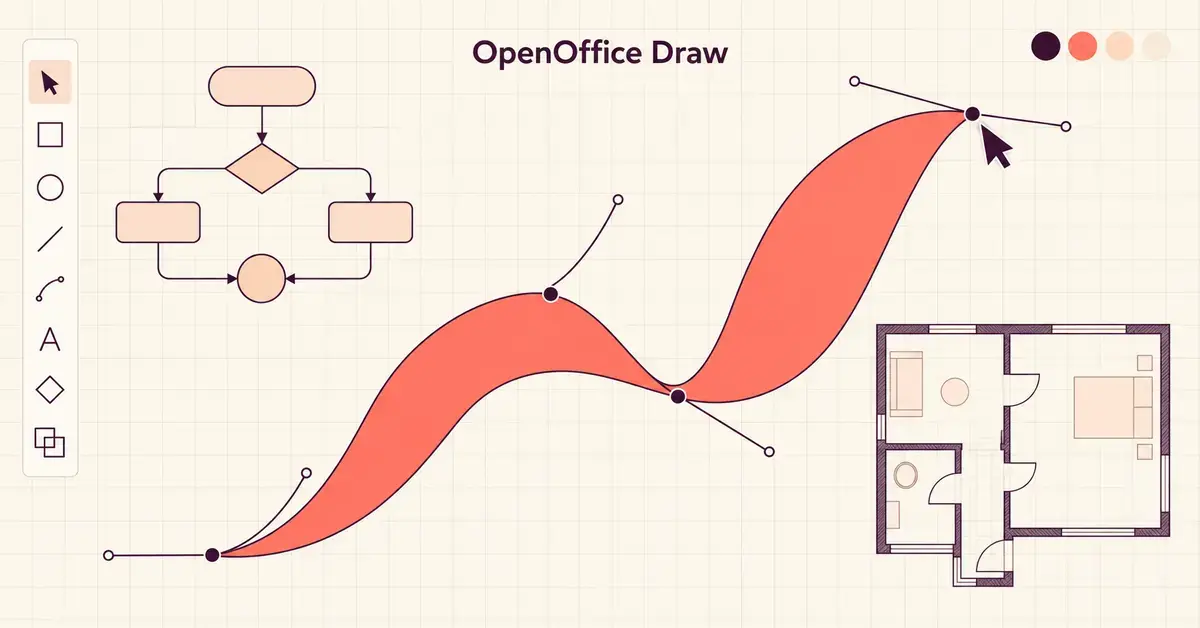
OpenOffice Draw is the free vector graphics and diagramming program built into the Apache OpenOffice suite. It lets you create flowcharts, floor plans, logos, posters, organisation charts, technical sketches and simple illustrations without paying for software. Because it is open source and released under the Apache License 2.0, you can download, use, copy and share it at no cost. This guide explains what Draw does, which features matter, what file formats it handles, how to install it safely, how to make your first drawing, and how it compares with other drawing tools in 2026.
Key Points
- What it is: OpenOffice Draw is the free, open-source vector graphics and diagramming program in the Apache OpenOffice suite.
- Best for: flowcharts, organisation charts, floor plans, posters, logos and simple illustrations.
- Native format: ODG (OpenDocument Drawing); exports to PDF, PNG and other common formats.
- Cost: completely free under the Apache License 2.0, with no account needed.
- Watch out for: incomplete SVG export, no DXF/CAD export, and infrequent updates — so keep it current.
What is OpenOffice Draw?
OpenOffice Draw is a vector graphics editor — one of the six core applications in Apache OpenOffice, alongside Writer, Calc, Impress, Base and Math. A vector program stores a picture as a set of mathematical shapes (points, lines, curves and fills) rather than as a grid of coloured pixels. That matters in practice: you can resize a vector drawing to any scale, from a business card to a poster, and the edges stay crisp instead of turning blocky.
Draw developed from the same codebase as StarOffice and shares its look and menus with the rest of the OpenOffice suite, so if you have used Writer or Impress the toolbars will feel familiar. It is maintained by the Apache Software Foundation, a non-profit that oversees hundreds of open-source projects, and it runs on Windows, macOS and Linux.
What can you do with OpenOffice Draw?
Draw is a general-purpose drawing and diagramming tool rather than a photo editor or a professional illustration suite. The tasks it handles well include:
- Diagrams and flowcharts — process diagrams, organisation charts and network maps built from connected shapes.
- Technical and scale drawings — floor plans and simple plans, with automatic dimension lines and a page up to 300 cm by 300 cm.
- Posters, flyers and signs — mixed text and graphics laid out freely on a large canvas.
- Logos and basic illustrations — shapes, curves, gradients and simple 3D objects.
- Editing imported images — arranging, cropping, annotating and combining photos or clipart.
- Quick PDF edits — opening a PDF in Draw to move or change elements, then re-exporting it.
What Draw is not: it is not a pixel-level photo retoucher like GIMP or Photoshop, and it is not a precision CAD package. For detailed photo work or engineering drawings you will want a dedicated tool, which the comparison table below points to.
Key features of OpenOffice Draw
The feature set is broad for a free program. These are the parts most people use.
Vector drawing tools
Draw provides lines, arrows, rectangles, ellipses, polygons, freeform curves and Bézier curves (curves whose shape you control with handles). You can fill shapes with solid colours, gradients, hatching or bitmap textures, and set line style, width and transparency. Because everything is a vector object, you can select, move and reshape any element long after you drew it.
Layers and grouping
Complex drawings can be split across layers, so you can keep a background, the main artwork and annotations separate and show or hide each one. Objects can be grouped, ungrouped and regrouped, and Draw lets you edit an object while it stays inside its group — useful when you are fine-tuning a diagram without taking it apart.
Smart connectors and glue points
For flowcharts and organisation charts, connectors are lines that stay attached to shapes when you move them. You can place custom glue points on a shape to control exactly where a connector joins, which keeps diagrams tidy as they grow.
Dimension lines and the grid
A magnetic grid and snap guides help you align objects precisely. Dimension lines measure and display distances automatically as you draw, which is handy for plans and scale sketches.
3D controller and rendering
Draw includes a basic 3D controller that turns flat shapes into spheres, cubes, rings and extruded objects, and lets you rotate them in two or three dimensions. You can add textures, lighting, transparency and perspective for more realistic results, though this is a convenience feature rather than a full 3D modelling tool.
Gallery and styles
A built-in Gallery supplies clipart and backgrounds, and you can add your own images to it for reuse. Graphics styles let you save a set of formatting — fill, line and text properties — and apply it consistently across a drawing.
Text and Fontwork
You can add text as a free-floating text box or place it inside any shape, which is how diagram labels stay attached to their boxes. Fontwork is Draw’s tool for shaped, decorative text — curving a word along an arc or wrapping it into a banner — useful for logos and posters. Regular text supports the same fonts, sizes, colours and spacing controls as the rest of the OpenOffice suite, so a drawing can carry proper typography rather than just captions.
Works with the rest of the suite
Anything you create in Draw can be copied straight into a Writer document or an Impress slide, because the applications share the same drawing engine. In fact, the drawing tools inside Writer, Calc and OpenOffice Impress are the same ones Draw is built around.
What file formats does OpenOffice Draw support?
Draw’s native format is ODG, the OpenDocument Drawing format. ODG is an open, XML-based OpenDocument standard, which means your files are not locked to one vendor — the same format is used by LibreOffice Draw. The trade-off is that most other programs, including Microsoft Office, cannot open an ODG file directly, so you usually share the result in a more universal format.
Importing images
You can place common image types into a drawing, including BMP, GIF, JPEG, PNG, TIFF and WMF. Draw can also open an existing PDF for light editing.
Exporting your work
Use File > Export (or Export as PDF) to turn a drawing into a format other people can use:
- PDF — the most reliable way to share a finished drawing so it looks the same everywhere.
- PNG, JPEG, GIF, BMP, TIFF — raster images for the web, documents or printing. Image export covers the active page only.
- HTML and Flash (SWF) — whole-document web exports, though Flash is effectively obsolete today.
Be aware of the limits. Vector export is weaker than import: SVG export is incomplete, and there is no export to AutoCAD’s DXF format, so Draw is not a good bridge to professional CAD workflows. For most people the practical answer is: keep your editable master as ODG and share a PDF or PNG.
How to download and install OpenOffice Draw for free
Draw is not a separate download — it installs as part of the full Apache OpenOffice suite. Always get it from the official source to avoid bundled adware or tampered installers.
- Go to the official download page at openoffice.org/download.
- Choose your operating system (Windows, macOS or Linux), your language and the latest version, which is 4.1.17, released on 14 October 2026.
- Download the installer — roughly 135 MB on Windows — and run it.
- Follow the prompts. During a custom install you can deselect modules you do not want, but Draw is included in the standard setup.
- Open OpenOffice and choose Drawing from the Start Centre, or launch Draw directly.
For a full walk-through of the installer on each platform, see our guide to downloading OpenOffice.
System requirements
OpenOffice is light on resources compared with most modern software. The published requirements for the 4.1.x line are:
- Windows: about 650 MB of free disk space for a default install (around 440 MB once installed), 256 MB RAM minimum and 512 MB recommended.
- macOS: macOS 10.7 (Lion) or later on an Intel processor, 512 MB RAM and about 400 MB of disk space.
- Linux: kernel 2.6 or later and glibc 2.5 or later, 256 MB RAM (512 MB recommended) and about 400 MB of disk space.
You do not need Java to use Draw. Java is only required for the Base database component and for some accessibility features, so you can skip it if you only want the drawing tools.
How to make your first drawing in OpenOffice Draw
Getting started takes only a few minutes.
- Open a new drawing. In the OpenOffice Start Centre choose Drawing, or use File > New > Drawing.
- Set up the page. Use Format > Page (also called Slide Properties in some builds) to set size, orientation and margins.
- Add shapes. Pick a tool from the Drawing toolbar at the bottom of the window, then drag on the canvas to draw it.
- Format objects. Right-click a shape for fill, line and position options, or use the Styles panel.
- Connect and align. Use connectors for diagrams, and turn on the grid and snap guides to keep things aligned.
- Save and share. Save your editable copy as ODG, then export a PDF or PNG for the people you are sending it to.
A few habits make the work smoother from the start. Hold Shift while dragging to keep shapes and lines in proportion or at straight angles, and use the F5 Navigator to jump between pages in a multi-page drawing. The Position and Size dialog (F4) lets you type exact coordinates and dimensions when eyeballing is not precise enough, and the Tab key cycles through objects so you can select one hidden behind another. Saving early as ODG means you always keep an editable master, even after you have exported a flat PDF or image.
OpenOffice Draw vs other drawing tools
Draw is one of several free and paid options for vector graphics and diagramming. The table compares it with the main alternatives so you can see where it fits.
| Tool | Cost | Platform | Native / best format | Best for |
|---|---|---|---|---|
| OpenOffice Draw | Free, open source | Windows, macOS, Linux | ODG | Diagrams and simple drawings inside the OpenOffice suite |
| LibreOffice Draw | Free, open source | Windows, macOS, Linux | ODG | The same job with faster, more active development |
| Inkscape | Free, open source | Windows, macOS, Linux | SVG | Serious vector illustration and clean SVG output |
| draw.io (diagrams.net) | Free | Browser and desktop | XML / PNG / PDF | Flowcharts and technical diagrams online |
| Google Drawings | Free with a Google account | Browser | Google / PNG / SVG | Quick, shareable diagrams in the browser |
| Microsoft Visio | Paid (Plan 1 from about US$5/user/month) | Windows, web | VSDX | Professional business diagramming with stencils |
| Canva | Freemium | Browser, mobile | Canva / PNG / PDF | Posters and marketing graphics from templates |
In short: if you already use OpenOffice, Draw is a capable, no-cost choice for diagrams and basic artwork. If you want a near-identical tool with more frequent updates, LibreOffice Draw is the natural step. For polished vector illustration, Inkscape is stronger, and for online flowcharts draw.io is hard to beat.
Common mistakes to avoid
A few habits save frustration with Draw.
- Sharing the ODG file itself. Most recipients cannot open ODG. Export a PDF or PNG unless you know they also use OpenOffice or LibreOffice.
- Expecting clean SVG export. Draw’s SVG export is incomplete, so a drawing meant for the web or for Inkscape may not transfer accurately. Test it before you rely on it.
- Treating Draw as a photo editor. It arranges and annotates images well, but it does not retouch photos at the pixel level.
- Downloading from an unofficial site. Only use openoffice.org or the Apache mirrors; third-party sites often wrap the installer in unwanted extras.
- Running an old version. Because updates are infrequent, people stay on outdated builds. Keep up to date for the security fixes described below.
Who is OpenOffice Draw for?
Draw suits anyone who needs a free, offline tool for diagrams, flowcharts, simple plans and light image work, and who values the privacy of software that keeps files on your own computer with no account required. Students, home users, community groups and small organisations on a tight budget are the natural audience. It is especially handy if you already run OpenOffice for word processing or spreadsheets, because the drawing tools behave the same way across the suite and copy-paste between the applications cleanly.
It is a weaker fit if your work depends on exchanging editable files with Microsoft Visio or AutoCAD users, on precise SVG for the web, or on collaborating with others in real time — all areas where the alternatives in the table above do a better job. Knowing those boundaries up front saves you from choosing Draw for a task it was never built to do.
If you want the most actively maintained version of essentially the same program, consider LibreOffice, which forked from the same project in 2010 and now receives far more frequent releases. Our comparison of LibreOffice and OpenOffice covers the differences in detail, and the sibling guides to OpenOffice Calc round out the rest of the suite.
Is OpenOffice Draw safe to use?
Draw is safe to use when you download it from the official source and keep it updated, but the project’s slow release cadence is a genuine caveat. Apache OpenOffice typically ships only one or two updates a year. The 4.1.17 release on 14 October 2026 is a security update that fixes CVE-2026-59265, a code-execution vulnerability that had been publicly known for some time before the patch arrived — a reminder that gaps between releases can leave flaws open longer than with more actively developed suites.
The practical advice is simple: install only from openoffice.org, update as soon as a new version appears, and be cautious opening files from unknown sources. For a fuller assessment of the suite’s security record, see our analysis of whether OpenOffice is safe to download and use.
Quick Facts
| Developer | Apache Software Foundation |
|---|---|
| Latest version | 4.1.17 (released 14 October 2026) |
| Official download | openoffice.org/download |
| File size | About 135 MB (Windows installer) |
| Licence | Apache License 2.0 (free, open source) |
| Operating systems | Windows, macOS 10.7+ (Intel), Linux |
| Native file format | ODG (OpenDocument Drawing) |
Sources
Frequently Asked Questions (FAQ)
Is OpenOffice Draw really free?
Yes. OpenOffice Draw is part of Apache OpenOffice, which is free and open-source software released under the Apache License 2.0. There is no purchase, subscription or account required, and you can install it on as many computers as you like.
Can OpenOffice Draw open and edit PDF files?
Yes, within limits. Draw can open a PDF so you can move or change elements, then re-export it as a PDF. It works best on simple, text-light PDFs; complex layouts and scanned documents may not reflow cleanly, so treat it as a light editor rather than a dedicated PDF tool.
What is the difference between OpenOffice Draw and LibreOffice Draw?
They started from the same code and do almost the same things, including using the ODG format. The main difference is development pace: LibreOffice is updated far more often, while Apache OpenOffice releases updates only occasionally. Files are interchangeable between the two.
Can I open an OpenOffice Draw file in Microsoft Office?
Not directly. Microsoft Office cannot open the ODG format, so export your drawing as a PDF, PNG or another common format before sharing it with Office users. Keep an ODG copy for yourself if you still need to edit it.
Does OpenOffice Draw need Java?
No. Java is only required for the Base database component and for certain accessibility features. You can use Draw and the rest of the drawing tools without installing Java at all.
