
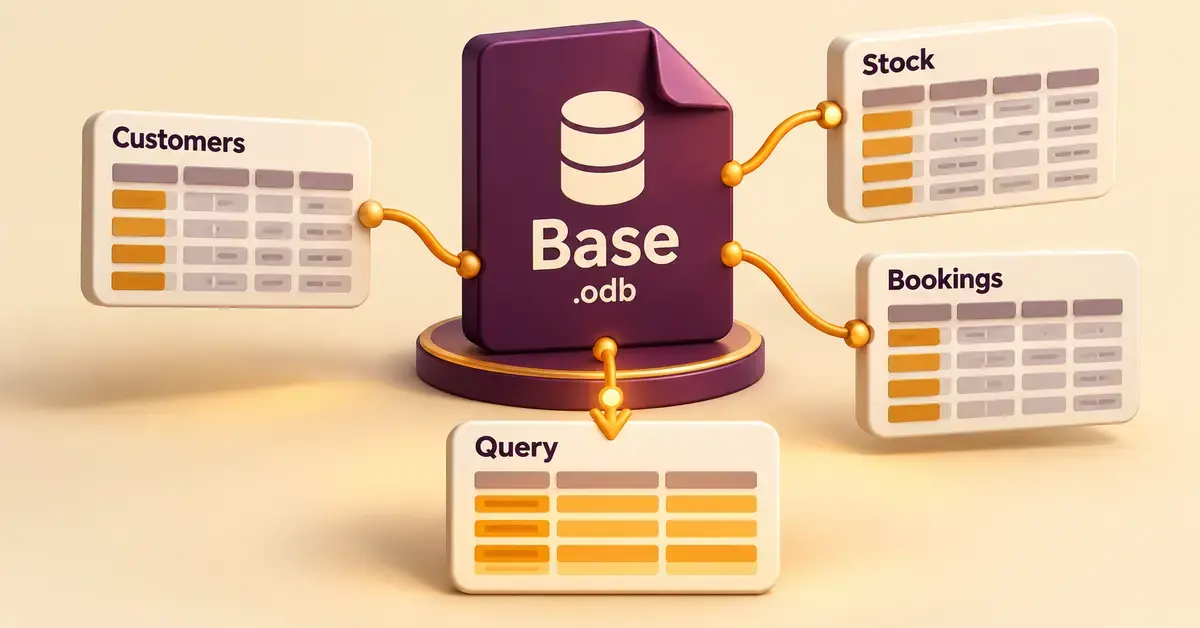
OpenOffice Base is the database program built into Apache OpenOffice, the free and open-source office suite. Most people know OpenOffice for its word processor and spreadsheet, but Base is the part that lets you store, sort and query structured information — customer lists, stock inventories, bookings, memberships or invoices — in one organised file instead of a sprawling spreadsheet. This guide explains what OpenOffice Base is, how it works, what it can and cannot do, why it depends on Java, how to download it, and how it compares with alternatives such as Microsoft Access and LibreOffice Base in 2026.
Quick Facts
| Software | OpenOffice Base (database component of Apache OpenOffice) |
|---|---|
| Developer | Apache Software Foundation |
| Official download | openoffice.org/download |
| Current version | Apache OpenOffice 4.1.17 (released 14 October 2026) |
| File format | .odb (OpenDocument Database) |
| Download size | Suite installer approximately 130–136 MB (Windows) |
| Licence | Free and open-source (Apache License 2.0) |
| Operating systems | Windows, macOS, Linux |
| Requires | A Java Runtime Environment (JRE) for database features |
What is OpenOffice Base?
OpenOffice Base is a desktop database management system — software for building and running a relational database on your own computer. A relational database stores data in linked tables rather than a single flat grid, so information is only entered once and then reused everywhere it is needed. Base provides the tools to design those tables, enter and edit records through on-screen forms, pull answers out with queries, and print tidy reports.
Base ships as one of the core applications in Apache OpenOffice, alongside the Writer word processor, the Calc spreadsheet, Impress for presentations, Draw for graphics and Math for formulas. You do not install it separately; it appears in the Start Centre once the suite is on your machine. Because it is part of an Apache Software Foundation project, Base is completely free to download, use, copy and share, with no licence fee, subscription or account required.
It is worth being clear about scale. Base is designed for individuals and small teams — personal collections, club memberships, a small business’s customer and order records — not for high-traffic, multi-user corporate systems. For larger jobs it acts as a friendly front end that connects to a heavyweight database running elsewhere.
What can you build in OpenOffice Base?
OpenOffice Base is organised around four building blocks that appear as panels down the left side of the database window: tables, queries, forms and reports. Understanding these four is the fastest way to understand the whole program.
Tables
Tables are where the data actually lives. Each table is a grid of columns (called fields, such as “First name” or “Order date”) and rows (called records, one per customer or order). You decide what each field holds — text, a number, a date, a yes/no value — and you set a primary key, a field that gives every record a unique identifier so the database never confuses two entries. Base can create tables through a step-by-step wizard, a drag-free Design View, or direct SQL for experienced users. It also includes ready-made table definitions for common jobs like tracking assets, customers, sales orders and invoices.
Queries
Queries ask questions of your data and return just the records that match. A query might list every customer in Auckland, every invoice over $500, or every order placed last month, and it can combine data from several linked tables at once. You can build queries with a visual wizard, assemble them by dragging fields in Design View, or write them by hand in Structured Query Language (SQL), the standard language databases use to retrieve and manipulate data.
Forms
Forms are the friendly on-screen windows for entering and editing records, so nobody has to type straight into a raw table grid. A form can show one record at a time with clearly labelled boxes, drop-down lists, tick boxes and buttons, which cuts down on data-entry mistakes. The Form Wizard builds a usable layout in a few clicks, and you can refine it afterwards in Design View.
Reports
Reports turn your data into a formatted document you can print or save as a PDF — a membership list, a price sheet or a monthly sales summary. Base includes a Report Wizard for quick layouts and the more capable Report Builder for grouped, sorted, drag-and-drop designs. Be aware the basic wizard is fairly limited: it cannot calculate its own statistics, so to total or average figures you usually build a query first and base the report on that.
Why does OpenOffice Base need Java?
OpenOffice Base needs a Java Runtime Environment (JRE) to run, and this is the single most important thing to know before you rely on it. The reason is the built-in database engine. Base stores data using HSQLDB (also called HyperSQL), a relational engine written in Java and configured for single-user use. Because that engine is Java-based, Base as a whole will not open properly without Java installed.
This sets Base apart from the rest of the suite. Writer, Calc and Impress only call on Java for optional extras, so they work fine without it. Base is different: the embedded database, many of its wizards, and any JDBC connection to an outside database all depend on Java. Since Apache OpenOffice 3.4, the suite no longer bundles a Java runtime, so you install a compatible JRE yourself — a free OpenJDK build or Oracle Java — and make sure its “bitness” (32-bit or 64-bit) matches your OpenOffice install, or OpenOffice will not detect it.
If you cannot or would rather not install Java, Base can still do a few things without it — for example opening CSV files, spreadsheets and dBASE files as data sources — but the headline feature, creating a self-contained database, is unavailable. For most people the practical answer is simply to install Java first.
What databases can OpenOffice Base connect to?
OpenOffice Base is not only a database of its own — it is also a front end that can connect to databases running elsewhere. When you create a new Base file, a wizard asks whether you want to build a new embedded database, open an existing file, or connect to an external data source.
- Its own embedded database: the default HSQLDB engine, stored inside your .odb file. Best for one person on one computer.
- Native drivers: Base includes direct connectors for MySQL, PostgreSQL, Adabas D and Microsoft Access (the JET engine behind .mdb files).
- dBASE files: Base can open legacy dBASE flat files directly.
- JDBC and ODBC: standard connection layers that let Base talk to almost any database on the market, including enterprise systems, provided the right driver is installed.
- Address books and spreadsheets: Base can read contact data and spreadsheet ranges as read-only data sources.
A word of caution on Microsoft Access: Base can read tables from Access files, but its support is limited. It does not read the forms or reports stored inside an Access database and cannot create or modify Access files, so it is a viewer and migration aid rather than a drop-in Access replacement. Once a data source is connected, other parts of the suite can use it too — Writer’s mail merge can pull names and addresses from it, and Calc can link to a data range for analysis.
What is an .odb file?
An .odb file is the document OpenOffice Base creates and saves, and the letters stand for OpenDocument Database. It belongs to the same open OpenDocument family as .odt text documents and .ods spreadsheets, which means it is a documented, non-proprietary format rather than a locked vendor file.
What the .odb actually contains depends on how you set up the database. With the default embedded engine, the single .odb file holds everything — the HSQLDB data plus all your queries, forms and reports — in one portable package you can copy or back up like any other file. When Base instead connects to an external database such as MySQL, the .odb works mainly as a connection file: it stores the link settings and your forms, queries and reports, while the records themselves live in the external engine. Either way, LibreOffice Base opens .odb files too, so your data is not trapped in one program.
System requirements and how to download OpenOffice Base
You get OpenOffice Base by downloading the whole Apache OpenOffice suite — there is no Base-only installer. The current release is Apache OpenOffice 4.1.17, published on 14 October 2026 as a security update that also adds safer document saving (files are written and swapped in atomically), better Microsoft Excel XML compatibility and a fixed update check. It is available in 41 languages for Windows, macOS and Linux.
Always download from the official source, openoffice.org/download, and avoid third-party “download portals” that bundle extra software. Our full walkthrough of the process is in the guide to downloading Apache OpenOffice. The suite’s published requirements for the 4.1 line are modest:
- Operating system: Windows (through to Windows 11), macOS, or Linux.
- Disk space: around 650 MB free to install, roughly 440 MB once installed.
- Memory: 256 MB RAM minimum, 512 MB or more recommended.
- Display: 1024 x 768 resolution or higher, 256 colours or more.
- Java: a Java Runtime Environment is required for Base specifically (see above).
After installing, launch OpenOffice, choose “Database” from the Start Centre, and the Database Wizard opens Base. For a wider look at the suite’s background and standing, see our Apache OpenOffice overview.
How to get started with OpenOffice Base
Creating your first database in OpenOffice Base takes only a few steps, and the wizard guides you through most of them.
- Open Base: start OpenOffice and click “Database” to launch the Database Wizard.
- Choose a database type: select “Create a new database” to use the built-in HSQLDB engine, then click Next.
- Register and save: choose whether to register the database (so other OpenOffice apps can use it), tick “Open the database for editing”, and save the .odb file somewhere memorable.
- Create a table: in the Tables panel, use the Table Wizard or Design View to add your fields and set a primary key.
- Add a form: use the Form Wizard to build a window for entering records cleanly.
- Enter your data: type records into the form rather than the raw table.
- Query and report: build queries to answer questions, then a report to print or export the results.
Save often, and keep a backup copy of the .odb file — with an embedded database, that one file is your entire system.
OpenOffice Base compared with the alternatives
OpenOffice Base is one of several ways to build a small database, and the right choice depends on your budget, platform and how many people need access. The table below sets it beside the main alternatives, with links to each official site.
Comparison
| Database tool | Type | Cost | Best for |
|---|---|---|---|
| OpenOffice Base | Desktop, offline (needs Java) | Free | Single-user databases inside the OpenOffice suite |
| LibreOffice Base | Desktop, offline | Free | The actively updated successor, with Firebird support |
| Microsoft Access | Desktop (Windows) | Paid (Microsoft 365) | Windows users who need polished forms and reports |
| Airtable | Cloud, web and app | Free tier and paid | Teams wanting a shared, spreadsheet-style database |
| DB Browser for SQLite | Desktop, offline | Free | Lightweight single-file SQLite databases |
| Google AppSheet | Cloud, no-code | Free tier and paid | Turning a spreadsheet into a simple app and database |
The closest relative is LibreOffice Base, part of the LibreOffice suite that split from the same OpenOffice.org codebase. LibreOffice is updated far more often and can use the modern Firebird engine as well as HSQLDB, which is why many guides now recommend it over OpenOffice. Our in-depth LibreOffice vs OpenOffice comparison explains the differences in full.
Common mistakes to avoid with OpenOffice Base
Most problems new users hit with OpenOffice Base come from a handful of avoidable mistakes rather than from the software itself.
- Forgetting Java, or installing the wrong version: Base will not run its database features without a JRE, and a 64-bit OpenOffice needs a 64-bit Java. Match the bitness and check under Tools > Options > Java.
- Treating the embedded database as indestructible: everything sits in one .odb file, so if that file corrupts you can lose the lot. Keep regular backups and avoid storing it only in a syncing cloud folder, which can corrupt an open file.
- Expecting it to replace Access fully: Base reads Access tables but not Access forms or reports, and cannot write Access files. Plan a proper migration rather than hoping files just open.
- Using the embedded engine for a whole team: HSQLDB in a .odb is single-user. Several people opening the same file at once risks conflicts and corruption — connect Base to a shared MySQL or PostgreSQL database instead.
- Trying to make Base a spreadsheet: if your data is a simple flat list, a spreadsheet is often the better tool. Base pays off when you have related tables that would otherwise mean repeating the same information.
Is OpenOffice Base safe and private to use?
OpenOffice Base is safe to use when you download it from the official Apache source, and it is strong on privacy because it is desktop software: your database lives on your own computer, with no cloud account, telemetry or subscription involved. That makes it a sensible choice for sensitive records that you would rather not host on someone else’s servers.
The honest caveat is pace of patching. Apache OpenOffice is maintained by a small volunteer team and ships security updates infrequently — 4.1.17 in October 2026 followed 4.1.16 from November 2025. Because Base leans on Java, keeping both OpenOffice and your Java runtime current matters. For the fuller picture, including known issues, read our guide on whether OpenOffice is safe to use.
Who is OpenOffice Base for?
OpenOffice Base suits anyone who needs a free, offline, no-strings database for personal or small-scale use and who already runs the OpenOffice suite. It is a good fit for home collections, club and volunteer records, a sole trader’s customer and invoice list, students learning relational database concepts and SQL, and anyone who wants a local front end to an existing MySQL or PostgreSQL database.
It is a weaker fit if you need frequent security updates, polished multi-user access out of the box, or seamless Microsoft Access compatibility — in those cases LibreOffice Base, Microsoft Access or a cloud tool like Airtable will serve you better. If your records are really just a single list, a spreadsheet such as Calc or Excel is simpler. For word processing and documents alongside your data, OpenOffice also includes Writer, which can merge data straight from a Base source.
Sources
- Apache OpenOffice — Base product page (features and supported databases)
- Apache OpenOffice — official downloads page (current version)
- Apache OpenOffice — Announcing 4.1.17 (14 October 2026)
- Apache OpenOffice wiki — Do I need Java to use Base?
- Apache OpenOffice — system requirements (Windows)
- The Document Foundation — LibreOffice Base
Frequently asked questions (FAQ)
Is OpenOffice Base completely free?
Yes. OpenOffice Base is part of Apache OpenOffice, which is free and open-source software released under the Apache License 2.0. There is no purchase price, subscription or account to create, and you may use it at home or in a business at no cost.
Do I really need Java to use OpenOffice Base?
For its main job, yes. Base’s built-in HSQLDB database engine is written in Java, so you need a Java Runtime Environment installed to create and use an embedded database. Without Java you can still open a few data sources like CSV and spreadsheet files, but the core database features will not work.
Can OpenOffice Base open Microsoft Access files?
Partly. Base can read tables from Access .mdb and .accdb files, but it does not open the forms or reports stored inside them and cannot create or edit Access files. It works as a viewer and migration aid rather than a full Access replacement.
What is the difference between OpenOffice Base and LibreOffice Base?
Both grew from the same OpenOffice.org code and work very similarly, and both read .odb files. The practical difference is upkeep: LibreOffice is updated far more often and supports the modern Firebird engine as well as HSQLDB, so most reviewers now recommend LibreOffice Base for new projects.
Is OpenOffice Base suitable for a business?
It can suit a very small business or sole trader using it on one computer, for example to track customers, stock or invoices. For a team that needs several people in the database at once, connect Base to a shared MySQL or PostgreSQL server rather than relying on the single-user embedded file.
