
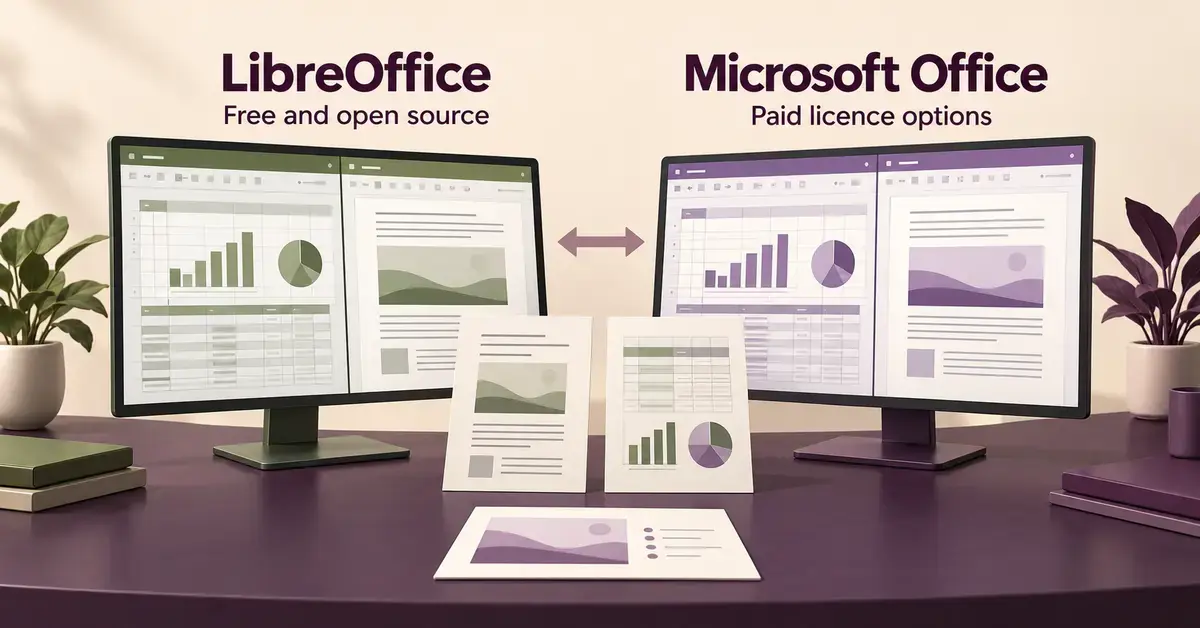
LibreOffice and Microsoft Office both let you write documents, build spreadsheets and create presentations, but they sit at opposite ends of the market: LibreOffice is a free, open-source suite you own outright, while Microsoft Office is the paid, industry-standard package most workplaces and schools run. This guide compares the two fairly – on cost, features, file compatibility, privacy and who each one actually suits – using current 2026 versions and real New Zealand prices so you can decide which belongs on your computer.
Key Points
- LibreOffice is free and open-source (Mozilla Public License v2.0); Microsoft Office is paid, sold as a Microsoft 365 subscription or a one-time Office 2024 licence.
- NZ pricing (2026): Microsoft 365 Personal NZ$17/mo or NZ$179/yr, Family NZ$23/mo or NZ$229/yr; Office Home 2024 about NZ$259 one-off. LibreOffice costs nothing.
- Features are close for everyday use; Microsoft leads on advanced Excel, presentation polish, Copilot AI and real-time cloud collaboration.
- Compatibility works both ways but is not pixel-perfect – LibreOffice reads and writes .docx, .xlsx and .pptx, yet complex layouts, fonts and VBA macros can shift.
- LibreOffice runs on Windows, Mac and Linux and keeps files offline; Microsoft Office is Windows/Mac/web and cloud-connected via OneDrive.
- Best for: LibreOffice suits budget-conscious home users and small businesses; Microsoft Office suits those who exchange complex Office files daily or need its AI and ecosystem.
What is LibreOffice?
LibreOffice is a free, open-source office suite developed by the non-profit Document Foundation. “Open-source” means the program’s code is public, anyone can inspect or improve it, and the software is released under the Mozilla Public License v2.0 – so there is no purchase price, no subscription and no licence to track. It runs on Windows, macOS (both Intel and Apple Silicon Macs) and Linux, which Microsoft Office does not natively support.
The suite bundles six applications: Writer (word processing), Calc (spreadsheets), Impress (presentations), Draw (diagrams and vector graphics), Base (databases) and Math (formula editing). As of October 2026 the project offers two builds: version 26.8 (the “fresh” line with the newest features) and 26.2 (the “still” line, which is a touch more conservative and better suited to businesses). LibreOffice saves natively in the OpenDocument Format (ODF) – file types ending in .odt, .ods and .odp – but it can also open and save Microsoft’s formats. If you are new to the suite, our guide on how to download LibreOffice safely walks through the install, and if you are weighing it against its older sibling, see our LibreOffice vs OpenOffice comparison.
What is Microsoft Office (and Microsoft 365)?
Microsoft Office is the paid productivity suite that has set the market standard for decades, and today it is sold mainly as a subscription called Microsoft 365. The classic apps – Word, Excel, PowerPoint, OneNote and (in some editions) Outlook and Access – are the same tools most New Zealand offices, government agencies and schools already use, which is why their file formats dominate.
There are two ways to buy it. Microsoft 365 is a rolling subscription that includes the always-updated desktop apps, 1 TB of OneDrive cloud storage per person and the Copilot AI assistant. A one-time purchase (Office Home 2024 or Office Home & Business 2024) gives you the classic desktop apps on a single PC or Mac with no ongoing fee, but no cloud storage, no Copilot and no upgrade to the next version. Microsoft also offers Office for the web – stripped-back versions of Word, Excel and PowerPoint that run free in a browser with a Microsoft account. For the business side of the subscription, our guide to Microsoft 365 Business plans in NZ covers the company-focused tiers.
LibreOffice vs Microsoft Office: the short answer
LibreOffice wins on price and freedom; Microsoft Office wins on polish, compatibility and ecosystem. If your budget is zero, you value owning your software and keeping files on your own machine, LibreOffice does almost everything a home user or small business needs. If you exchange complex documents with Office users daily, rely on advanced Excel features or want the smoothest cloud collaboration and AI, Microsoft Office earns its price. The table below summarises the headline differences before we dig into each one.
At a Glance
| Feature | LibreOffice | Microsoft Office / 365 |
|---|---|---|
| Cost (NZ, 2026) | Free | 365 from NZ$179/yr; Office Home 2024 ~NZ$259 one-off |
| Licence model | Open-source, own it, unlimited installs | Subscription or one-time per device |
| Platforms | Windows, macOS, Linux | Windows, macOS, web, mobile (no native Linux) |
| Core apps | Writer, Calc, Impress, Draw, Base, Math | Word, Excel, PowerPoint, OneNote, Outlook* |
| Native file format | OpenDocument (.odt, .ods, .odp) | Office Open XML (.docx, .xlsx, .pptx) |
| Opens Office formats | Yes (reads & writes .docx/.xlsx/.pptx) | Yes (also opens ODF files) |
| Cloud & co-authoring | Offline by default (Collabora Online is separate) | OneDrive cloud, real-time co-authoring built in |
| AI assistant | None built in | Copilot (with Microsoft 365) |
| Macros | LibreOffice Basic, Python (limited VBA support) | VBA |
| Best for | Home users, students, budget-aware businesses | Office-heavy workplaces, power users, cloud teams |
*Outlook is included in Microsoft 365 and Office Home & Business 2024, but not in Office Home 2024.
Cost compared
Cost is the clearest difference: LibreOffice is completely free, while Microsoft Office ranges from free-but-limited web apps to a recurring subscription. Here is how the money actually breaks down in New Zealand.
How much does LibreOffice cost?
LibreOffice costs nothing – no purchase price, no subscription and no per-user licence, for home users and businesses alike. You can install it on as many computers as you like, and every upgrade is also free. The only “cost” is optional: the Document Foundation welcomes donations, and some organisations pay a third party such as Collabora for long-term support, but neither is required to use the suite fully.
How much does Microsoft Office cost in NZ?
Microsoft Office is a paid product with several price points. As of 2026, the New Zealand prices on Microsoft’s own store are:
- Microsoft 365 Personal – NZ$17/month or NZ$179/year, for one person, with 1 TB of OneDrive storage and sign-in on up to five devices.
- Microsoft 365 Family – NZ$23/month or NZ$229/year, shared by one to six people, each with their own 1 TB of storage (up to 6 TB in total).
- Office Home 2024 – NZ$259 one-off, a classic non-subscription licence for one PC or Mac with Word, Excel, PowerPoint and OneNote (no Outlook).
- Office Home & Business 2024 – NZ$439 one-off, the same apps plus Outlook, for one device.
Prices change and retailers such as PB Tech often discount the one-time editions, so treat these as indicative and check the current figure before you buy. Students and teachers should read our guide on whether Microsoft Office is free for students in NZ – many get it at no cost through their institution.
What about free options on each side?
Both have a free path, but they are not equal. LibreOffice is free in full – every feature of every app, offline, forever. Microsoft’s free option is Office for the web: Word, Excel and PowerPoint in a browser, which is genuinely useful but cannot match the desktop apps for advanced formatting, offline work or large files. In other words, LibreOffice gives you a complete desktop suite for free, while Microsoft’s free tier is a lighter web experience designed to nudge you toward a subscription.
Features compared, app by app
On everyday features the two suites are closer than the price gap suggests, with Microsoft pulling ahead on the most advanced tasks. Below is how the core apps line up.
Writer vs Word
For writing letters, reports, essays and CVs, LibreOffice Writer and Microsoft Word are comparable. Both handle styles, templates, tables, images, headers and footers, track changes, spell-check and mail merge. Word has a more refined interface, superior real-time co-authoring and tighter integration with grammar tools and Copilot, while Writer offers strong style management and native PDF export without add-ons. For a deeper look at the free side, see our guide to LibreOffice Writer.
Calc vs Excel
Excel is the stronger spreadsheet for power users, but Calc covers the vast majority of needs. Both support formulas, functions, pivot tables, charts and conditional formatting. Excel pulls ahead with huge datasets, advanced functions, Power Query, Power Pivot and Python-in-Excel, plus smoother performance on very large files. Calc handles household budgets, invoices, stock lists and most business spreadsheets comfortably, and it reads and writes Excel’s .xlsx format.
Impress vs PowerPoint
For presentations, PowerPoint has the edge in design polish and animation, while Impress does the fundamentals well. Impress supports slide layouts, transitions, animations, speaker notes and export to PDF or PowerPoint format. PowerPoint offers a larger template and effects library, Designer suggestions and Copilot-assisted slide building. For straightforward talks and lectures, Impress is more than adequate; for high-gloss corporate decks, PowerPoint is still the benchmark.
Extra apps
LibreOffice includes two tools Microsoft 365 does not bundle for home users: Draw, a capable diagram and vector-graphics editor, and Math, a formula editor. Microsoft’s extras lean toward the ecosystem instead – OneNote for note-taking, Outlook for email and calendar, and Access (Windows only) for databases, which loosely parallels LibreOffice Base.
File compatibility: can they open each other’s files?
Yes – LibreOffice can open and save Microsoft formats, and Office can open ODF files, but “compatible” is not the same as “identical”. This is the single most important thing to understand before switching.
Opening Office files in LibreOffice
LibreOffice reads and writes Word, Excel and PowerPoint files (.docx, .xlsx, .pptx) directly. Simple documents move across cleanly. Problems appear with complex material: intricate layouts, specific fonts, heavy use of comments or track changes, and especially macros. If you want to understand the format on the other side, our explainer on what a DOCX file is covers how it is built. A safe habit when sharing with Office users is to save as .docx or .xlsx and check the result, rather than assuming it is pixel-perfect.
Opening LibreOffice files in Office
Microsoft Office can open OpenDocument files (.odt, .ods, .odp), but support is imperfect and some formatting can shift. Because of this, most people who send files to Office users save in Microsoft formats from the start. If you work mainly within your own computer, keeping files in ODF is perfectly fine; it is cross-suite sharing that calls for care.
Macros and automation
This is where compatibility breaks down most often. Microsoft Office automates tasks with VBA (Visual Basic for Applications), while LibreOffice uses its own LibreOffice Basic language (plus Python and others). The two are not interchangeable: LibreOffice can run some Excel VBA if you enable the VBA option under its Load/Save settings, but complex macros usually need rewriting. If your workflow depends on VBA macros, test them thoroughly before committing to LibreOffice.
Interface and ease of use
Microsoft Office feels more modern out of the box, while LibreOffice is familiar but more traditional. Office uses the “ribbon” – the tabbed toolbar most people already know from school or work. LibreOffice defaults to classic menus and toolbars, though it now offers a ribbon-style “Tabbed” layout you can switch on. Anyone comfortable with older versions of Word will feel at home in Writer within minutes; the biggest adjustment is knowing where a handful of commands live. For new users the learning curve is modest either way.
AI, cloud and collaboration
Microsoft Office is far ahead on AI and real-time collaboration, which is one of the clearest reasons to pay for it. A Microsoft 365 subscription includes Copilot, which can draft text, summarise documents, analyse spreadsheets and build slides, and OneDrive makes genuine real-time co-authoring – several people editing the same file at once – smooth and reliable. LibreOffice has no built-in AI assistant and no native cloud; it is a desktop-first, offline suite. You can store its files in any cloud folder, and the separate commercial Collabora Online adds browser editing, but that is an extra product. If cloud collaboration is your priority, it is also worth comparing the subscription suites directly in our Google Workspace vs Microsoft 365 guide.
Privacy, security and New Zealand data
LibreOffice keeps everything local by default, which appeals to privacy-conscious users, while Microsoft 365 is cloud-connected. Because LibreOffice stores files on your own device and sends nothing to a vendor’s servers, there is no account, telemetry or cloud profile to worry about – a meaningful advantage for sensitive work. Microsoft 365 stores files in OneDrive and ties into your Microsoft account; Microsoft operates a New Zealand data-centre region and offers data-residency options, and NZ organisations should map any Office deployment to the Privacy Act 2020. On security, both are safe when obtained from official sources – download LibreOffice only from libreoffice.org and Office only from Microsoft – and both receive regular security updates for their supported versions.
Which one should you choose?
Choose based on how you work, not on brand loyalty. The free suite and the paid suite each win for different people.
LibreOffice suits you if…
- You want a complete office suite at no cost, forever.
- You work mostly on your own documents rather than exchanging complex files with Office users.
- You use Linux, or want one suite that runs identically across Windows, Mac and Linux.
- You prefer keeping files offline and on your own machine for privacy.
- You are a student, home user, club or small business watching the budget.
Microsoft Office suits you if…
- Your workplace, school or clients expect perfectly formatted Word, Excel and PowerPoint files.
- You rely on advanced Excel features, VBA macros or large datasets.
- You want Copilot AI and seamless real-time co-authoring.
- You already live in the Microsoft ecosystem – Outlook, Teams and OneDrive.
- You can get it free or discounted through your school or employer.
Common mistakes people make
Most switching regrets come from a few avoidable errors rather than from the software itself.
- Assuming files will look identical. They usually will not, down to the last margin. Always check a converted document before sending it, and keep a master copy in your original format.
- Expecting VBA macros to “just work”. They often will not transfer to LibreOffice. Test automation early, before you commit a whole team.
- Paying for Office when the free option fits. Many home users never touch a feature LibreOffice lacks – buying a subscription out of habit wastes money.
- Going free when compatibility is non-negotiable. If your income or grades depend on flawless Office files, the subscription is cheap insurance.
- Downloading from the wrong site. Get LibreOffice only from libreoffice.org and Office only from Microsoft; unofficial “free Office” sites are a common source of malware.
Sources
Frequently Asked Questions (FAQ)
Is LibreOffice as good as Microsoft Office?
For everyday tasks – writing documents, building spreadsheets and making presentations – LibreOffice is comparable to Microsoft Office and does almost everything a home user or small business needs. Microsoft Office pulls ahead on advanced Excel features, polished presentation design, Copilot AI and real-time cloud collaboration. For most people the free suite is genuinely good enough; heavy or specialised users will notice the gaps.
Can LibreOffice open and save Word and Excel files?
Yes. LibreOffice opens and saves .docx, .xlsx and .pptx files directly, so you can work with Microsoft documents and send them back in the same format. Simple files transfer cleanly, but complex layouts, special fonts, track changes and macros may shift or not carry over. When sharing with Office users, save in the Microsoft format and check the result before sending.
Is LibreOffice really completely free?
Yes. LibreOffice is free to download, install and use on as many computers as you like, for both home and business, with no subscription and no hidden fees. It is released as open-source software under the Mozilla Public License v2.0. Donations to the Document Foundation are welcome but entirely optional, and every future upgrade is also free.
How much does Microsoft Office cost in New Zealand?
As of 2026, Microsoft 365 Personal is NZ$17 a month or NZ$179 a year, and Family is NZ$23 a month or NZ$229 a year. A one-time Office Home 2024 licence is about NZ$259, and Office Home & Business 2024 (which adds Outlook) is about NZ$439, each for one device. Office for the web is free with a Microsoft account. Prices change, so confirm on Microsoft’s NZ store.
Should a small business in NZ use LibreOffice or Microsoft Office?
It depends on who you exchange files with. If your business mainly produces its own documents and watches costs, LibreOffice can run the whole office for free. If you send complex files to clients, rely on Excel automation, or need Teams, Outlook and real-time co-authoring, Microsoft 365 is usually worth the subscription. Many small businesses run a mix – LibreOffice on some machines and a few paid Office seats for compatibility-critical roles.
