
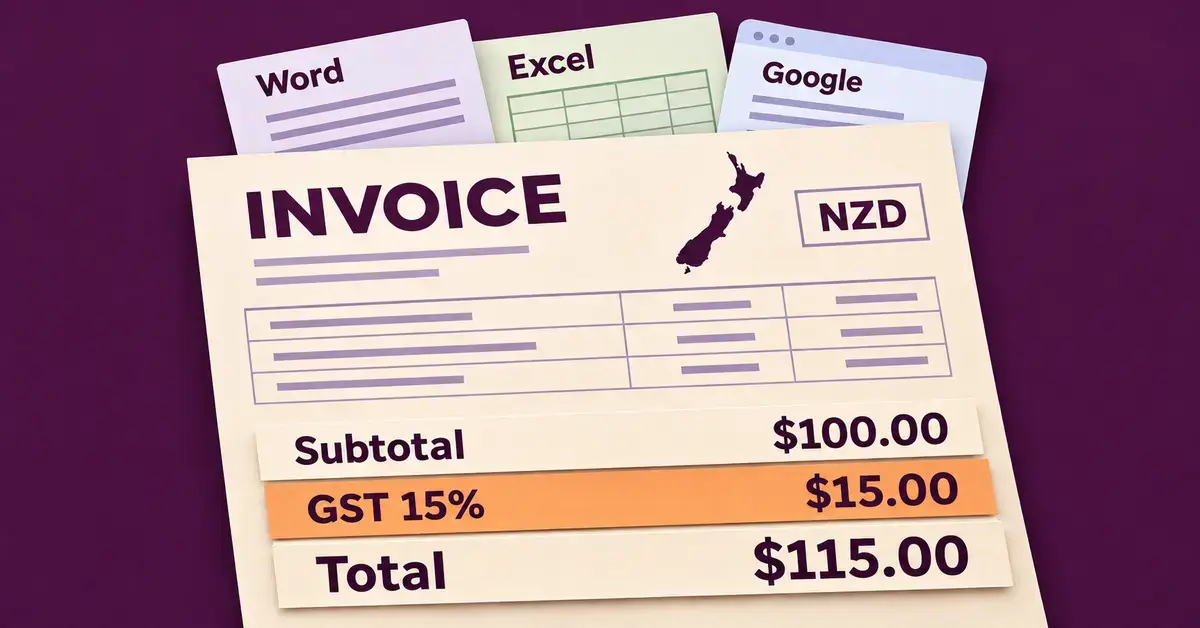
You do not have to pay for software to create an invoice: you can start from a free invoice template in Word, Excel or Google format, fill in your details and send it the same day. The closest thing to an official free template is a Word document from business.govt.nz, Microsoft offers free Excel templates, and Google Docs and Google Sheets are free with a personal Google account. What makes an invoice a New Zealand one is how it handles GST — the 15% goods and services tax — and the records Inland Revenue (IRD) expects you to keep.
Key points
- A New Zealand invoice must show who is selling, the date, a description of what was supplied and the amount — and, once you are GST-registered, your GST number and the 15% GST.
- The official free template is a Word document from business.govt.nz; Microsoft offers free Excel templates, and Google Docs and Google Sheets are free with a personal Google account.
- Spreadsheets (Excel, Google Sheets, LibreOffice Calc) calculate GST and totals for you; Word and Google Docs do not.
- Since 1 April 2023 the required records are called “taxable supply information”, but you can still label the document “tax invoice”.
- You only add GST if your business is GST-registered — compulsory once turnover reaches at least $60,000 a year.
What must a New Zealand invoice include?
At a minimum, a New Zealand invoice must show who is selling, the date, a description of what was supplied and the amount charged. Once you are GST-registered and the sale passes certain values, you also have to show your GST number and the GST amount. GST in New Zealand is charged at 15% on most goods and services.
GST only applies if your business is registered for it. You must register once your turnover reaches at least $60,000 in any 12-month period, and you can register voluntarily below that. If you are not GST-registered, you do not add GST to your invoices at all — you simply leave that line off.
Is it still called a “tax invoice”?
Not officially, but the old wording still works. From 1 April 2023, Inland Revenue replaced the requirement to issue a “tax invoice” with a broader requirement to provide and keep “taxable supply information”. The way you calculate GST did not change — only the record-keeping rules. You do not have to change the wording your business already uses: IRD says you can keep providing taxable supply information in a single document marked “tax invoice”. In short, “invoice” and “tax invoice” are both fine; the details on the page are what matter.
How much detail do you need at each amount?
The information a GST-registered seller must provide scales with the value of the sale. IRD sets three tiers:
- $200 or less: your name or trade name, the date, a description of the goods or services, and the amount. You do not need to show your GST number or the buyer’s details.
- More than $200 and up to $1,000: everything above, plus your GST number and the GST figures — either the GST-exclusive amount, the GST amount and the GST-inclusive total, or the GST-inclusive total with a note that GST is included.
- More than $1,000: all of the above, and if your buyer is GST-registered you must also record their name and one identifying detail — such as their address, phone number, email, trading name, NZBN or website.
If a GST-registered buyer asks for taxable supply information on a sale over $200, you have 28 days to provide it (or another date you both agree on). Keeping these records also supports the figures in your GST returns.
Do you need an NZBN on your invoice?
No — a New Zealand Business Number (NZBN) is not legally required on an invoice. For a sale over $1,000 to a GST-registered buyer, IRD lists the NZBN as one of the optional details you can use to identify the buyer, alongside their address, phone number, email, trading name or website. You are free to leave it off and use another of those identifiers instead.
Which free invoice template format should you choose?
Word and Google Docs are best when you want a tidy, printable layout and only send a few invoices; Excel, Google Sheets and LibreOffice Calc are better when you want the template to add up the line items and work out the 15% GST for you. All of them are free, and keeping a spreadsheet invoice alongside a free budget template makes it easier to see income against outgoings. The table below compares the main options.
Compare the formats
| Format / tool | Cost | Calculates GST & totals | Works offline | Best for |
|---|---|---|---|---|
| business.govt.nz Word template | Free | No — you type the totals | Yes (in Word or LibreOffice) | Official NZ layout, quick printable invoices |
| Microsoft Word | Free (Word online) | No — manual | Yes (desktop app) | Tidy, printable invoices |
| Microsoft Excel | Free templates | Yes — built-in formulas | Yes (desktop app) | Auto-totals; billing by quantity or hour |
| Google Docs | Free with Google account | No — manual | Browser (offline mode available) | Editing and sharing by link |
| Google Sheets | Free with Google account | Yes — formulas | Browser (offline mode available) | Shared, auto-calculating invoices |
| LibreOffice Writer / Calc | Free (open source) | Calc: yes; Writer: no | Yes (desktop app) | A free offline Office alternative |
Whichever you pick, the compliance rules are identical — the format only changes how you edit the invoice and whether the totals calculate themselves.
Free invoice template in Word
The most reliable free Word invoice template for New Zealand comes from the government’s own small-business site, business.govt.nz, which offers a ready-made Word document (about 23 KB). It is a ready-to-fill Word layout, so you only have to type your details into the blanks.
You do not even need to buy Microsoft Office to edit a Word file. The free browser-based Word online lets you open and complete a .docx from any computer, and free desktop office suites open the same files. Word’s one limitation is that it will not add up your line items or calculate GST — you type the totals in yourself, so check the maths before you send.
Free invoice template in Excel
If you would rather the template do the arithmetic, use a spreadsheet. Microsoft publishes free invoice templates in Excel with built-in formulas that total the costs, taxes and discounts for you, and you can export the finished invoice as a PDF to send. You may need to set the tax rate to 15% so the GST on your invoice is correct for New Zealand.
No Excel licence? LibreOffice Calc — part of the free, open-source LibreOffice suite you can download LibreOffice for Windows, Mac or Linux — opens and edits the same .xlsx templates, and the formulas carry across. A spreadsheet template is the natural choice if you bill by the hour or by quantity, because changing a figure updates the total instantly. If you track your hours separately, a free timesheet template can feed those figures straight into the invoice.
Free invoice template in Google Docs and Google Sheets
For a template you can edit in a browser and share by link, Google’s free apps are hard to beat. With a free personal Google account — you do not need a paid Google Workspace plan — you can open the template gallery in Google Docs or Google Sheets and start from a ready-made layout.
Google Docs gives you a clean, printable invoice you fill in by hand, while Google Sheets adds the totals and GST for you, the same way Excel does. You can download either as a Word or Excel file to send. Because a GST-correct Google invoice has a few New Zealand-specific quirks, we walk through the whole process — fields, formulas and the 15% GST line — in our guide to building a GST-compliant invoice in Google Docs.
How to fill in and send your invoice
Once you have a template, the steps are the same in every format:
- Add your business name and contact details, plus your GST number and NZBN if you have them.
- Enter the client’s name and address (and their NZBN or a purchase-order number if they ask for one).
- Give the invoice a unique, sequential number — for example INV001 — and add the issue date and a due date.
- List each item or service with a description, quantity and unit price.
- Add the subtotal, the 15% GST line if you are registered, and the total amount due.
- Include your payment details — usually a bank account number — and your payment terms.
- Save as a PDF and email it, or send it through eInvoicing if your customer supports it.
Send the invoice as soon as the work is done, while it is still fresh in the customer’s mind, and keep a copy for your own records.
Common mistakes to avoid on NZ invoices
- Adding GST when you are not registered. Only GST-registered businesses charge the 15%. If you are under the $60,000 threshold and have not registered, leave GST off the invoice entirely.
- Leaving your GST number off larger invoices. Once a sale tops $200, a GST-registered seller must show their GST number; over $1,000 you also need the buyer’s details.
- Reusing the same invoice number. Each invoice needs a unique, sequential number, or your records and the customer’s will not reconcile.
- Trusting a spreadsheet’s totals blindly. Formulas are only as good as the cells they point to — if you insert a row, check the GST and total still include it.
- Using an overseas template unchanged. Many free templates online assume a different tax system, so make sure yours shows GST at 15% and New Zealand bank details, not a foreign sales-tax field.
- Forgetting a due date. An invoice without a clear due date is harder to chase; state the payment terms plainly.
A note on tax advice
This article is general information, not tax advice. GST rules, thresholds and record-keeping requirements can change, so confirm the current rules with Inland Revenue or your accountant before you invoice.
Sources
- Inland Revenue — Charging GST (15%)
- Inland Revenue — Taxable supply information for GST
- Inland Revenue — How taxable supply information works (thresholds)
- Inland Revenue — Registering for GST ($60,000 threshold)
- business.govt.nz — Getting paid on time
- business.govt.nz — How to prepare an invoice template (free Word download)
- Microsoft — Free invoice templates in Excel
Frequently Asked Questions (FAQ)
Should I send invoices as a PDF, Word or Excel file?
PDF is the safest format to send because it looks the same on every device and cannot be altered by accident. Build the invoice in Word, Excel, Google Docs or Google Sheets, then export or save it as a PDF to email, and keep the editable version for your own records.
What if a customer doesn’t pay on time?
Start with a short, polite email reminder a couple of business days after the due date, and follow up by phone if there is no response within about a week. Clear due dates and payment terms on the invoice make this easier, and for persistent non-payment you may need a formal payment claim or debt-recovery process.
Is there a single official New Zealand invoice template?
The closest to an official template is the free Word document on business.govt.nz, the government’s small-business site. Inland Revenue sets the rules an invoice must meet but does not publish its own template, so any template that shows the required details is acceptable.
Can I use the same template for contractor and company invoices?
Yes. The required fields are the same. A contractor invoice simply lists your services and the hours or days worked, while a company invoice might list products and quantities. Adjust the line-item descriptions to suit, and include your GST number if you are registered.
