
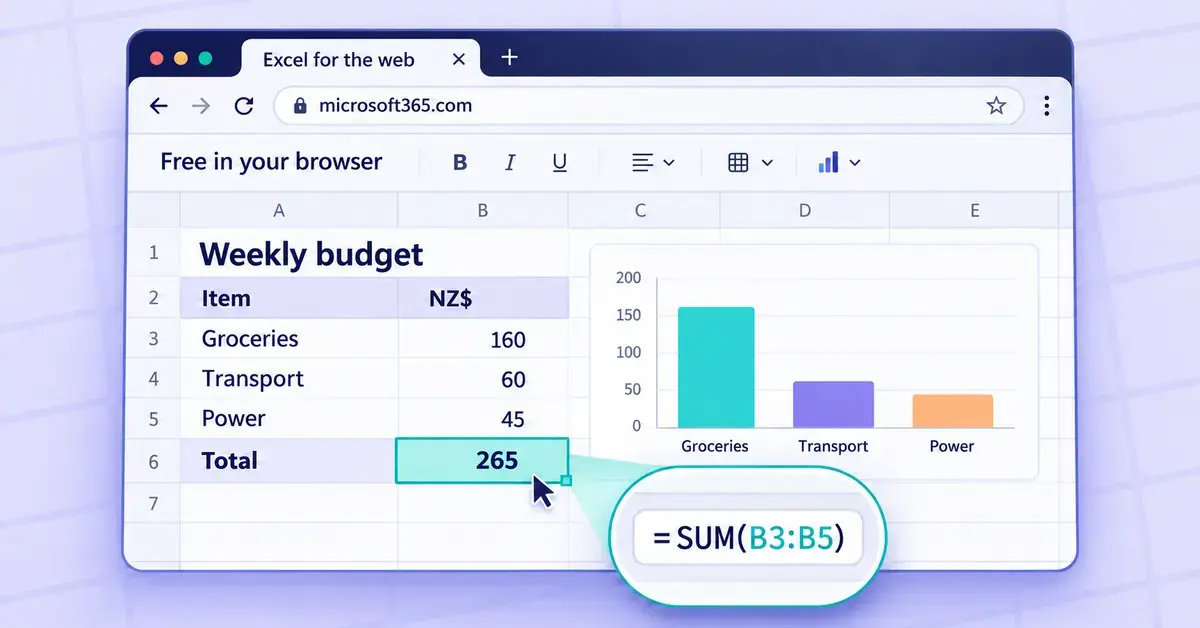
Yes, you can use Excel online for free. Microsoft offers a browser-based version called Excel for the web, and all you need is a free Microsoft account — no software to install, no credit card, and no Microsoft 365 subscription. For many New Zealand users who only build the occasional budget, timetable or simple data table, the free web version does everything they need.
This guide explains exactly how to get Excel running in your browser at no cost, what the free version can and cannot do, how the 5 GB storage limit works, what changed with Copilot AI in 2026, and the best free alternatives if the browser version ever runs out of room. Everything below is written for New Zealand readers and checked against Microsoft’s own pages.
Key Points
- Free and browser-based: Excel for the web runs at microsoft365.com with a free Microsoft account — no install, no credit card, no subscription.
- Covers everyday work: formulas (including VLOOKUP and XLOOKUP), charts, conditional formatting, basic PivotTables and live co-authoring all work free.
- Key limits: no VBA macros, no offline use, reduced data tools, and some protected or signed files will not open.
- 5 GB storage is shared across OneDrive, Outlook attachments and other apps — files turn read-only once you exceed it.
- Copilot is not free in Excel since April 2026; free users get only the separate Copilot Chat.
- NZ pricing to upgrade: Microsoft 365 Personal is NZ$17/month or NZ$179/year; Family is NZ$23/month or NZ$229/year.
What is Excel online, and is it really free?
Excel for the web is a free, browser-based version of Microsoft Excel that runs at microsoft365.com. Microsoft’s own Excel page states plainly that “Microsoft Excel for the web is free for anyone to use online.” You open a spreadsheet in Chrome, Edge, Safari or Firefox, and it behaves much like the familiar desktop app — the same grid of cells, the same ribbon of tools and the same file format.
The catch is scope rather than price. The free web version is a genuine, no-cost product, but it is a lighter edition of the paid desktop app that comes with a Microsoft 365 subscription. It covers everyday spreadsheet work comfortably; it leaves out some of the heavy-duty automation and data tools that power users rely on. The sections below set out exactly where that line falls so you know before you start.
If you also work with documents, the same free Microsoft account unlocks the browser versions of Word and PowerPoint — we cover the word-processing side in our guide to using Word online free in New Zealand.
How to use Excel for the web free in New Zealand
Getting started takes a couple of minutes and costs nothing. There is no download and no trial clock.
Step 1: Create a free Microsoft account
Go to account.microsoft.com and sign up with any email address — a Gmail, Yahoo or work address all work, or you can create a free @outlook.com address at the same time. You will not be asked for payment details for the free tier. If you already use Outlook.com, Xbox, Skype or a Windows PC, you almost certainly have a Microsoft account already and can simply sign in.
Step 2: Open Excel in your browser
Visit microsoft365.com (or office.com, which redirects there), sign in, and choose Excel from the app launcher. You can start a blank workbook, pick a template, or open a file someone has shared with you. Everything you type is saved automatically to OneDrive, Microsoft’s cloud storage, so there is no “Save” button to remember and nothing is stored only on your device.
Step 3: Work, share and reopen anywhere
Because the file lives in the cloud, you can close the tab and pick the workbook up later on a different computer, a Chromebook at the library, or your phone. The free Excel app for iOS and Android lets you view and make light edits on a small screen using the same account.
What the free browser version of Excel can do
The free web version handles the large majority of everyday spreadsheet tasks. If you have used Excel before, most of what you know still applies.
Formulas and functions
Excel for the web supports hundreds of functions, including the ones most people reach for every day: SUM, AVERAGE, COUNT, IF, and lookup functions such as VLOOKUP and the newer XLOOKUP. You can build the same formulas you would on the desktop, and they calculate in real time as you type. If lookups are new to you, our step-by-step guide to how to use VLOOKUP in Excel works equally well in the browser.
A few functions behave slightly differently online, according to Microsoft’s support documentation: NOW and TODAY read the server’s clock rather than your computer’s, INFO returns a #VALUE! error, and CHAR shows blank for non-printing characters. These edge cases rarely affect ordinary budgets, schedules or lists.
Charts, tables and conditional formatting
You can insert charts, format cells, freeze rows, sort and filter data, apply conditional formatting (for example, colouring overdue dates red) and create basic PivotTables to summarise data. Number, date and currency formatting all work, which matters in New Zealand for showing dollar amounts and getting GST calculations to display cleanly.
Real-time collaboration
One of the strongest free features is co-authoring. You can share a workbook with a link and several people can edit it at once, each person’s changes appearing live with a coloured cursor. Comments and @mentions let a team discuss figures inside the sheet. This is the same collaborative model that made Google Sheets popular, built straight into the free Excel web version.
Free Excel templates you can use in the browser
You do not have to start from a blank grid. When you open Excel for the web and choose to create a new workbook, Microsoft shows a gallery of free ready-made templates, and more are available through create.microsoft.com. These cover most common New Zealand needs:
- Personal and household: monthly budget planners, expense trackers, savings goals and simple loan calculators.
- Small business: invoices, quotes, inventory lists, timesheets and basic cash-flow sheets — handy for adding 15% GST columns.
- Planning: calendars, to-do lists, project trackers and simple Gantt-style schedules.
Each template opens as a normal workbook you can edit, rename and save to your own OneDrive, so you can reuse it as often as you like. Because the formatting and formulas are already built in, templates are the fastest way for a beginner to get a professional-looking spreadsheet without writing a single formula — and you can always tweak the figures later as your needs change.
What the free web version of Excel cannot do
Knowing the limits up front saves frustration later. The free browser edition leaves out several desktop-only capabilities:
- VBA macros do not run. You can open a macro-enabled workbook (.xlsm) in the browser, but the macros simply will not execute, and workbooks that use legacy Excel 4.0 macros cannot be displayed at all. For automation on the web, Microsoft offers Office Scripts instead — a modern, record-and-replay tool that does a similar job in the browser.
- Advanced data tools are limited. The full Power Pivot window, complex data models and the complete desktop Power Query connector library are designed for desktop Excel. Light data work is fine; serious business intelligence is not the web version’s job.
- Some files will not display. Workbooks with digital signatures or XML maps cannot be opened in a browser, and a password-protected sheet can only be viewed online — you need desktop Excel to remove the protection.
- Add-ins and some chart types are reduced. The web version supports a smaller range of add-ins and a few specialised chart and object types than the installed app.
If any of these matter to you, the paid desktop app — or a free offline alternative such as LibreOffice Calc — is the better fit. We compare the options later in this guide.
Quick Facts
| Developer | Microsoft |
|---|---|
| Where to use it | microsoft365.com (sign in and open Excel) |
| Price | Free with a Microsoft account |
| Licence | Proprietary (free online tier) |
| Platforms | Any modern web browser (Windows, macOS, Linux, ChromeOS); free iOS & Android apps |
| Free storage | 5 GB OneDrive (shared across services) |
| File formats | .xlsx, .xls, .csv, .ods |
The 5 GB OneDrive storage limit
Free Excel for the web saves your files to OneDrive, and a free Microsoft account includes 5 GB of cloud storage. The key point most people miss: that 5 GB is shared across all your OneDrive files, your Outlook.com email attachments and your other free Microsoft 365 web apps — it is not 5 GB just for spreadsheets. (Outlook.com mailbox storage of 15 GB is counted separately.)
Spreadsheets themselves are small, so a heavy Excel user could store thousands of workbooks inside 5 GB. The space usually fills up because of photos and large email attachments, not spreadsheets. According to Microsoft’s storage FAQ, if you go over the limit your existing files become read-only — you can still view them but cannot save new edits or upload anything — and after six months over quota Microsoft may delete the files. It is worth keeping an eye on your storage and clearing out large items before it fills.
Copilot and AI in Excel: what is free in 2026
Microsoft’s Copilot AI assistant is not included free inside Excel for the web in 2026. In April 2026 Microsoft removed the in-app Copilot button from Word, Excel, PowerPoint and OneNote for anyone without a paid Copilot licence, so you will no longer see an “ask Copilot” panel inside a free spreadsheet.
What free users keep is Copilot Chat, the standalone assistant you reach in a browser. You can upload an Excel file into the chat and ask it to summarise or explain the data, but it works alongside your spreadsheet rather than inside the Excel grid. To get Copilot working directly in the Excel web and desktop apps you need a paid Microsoft 365 subscription that includes it, or a separate Copilot add-on.
Free Excel online vs paid Microsoft 365 in New Zealand
The honest summary: the free web version is enough for most individuals and students, while a paid Microsoft 365 subscription is worth it if you want the full desktop app offline, in-app Copilot, bigger storage and macro support. Here is how the free tier compares with the main paid consumer plans, using current New Zealand pricing from Microsoft’s own store.
| Feature | Excel for the web (free) | Microsoft 365 Personal | Microsoft 365 Family |
|---|---|---|---|
| Price (NZD) | Free | NZ$17/month or NZ$179/year | NZ$23/month or NZ$229/year |
| People covered | 1 | 1 | Up to 6 |
| Where it runs | Browser only | Desktop, web and mobile apps | Desktop, web and mobile apps |
| Cloud storage | 5 GB (shared) | 1 TB | 1 TB per person |
| VBA macros | No (Office Scripts only) | Yes | Yes |
| Copilot in Excel | No | Included | Account owner only |
| Works offline | No | Yes | Yes |
If your only reason to pay would be more storage, note that Microsoft also sells a cheaper OneDrive Basic tier (around NZ$3/month or NZ$29/year for 100 GB) that keeps the free web apps but lifts the storage ceiling. Mac users weighing the free browser version against the installed app can read our dedicated guide to Microsoft Excel for Mac in New Zealand.
Free alternatives to Excel online
Excel for the web is not the only free spreadsheet. If you need offline editing, more storage, or simply prefer another tool, these are the strongest free options, each linking to its official source.
| Tool | Type | Free storage / cost | Best for |
|---|---|---|---|
| Google Sheets | Browser (Google account) | 15 GB shared, free | Live collaboration and Android users |
| LibreOffice Calc | Desktop (Win/Mac/Linux) | Free, works offline | Full-featured offline spreadsheets |
| Apache OpenOffice Calc | Desktop (Win/Mac/Linux) | Free, works offline | A simple, familiar classic suite |
| ONLYOFFICE | Browser and desktop | Free personal cloud / free apps | Strong Microsoft file compatibility |
| Zoho Sheet | Browser (Zoho account) | Free | Cloud spreadsheets with automation |
Google Sheets is the closest free rival to Excel online and reads and writes .xlsx files well; if you lean that way, our guide to Google Sheets formulas helps you carry your Excel skills across. For a free program you install and run entirely offline on your own machine, OpenOffice Calc is a well-known choice that opens and saves Excel files.
Common mistakes to avoid
A few predictable traps catch first-time users of the free browser version:
- Expecting macros to run. A workbook built around VBA macros will open but do nothing useful online. Check whether a file relies on macros before you commit to editing it in the browser.
- Assuming it works offline. Excel for the web needs an internet connection. If you travel or have patchy broadband, install a free offline suite such as LibreOffice Calc as a backup.
- Letting OneDrive fill up quietly. Because storage is shared with photos and email, people hit the 5 GB wall without realising and then cannot save edits. Clear large files early.
- Breaking formatting when importing data. Dates, leading zeros and NZ phone numbers can mangle on import. Our guide on how to open a CSV file in Excel, Sheets and Calc shows how to avoid it.
- Treating it as fully private by default. Files sit in Microsoft’s cloud. For sensitive personal or client data, check your sharing settings and understand where the data is stored.
Who the free browser version suits
Excel online free is an excellent fit for students, households, volunteers, freelancers and small teams who build straightforward spreadsheets — budgets, invoices, rosters, trackers and simple data tables — and value being able to open them on any device and share them instantly. It is especially handy on a Chromebook or a borrowed computer where you cannot install software.
It is a weaker fit for anyone who depends on macros, large data models, advanced add-ins, guaranteed offline access or in-app AI. Those users are better served by a paid Microsoft 365 subscription for the full desktop app, or by a free offline alternative like LibreOffice Calc if cost is the deciding factor. For most New Zealanders starting out, the free browser version is the sensible first step, and you can always upgrade later if your needs grow.
Sources
- Microsoft — Excel (New Zealand), including the free web version
- Microsoft Support — Differences between using a workbook in the browser and in Excel
- Microsoft Support — Microsoft storage FAQs (5 GB free, over-quota behaviour)
- Microsoft — Compare Microsoft 365 plans and NZ pricing
- Microsoft Support — About Microsoft Copilot Pro
- Microsoft Learn — Office Scripts documentation
Frequently asked questions (FAQ)
Is Excel online genuinely free with no hidden cost?
Yes. Excel for the web is free to use with a free Microsoft account, with no subscription, no trial period and no credit card required. Microsoft’s own Excel page confirms it is free for anyone to use online. You only pay if you choose a Microsoft 365 subscription for the desktop apps, more storage or Copilot.
Do I need to install anything to use Excel in my browser?
No. There is nothing to download. You sign in at microsoft365.com in any modern browser such as Chrome, Edge, Safari or Firefox and open Excel directly. This means it works on Windows, Mac, Linux and Chromebooks alike.
Can I open my existing .xlsx files in the free web version?
Yes. Upload a workbook to OneDrive and it opens in Excel for the web with your formulas, charts and formatting intact. The main exceptions are files that rely on VBA macros, digital signatures or XML maps, which will not run or display fully in the browser.
What happens when I run out of the free 5 GB storage?
Your files become read-only, so you can still view them but cannot save new edits or upload more. After six months over the limit Microsoft may delete files. Clearing large photos and email attachments usually frees enough space, since spreadsheets themselves are small.
Is Google Sheets a good free alternative to Excel online?
Yes. Google Sheets is free with a Google account, includes 15 GB of shared storage, and reads and writes Excel .xlsx files well. It is the closest free rival for live collaboration. LibreOffice Calc is the better pick if you need a free spreadsheet that works fully offline.
