
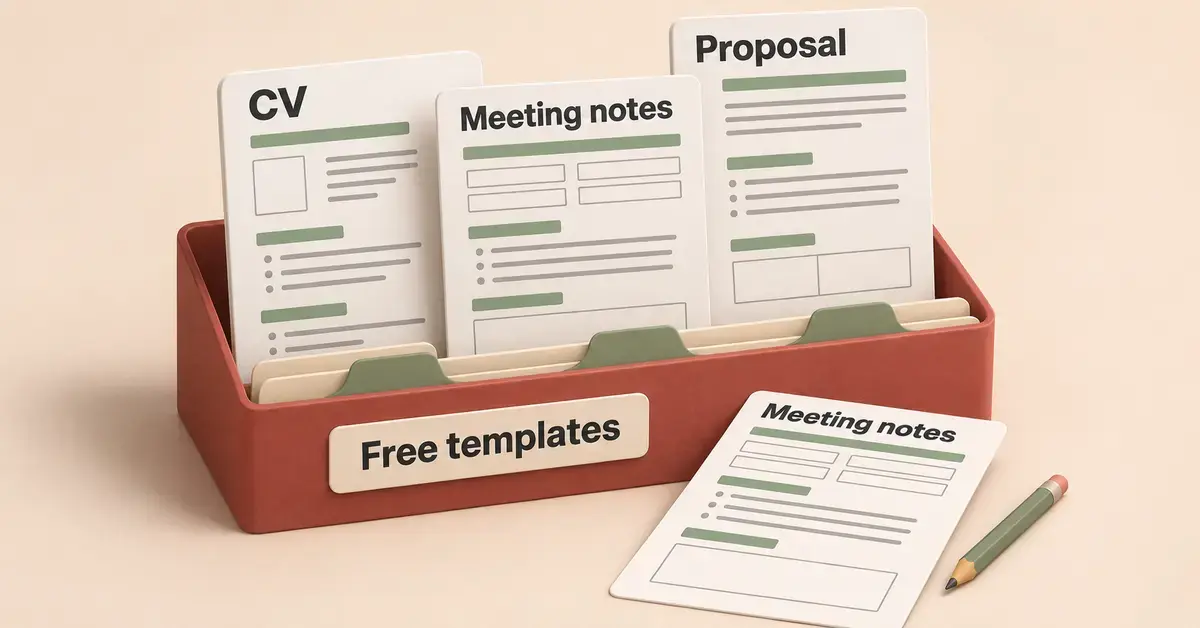
Google Docs templates are ready-made document layouts — fonts, headings, spacing and placeholder text already in place — that you open and fill in instead of starting from a blank page. They cover everyday jobs such as résumés, letters, reports, meeting notes and project proposals, and every one of them is free. This guide explains where to find Google Docs templates, which ones are worth starting with, how to copy templates safely from other websites, and how to turn any document into your own reusable template — even on a free account.
Key points
- Built-in and free: Google Docs has a free Template Gallery of Google-made résumés, letters, reports and more — open it from the top of docs.google.com or via File > New > From template gallery.
- Only a free account needed: a paid Google Workspace plan is required solely to publish custom templates to an organisation’s shared gallery.
- More designs online: reputable libraries such as Template.net, TheGoodocs, Canva, HubSpot and Smartsheet add thousands of free templates you copy into your Drive.
- Make your own: on a free account, reuse a document with the File > Make a copy method instead of a saved gallery entry.
- Stay safe: only copy templates from trusted sites, and check the permissions before installing any template add-on.
What are Google Docs templates?
A template is a pre-built document you copy and edit, rather than a file you design from scratch. When you open a template, Google Docs creates a fresh copy in your Google Drive, so the original stays untouched and you can reuse it as often as you like.
Templates save time in two ways. First, the structure is already decided — a résumé template already has sections for experience, education and contact details in a sensible order. Second, the formatting is consistent, so headings, margins and fonts look professional without any manual styling. For anyone who finds a blank page intimidating, a template turns “write a report” into “replace this text with my own”.
Google Docs templates come from two places: the built-in Template Gallery that Google maintains, and third-party libraries run by other websites. Both are covered below.
It is worth knowing what a template is not. It is not a locked form — you can change anything in it — and it is not a separate file type. A document made from a template is an ordinary Google Docs file, so it opens, shares, prints and converts exactly like any other. That also means a template never expires: once a copy is in your Drive, it stays there even if the original is later removed from the gallery.
How to use Google’s built-in Template Gallery
The fastest way to start is Google’s own Template Gallery, which is free with any Google account and needs nothing installed. The templates are made and curated by Google, so they are safe and open directly as native Google Docs files.
How do you open the Template Gallery?
There are two reliable routes:
- From the Docs home screen: go to docs.google.com, and at the top of the page select Template gallery to expand the full grid of designs.
- From inside a document: open the File menu, choose New, then From template gallery, and pick the template you want.
Each template opens as a new copy in your Drive. You can rename it, edit any text, swap colours and fonts, and share it like any other document.
How do you edit a template once it opens?
Treat the placeholder text as instructions. Click into a block, delete the sample wording and type your own; the font size and style are already set, so your text inherits the design. Replace the sample name and contact details, delete any sections you don’t need, and use Insert > Image to add a logo or photo where a template leaves space for one. Because it is a normal Google Docs file, every standard feature still works — for example you can add page numbers in Google Docs or apply strikethrough formatting as usual.
How do you show or hide templates on the home screen?
If the row of recent templates on the Docs home page gets in your way, you can switch it off. Open the Docs home page, click the main menu at the top left, choose Settings, and turn Display recent templates on home screens on or off. This only controls the preview row — the full gallery is always available from the Template gallery link.
The best free Google Docs templates to start with
The built-in gallery groups its templates by purpose. Below are the categories most people reach for first, with the kinds of documents each one contains. Every template here is free and opens straight in Google Docs.
Résumés and cover letters
The gallery includes several résumé designs — often named after colours such as Serif, Coral, Spearmint, Modern Writer and Swiss — plus a matching cover-letter layout. They already contain labelled sections for work history, education, skills and contact details, so you only replace the sample text. If you want more choice or a New Zealand focus, see our dedicated guide to a free CV template.
Letters and business correspondence
For formal writing, the gallery offers a business letter, a personal letter and a letterhead template. These set the sender and recipient blocks, date line and sign-off in the correct positions, which is useful when you need something to look official quickly.
Reports, proposals and meeting notes
Work templates include a project proposal, a sales proposal, a product fact sheet, meeting notes and a business plan outline. Education versions add report layouts in MLA and APA styles, an essay template and a lesson plan. If you run regular meetings, pair this with our ready-to-use meeting agenda template, and for billing, our Google Docs invoice template for New Zealand covers GST correctly.
Personal and everyday templates
Personal templates cover things like a class-notes page, a to-do or planner layout, a newsletter and simple brochures. They are handy for students and for household or club documents where a tidy, repeatable format matters more than heavy design.
One tip for the built-in gallery: the plainer a template looks, the easier it is to adapt. Google’s designs use standard fonts and simple colour accents on purpose, so they print cleanly and convert to PDF or Word without the layout breaking. If you need something more eye-catching, the third-party libraries in the next section are the better place to look.
Where to find more free Google Docs templates online
Google’s gallery is deliberately small and plain. When you want a bolder design or a niche document — an invoice with your branding, a travel itinerary, a menu or a social-media plan — third-party libraries fill the gap. The table below compares reputable, legal sources that offer genuine free Google Docs templates. The links go to each provider’s official site.
Comparison
| Source | Cost | Account needed | Format | Best for |
|---|---|---|---|---|
| Google Template Gallery | Free | Free Google account | Native Google Docs | Fast, trusted basics |
| Template.net | Free & premium | Sign-up for some files | Google Docs / Word | Large business library |
| TheGoodocs | Mostly free | None required | Google Docs copy | Modern, styled designs |
| Canva | Free & Pro | Free account | Exports to PDF / Word / image | Design-heavy layouts |
| HubSpot | Free | Email sign-up | Google Docs / Word | Marketing & business docs |
| Smartsheet | Free | Sometimes sign-up | Google Docs / Excel | Project & reporting docs |
Stick to well-known providers like these. Avoid random “free download” pages that ask you to install software, disable security warnings or pay before you can see the file — they are the usual route for malware and spam sign-ups, and a Google Docs template should never need an installer.
How do you copy a third-party template safely?
Most reputable sites give you a link that ends in /copy or a button labelled Use template or Make a copy. Clicking it opens Google’s own copy screen, where you confirm Make a copy and the template lands in your Drive as an editable file you fully own. You are never asked for your password, and you can close the original site afterwards.
Some libraries instead offer a Google Workspace Marketplace add-on that browses templates from inside a document. Add-ons can be convenient, but they request access to your Google account, so read the permission prompt before you install one and remove any add-on you stop using from your account’s security settings.
How to make your own reusable Google Docs template
Once you have a document laid out the way you like — a quote, a client brief, a weekly report — you will want to reuse it without rebuilding it each time. How you do that depends on your account type.
The “Make a copy” method (free accounts)
Free personal Google accounts cannot save a document into a custom template gallery, but there is a simple, reliable workaround:
- Create your master document and format it exactly as you want it, using placeholder text where details will change.
- Name it clearly, for example “TEMPLATE — Monthly report”, and keep it in its own Drive folder.
- Each time you need it, open the file, choose File > Make a copy, rename the copy, and edit the copy. The master is never touched.
This gives you an unlimited, free personal template library without any paid plan. Lock the master by leaving it as view-only for collaborators so nobody edits it by accident.
Submitting a template to your organisation’s gallery (Google Workspace)
If your workplace or school uses a paid Google Workspace plan, an administrator can switch on custom templates so staff share a branded gallery. With the feature enabled, you open the Template gallery, select your organisation’s name and choose Submit template, then pick the file and a category. Administrators control who may submit using Open (anyone), Moderated (approval required) or Restricted (admins only) settings — so if you don’t see a Submit option, the feature is either off or limited to admins.
How do you customise a template to match your brand?
A template is a starting point, not a straitjacket. A few quick changes make a generic design look like yours without undoing the layout.
- Swap the fonts: select all the text with Ctrl+A (Cmd+A on a Mac) and choose a new font from the toolbar, or set a default by formatting one heading and selecting Format > Paragraph styles > Options > Save as my default styles.
- Change the colours: highlight headings and use the text-colour and highlight tools to match your brand palette. Keep to two or three colours so the document stays readable.
- Add a logo: place the cursor where the template leaves space and use Insert > Image > Upload from computer, then drag the corner handles to size it.
- Adjust margins and spacing: open File > Page setup to change margins or page colour, and use the line-spacing button to loosen or tighten the text.
- Save the result as your own template using the Make a copy method below, so you only brand it once.
Make changes with the template’s structure in mind. Deleting a table row or a section heading is fine, but reformatting every paragraph by hand defeats the point — the value of a template is that its styling is already consistent.
Common mistakes to avoid with Google Docs templates
Templates are forgiving, but a few habits cause avoidable problems:
- Editing the original instead of a copy. Always work on a copy so your clean template survives. The built-in gallery does this for you; with your own files, use File > Make a copy first.
- Leaving placeholder text in. Sample names, “Lorem ipsum” blocks and example dates slip through easily. Read the finished document end to end before you send it.
- Downloading from unsafe sites. If a page wants you to install an app, pay upfront or turn off a browser warning to get a “free” template, leave. Genuine Google Docs templates copy straight into Drive.
- Granting add-ons more access than needed. Install template add-ons only from the official Marketplace, check the permissions, and remove ones you no longer use.
- Ignoring formatting after you paste. Pasting text from elsewhere can import mismatched fonts. Use Edit > Paste without formatting (Ctrl+Shift+V) to keep the template’s styling.
Google Docs templates versus other options
Google Docs is not the only place to find free templates, and the right choice depends on what you are making. Google Docs templates are best when you want to edit in a browser, collaborate in real time and keep files in Drive. Microsoft Word offers a larger template catalogue and more advanced desktop features, while Google Slides and PowerPoint cover presentations rather than documents.
For a head-to-head on the document editors themselves, see Google Docs vs Microsoft Word. If you need slide decks instead of documents, our guide to free Google Slides templates explains that side, and for data collection a Google Form may suit better than a document at all.
Who should use Google Docs templates?
Google Docs templates suit almost anyone who writes documents and wants them to look consistent without fuss. Students get essay and report layouts that meet common style rules; job hunters get résumés and cover letters; small businesses and freelancers get proposals, invoices and letters they can brand once and reuse; and teams on Google Workspace get a shared gallery that keeps every document on-brand. Because they are free and browser-based, they are also a natural fit for anyone on a Chromebook or working across several devices.
Sources
- Google Docs Help — Create a document from a template
- Google Workspace Admin Help — Set up and manage custom templates
- Google Workspace Admin Help — Organise templates in categories
- Google Workspace Updates — Custom templates in Docs, Sheets and Slides
- TechRepublic — 5 tips for working with templates in Google Workspace apps
Frequently asked questions (FAQ)
Are Google Docs templates free?
Yes. Google’s built-in Template Gallery is free with any Google account, and the reputable third-party libraries in this guide all have free templates too. You only need a paid Google Workspace plan if you want to publish custom templates to a shared organisation gallery, and even then the templates themselves cost nothing.
Do I need a Google account to use templates?
You need a free Google account to open a template, because Google Docs saves the editable copy to your Google Drive. The account is free to create. You do not need a paid plan, and for most third-party “Make a copy” templates you do not need an account on that other website.
How do I create my own template in Google Docs on a free account?
Free personal accounts can’t save to a custom gallery, so build a master document, name it clearly and keep it in its own folder. Each time you need it, use File then Make a copy and edit the copy, leaving the master untouched. This gives you an unlimited personal template library at no cost.
Are third-party Google Docs templates safe?
Templates from established providers such as Template.net, TheGoodocs, Canva, HubSpot and Smartsheet are safe and copy directly into your Drive. Avoid sites that ask you to install software, pay before previewing or disable security warnings. If a template uses a Marketplace add-on, review the account permissions it requests before installing it.
Can I use Google Docs templates offline?
Yes, if you set it up first. Install the Google Docs offline extension in Chrome and enable offline access for a file, and you can open and edit that copied template without a connection. Any changes sync to Drive the next time you are online. The Template Gallery itself needs a connection to browse.
