
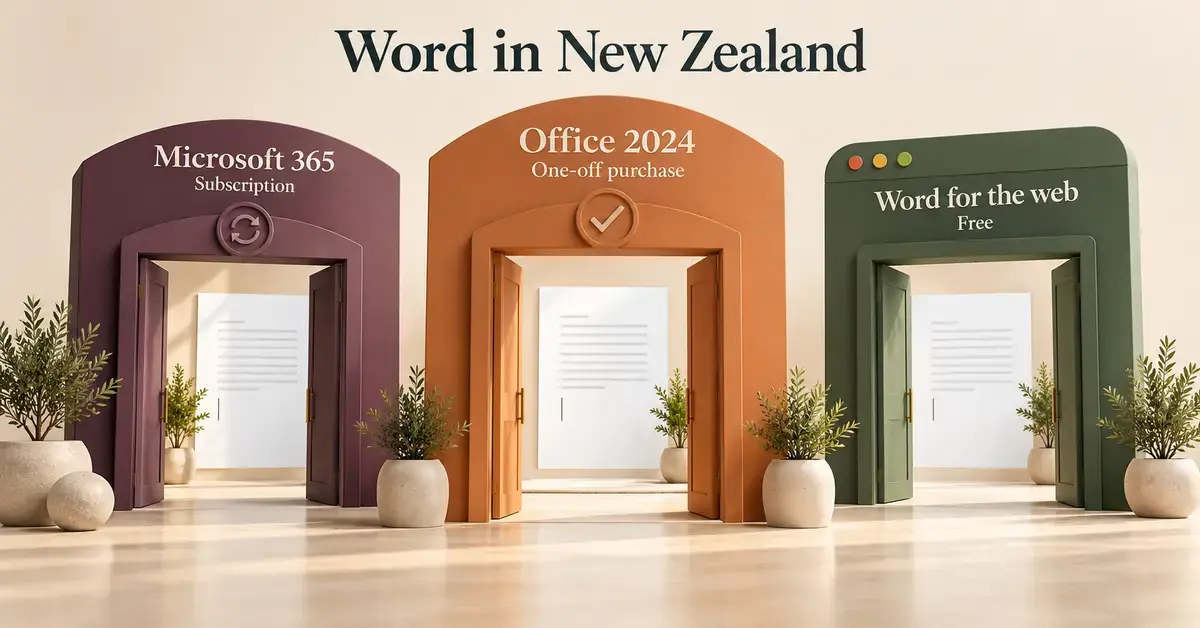
Downloading Microsoft Word in New Zealand is no longer a single action — it is a choice between a Microsoft 365 subscription, the one-off Office 2024 suite, and a free web version that runs in any browser. This guide explains exactly how to get Word on a Windows PC or Mac in 2026, what each edition costs in New Zealand dollars, how to install it safely from official sources, and the system requirements, security settings and free alternatives worth knowing before you commit.
Quick Facts
| Developer | Microsoft |
| Official download | microsoft.com/en-nz/microsoft-365 |
| Current desktop versions | Microsoft 365 Apps and Office 2024 |
| Licence | Subscription (Microsoft 365) or one-time perpetual (Office 2024) |
| Operating systems | Windows 11 and macOS (three latest), plus the web, iOS and Android |
| Download size | Around 4 GB for the full Office suite |
| NZ price (2026) | From NZ$17/month or NZ$179/year, or NZ$259 one-off for Office Home 2024 |
What “downloading Microsoft Word” actually means in 2026
In 2026, Word is almost never sold as a standalone download — you obtain it either as part of a Microsoft 365 subscription or as part of the one-time Office 2024 suite. Microsoft Word is the word-processing app inside both bundles, so the practical question is not “where do I download Word” but “which plan do I buy, and how do I install it safely”.
The installer you download is small; it is a lightweight “Click-to-Run” setup file that then streams the full suite (around 4 GB) onto your device. That matters in New Zealand because the whole suite — Word, Excel, PowerPoint, Outlook and OneNote — arrives together, even if you only intend to use Word.
Subscription versus a one-time purchase
The core decision is between a subscription and a perpetual licence. A subscription (Microsoft 365) is an ongoing payment that keeps Word updated with new features, bundles 1 TB of OneDrive cloud storage, and lets you install the apps on multiple devices. A one-time purchase (Office 2024) is paid once and installs the classic desktop apps on a single PC or Mac, with security patches only — no new features and no cloud storage.
- Choose a subscription if you want the latest tools (including Copilot AI), cloud backup, and Word on several devices.
- Choose the one-time purchase if you dislike recurring fees, work mostly offline, and are happy to keep the same version for years.
How to download Microsoft Word in New Zealand
Download Word only from Microsoft’s own channels — this is the single most important safety rule, because fake “free Office” installers are a common source of malware. There are three legitimate routes, and all of them start with a Microsoft account:
- Buy or start a trial online at microsoft.com, then install from your account page.
- Install from the Microsoft Store app built into Windows 11.
- Activate a copy that came pre-loaded on a new PC or Mac.
Download and install from Microsoft
Go to the official New Zealand Microsoft 365 page, choose a plan or free trial, and sign in with (or create) a Microsoft account. After purchase, open your account’s “Services & subscriptions” page and select Install; the setup file downloads, and running it installs Word and the rest of the suite. You can also install Word straight from the Microsoft Store app on Windows 11. If you use a Mac, the process is the same through your Microsoft account — see our guide to running Microsoft Word on a Mac for the macOS specifics.
Activating Word on a new PC
Most new laptops sold in New Zealand ship with Office pre-loaded as a trial or an activation offer. In that case you do not download anything — you open Word, sign in with your Microsoft account, and either activate an included licence or start a subscription. Always finish this step through the app itself rather than a pop-up or email link, so you are activating against Microsoft’s servers and not a scam page.
How much Microsoft Word costs in New Zealand (2026)
Word’s New Zealand pricing is set by the plan you choose, and every figure below is the current Microsoft NZ list price. There is no cheaper “Word-only” licence for the desktop app — Word always comes inside a plan.
Personal and Family plans
For home users there are two subscriptions and one perpetual option:
- Microsoft 365 Personal — NZ$179 per year (or about NZ$17 per month) for one person, installable on up to five devices at once.
- Microsoft 365 Family — NZ$229 per year (or about NZ$23 per month) shared between up to six people, with cloud storage for each.
- Office Home 2024 — NZ$259 as a one-time purchase for a single PC or Mac, giving you Word, Excel and PowerPoint for the long term without a subscription.
Both subscriptions now include Microsoft’s Copilot AI writing features at no extra cost, which is the main practical difference from the one-off Office 2024 suite. Consumer prices above include GST; the business figures in the next section are quoted excluding GST, as Microsoft lists them.
On value, the monthly and annual options settle a simple question. Paying annually for Microsoft 365 Personal works out cheaper than twelve monthly payments, so choose monthly only if you need short-term flexibility or want to cancel easily. If you keep the same version for more than two or three years and do not need Copilot or cloud storage, the one-off Office Home 2024 licence usually costs less over its lifetime than an ongoing subscription — the trade-off is that you stop receiving new features.
Business and enterprise plans
Organisations buy Word through Microsoft 365 business or enterprise plans. The two most common for New Zealand SMEs are Business Standard at NZ$20.20 per user per month and Business Premium at NZ$35.60 per user per month (both ex-GST, billed annually); Premium adds advanced security and device management. Larger organisations use enterprise tiers — E3, E5, and the new E7 “Frontier” suite, which bundles E5 with Copilot, the Entra identity suite and Agent 365 for governing AI agents. E7 is priced globally at US$99 per user per month and became generally available on 1 May 2026; enterprise pricing is negotiated through Microsoft partners rather than listed publicly. For the SME options in detail, see our overview of Microsoft 365 business plans.
Can you get Microsoft Word for free in New Zealand?
Yes — you can use Microsoft Word for free in New Zealand, with two honest caveats: the free version runs in a browser (not as an installed app), and a free trial of the full apps still requires a card on file. There is no legitimate way to download the full desktop Word permanently for free.
Word for the web
Word for the web is genuinely free and needs only a Microsoft account. It opens in any browser, handles everyday documents, and saves to OneDrive automatically, though it lacks some advanced desktop features and needs an internet connection. Our full walkthrough shows how to use Word free in your browser, including what Copilot still does on the free tier. Free mobile Word apps are also available for iOS and Android; note that Microsoft’s old phone platform was discontinued years ago, as summarised on Wikipedia, so there is no Word app for those legacy devices.
The one-month free trial
Microsoft offers a one-month free trial of Microsoft 365 Family (which includes the full desktop Word) to new customers. You must enter payment details to start it, and the subscription auto-renews at the normal price unless you cancel before the month ends. Set a reminder to cancel if you only want to test it, and remember the trial can be claimed only once per account.
Comparison
| Option | NZ price (2026) | Platforms | Works offline | Official page |
|---|---|---|---|---|
| Microsoft 365 Personal | NZ$179/yr (NZ$17/mo) | Windows, Mac, web, mobile | Yes (desktop apps) | microsoft.com |
| Office Home 2024 | NZ$259 once | Windows 11, Mac | Yes | microsoft.com |
| Word for the web | Free (Microsoft account) | Any browser | No (needs internet) | microsoft365.com |
| Apache OpenOffice Writer | Free | Windows, Mac, Linux | Yes | openoffice.org |
| LibreOffice Writer | Free | Windows, Mac, Linux | Yes | libreoffice.org |
| Google Docs | Free (Google account) | Any browser, mobile | Partly (offline mode) | google.com/docs |
System requirements for Microsoft Word in 2026
Check your device meets Microsoft’s minimum requirements before you download, because the 2024 and Microsoft 365 apps no longer support Windows 10. The current official minimums are modest and most machines bought in the last few years will pass easily.
- Operating system: Windows 11, or one of the three most recent versions of macOS.
- Processor: 1.1 GHz or faster, 2-core (a Neural Processing Unit, or NPU, is only needed for on-device AI features, not for Word itself).
- Memory: 4 GB RAM minimum; 8 GB or more is comfortable for large documents.
- Disk space: 4 GB of free space on a PC, or 10 GB on a Mac.
- Display: 1280 x 768 resolution, with a Direct3D 9.1 or later graphics adapter and a WDDM 1.3 or later driver for hardware acceleration.
Download speed and a clean install
On a modern New Zealand fibre connection the full suite usually downloads in a few minutes, because the setup streams the files from Microsoft’s content network. If the download stalls, the usual culprits are an aggressive firewall, an outdated proxy setting, or a corporate network blocking Microsoft’s servers — pausing a VPN or switching to a home connection generally fixes it. If an earlier version of Office is installed, remove it first to avoid activation conflicts.
Security, privacy and the Privacy Act 2020
Where Word stores your documents and how you sign in matter under New Zealand’s Privacy Act 2020, which requires businesses to protect personal information and to report serious breaches. Word’s security is driven mostly by your Microsoft account settings rather than the app itself.
Where your documents are stored
Documents you save to OneDrive or SharePoint can be hosted in the Microsoft New Zealand North cloud region, the Auckland data-centre region Microsoft opened in late 2024. Keeping data onshore reduces latency and supports data-residency and Māori data sovereignty considerations, though the exact region used depends on your tenant settings. On the sign-in side, enabling multi-factor authentication (MFA) blocks the large majority of account-takeover attempts; our guide to Office 365 sign-in and account security covers MFA, passkeys and Conditional Access in full.
For businesses, the relevant Word-adjacent tools are sensitivity labels and encryption. A document can be labelled (for example, “Confidential”) so that it stays encrypted and access-controlled even after it leaves your network, and data-loss-prevention rules can warn or block when someone tries to email a file containing IRD numbers or health information. These features help New Zealand organisations meet the Privacy Act’s information-privacy principles, but they are configured by an administrator in the Microsoft 365 admin centre rather than switched on inside Word itself. Separately, newer business laptops include a hardware security chip called Microsoft Pluton, which protects sign-in credentials at the silicon level; it is a device feature, not part of Word.
Working in Te Reo Māori
Windows includes a built-in Māori keyboard layout, so you can type macronised vowels (ā, ē, ī, ō, ū) correctly in Word without any add-on. However, Microsoft Word does not ship a built-in Māori spell-checker or grammar dictionary. For proofing in Te Reo Māori you add a free third-party dictionary such as Te Ngutu Kura, which installs into Word’s proofing tools — a useful distinction to know before assuming the red squiggly underline understands Māori.
Free and open-source alternatives to Microsoft Word
If you do not want to pay for Word at all, several free word processors open and save the .docx format Word uses. They are a sensible choice for students, community groups and home users who rarely need Microsoft’s advanced features.
- Apache OpenOffice Writer — a free, offline desktop word processor for Windows, Mac and Linux, with no licence fee.
- LibreOffice Writer — a free, actively developed suite that reads and writes Microsoft formats and is the most feature-complete open-source option.
- Google Docs — a free browser-based editor that works well for collaboration but relies on an internet connection for most tasks.
Each has trade-offs around advanced formatting and compatibility with complex Word files. In practice, plain text, headings and tables transfer cleanly between these tools and Word, but heavily formatted documents — think tracked changes, mail-merge fields, embedded macros or precise print layouts — can shift when opened in a different suite. If you regularly exchange files with Word users, test a sample document first and keep the final version in .docx. For a fuller rundown, read our comparison of the best OpenOffice alternatives.
Common mistakes when downloading Word
Most problems come from the download source or the licence, not the app. Avoid these frequent errors:
- Using a non-Microsoft “free download” site. These often bundle malware or sell stolen keys; always start at microsoft.com or the Microsoft Store.
- Buying a cheap “lifetime” key from a marketplace. Heavily discounted keys are frequently grey-market or volume licences that stop activating — pay Microsoft’s list price or buy from a reputable NZ retailer.
- Expecting the free web version to match the desktop. Word for the web omits some advanced features and needs the internet.
- Forgetting to cancel a trial. The one-month trial auto-renews, so cancel before it ends if you do not want to keep it.
- Installing on an unsupported OS. The current apps need Windows 11; Windows 10 machines are no longer supported.
Which option suits you
Match the plan to how you work rather than to the headline price. A single home user who wants the latest features and cloud backup is best served by Microsoft 365 Personal; a household is better value on Family. If you resent subscriptions and work offline, Office Home 2024 is the cleaner fit. Businesses that need shared mailboxes, security and device management should start at Business Standard or Premium, while students and casual users can often get by entirely on Word for the web or a free alternative such as OpenOffice Writer.
Sources
- Microsoft 365 — plans and pricing (New Zealand)
- Microsoft 365 for business — plans and pricing (New Zealand)
- Microsoft Support — system requirements for Office suites
- Microsoft Learn — Azure regions (New Zealand North)
- Microsoft 365 Blog — Agent 365 and the E7 Frontier suite
- Te Ngutu Kura — Māori spell checker for Word
- Office of the Privacy Commissioner — Privacy Act 2020
Frequently Asked Questions (FAQ)
How much does Microsoft Word cost in New Zealand in 2026?
Word comes inside a plan. Microsoft 365 Personal is NZ$179 per year (about NZ$17 per month), Microsoft 365 Family is NZ$229 per year, and the one-time Office Home 2024 suite is NZ$259. Business plans start at NZ$20.20 per user per month ex-GST.
Can I download Microsoft Word for free in New Zealand?
You can use Word for the web free with a Microsoft account, and you can start a one-month free trial of Microsoft 365 Family that includes the full desktop apps. There is no legitimate way to download the full desktop Word permanently for free; the trial needs a card and auto-renews unless cancelled.
Where is my Word data stored if I use OneDrive?
Documents saved to OneDrive or SharePoint can be hosted in Microsoft’s New Zealand North region, the Auckland data-centre region that opened in late 2024, keeping data onshore. The exact region used depends on your account or organisation’s tenant settings.
Does Microsoft Word support Te Reo Māori?
Windows includes a Māori keyboard layout for typing macronised letters, but Word has no built-in Māori spell-checker. You can add free proofing for Te Reo Māori by installing a third-party dictionary such as Te Ngutu Kura into Word’s proofing tools.
What is the difference between Microsoft 365 and Office 2024?
Microsoft 365 is a subscription with ongoing feature updates, Copilot AI and 1 TB of cloud storage, installable on several devices. Office 2024 is a one-time purchase for a single PC or Mac that receives security patches only, with no new features or cloud storage.
