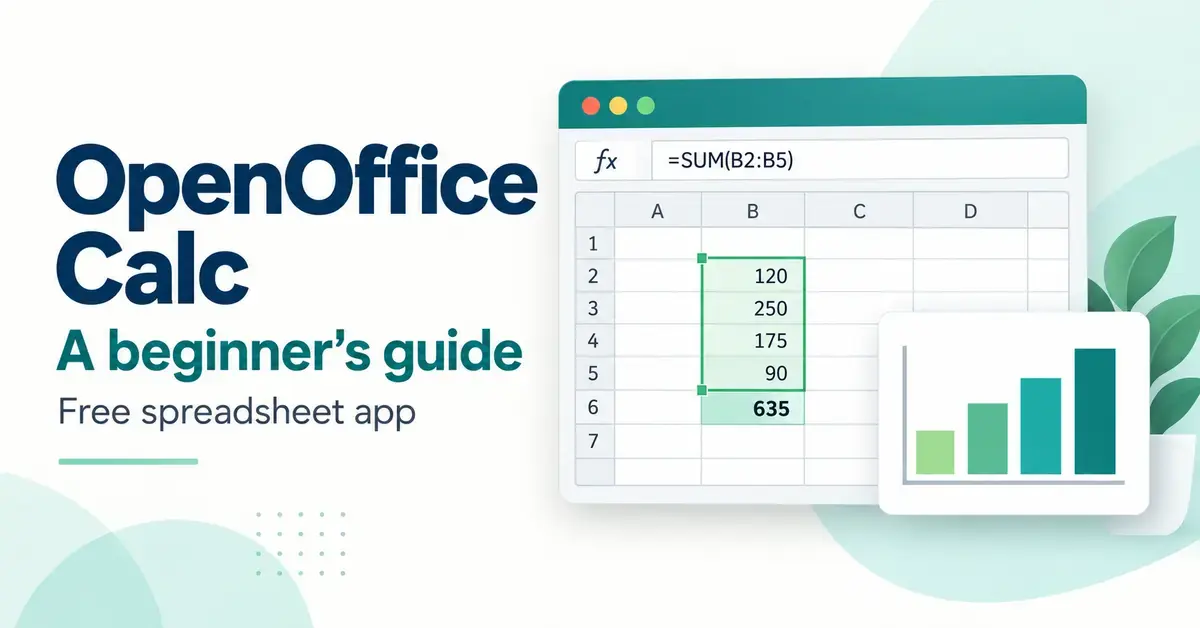
OpenOffice Calc is the free, open-source spreadsheet program inside the Apache OpenOffice suite — the Calc component plays the same role that Microsoft Excel does in Microsoft Office or Sheets does in Google Workspace. You use it to store numbers and text in a grid of cells, build formulas that calculate results automatically, and turn raw figures into charts, budgets and reports. Because it costs nothing and installs on Windows, macOS and Linux, Calc is a common first step for students, home users and small organisations who need a capable spreadsheet without a subscription. This beginner’s guide explains what Calc is, how it works, what it can and cannot do with Excel files, and how it compares with the main alternatives in 2026.
What is OpenOffice Calc?
OpenOffice Calc is a desktop spreadsheet application maintained by the Apache Software Foundation and distributed under the Apache License 2.0, which means it is genuinely free to download, use, copy and share. It is one of six programs in the Apache OpenOffice suite, alongside the Writer word processor, the Impress presentation tool, Draw, the Math equation editor and the Base database program.
A spreadsheet is a document made up of a grid of rectangular boxes called cells, arranged in numbered rows and lettered columns. Each cell can hold a number, a piece of text, a date or a formula. The power of a spreadsheet comes from formulas: instead of working out a total by hand, you tell Calc to add a range of cells, and the result updates the moment any of those cells change. Calc handles everything from a simple household budget to multi-sheet financial models with pivot tables and charts.
Calc saves its files in the OpenDocument Spreadsheet format, a free international standard with the file extension .ods. If you are unsure what that means in practice, the site’s guide to the ODS file format explains how the format works and how to open it in other programs.
Quick Facts
| Developer | Apache Software Foundation |
|---|---|
| Official download | openoffice.org/download |
| Latest version | Apache OpenOffice 4.1.16 (released 10 November 2025) |
| Licence | Apache License 2.0 (free and open source) |
| Price | Free |
| Operating systems | Windows (XP–Windows 11), macOS (OS X 10.7+ Intel), Linux |
| Download size | About 130 MB (full suite installer, Windows) |
| Native file format | OpenDocument Spreadsheet (.ods) |
| Opens | .ods, .xls, .xlsx, .csv and more |
| Saves | .ods and .xls (not .xlsx) |
How does OpenOffice Calc work?
Calc works by letting you type data and formulas into cells and then recalculating everything automatically whenever a value changes. When you open the program you see a blank grid. Columns run across the top and are labelled with letters (A, B, C and so on); rows run down the side and are numbered (1, 2, 3). Each cell has an address made from its column letter and row number — the box where column B meets row 3 is cell B3.
You click a cell to select it, type a value or a formula, and press Enter. A single file can hold many separate pages, called sheets, shown as tabs along the bottom — handy for keeping, say, each month of a budget on its own tab while a summary sheet pulls the totals together.
Writing your first formula
Every formula in Calc begins with an equals sign. If you type =2+2 into a cell and press Enter, the cell shows 4. More usefully, formulas can refer to other cells: =B2+B3 adds the contents of those two cells, and =SUM(B2:B10) adds everything from B2 down to B10. Because the formula points at cell addresses rather than fixed numbers, the answer updates by itself whenever you edit the figures. This is the single idea that makes spreadsheets so powerful, and it works the same way across Calc, Excel and Google Sheets.
Entering and formatting data
Calc recognises what you type: numbers line up on the right, text on the left, and dates are stored as real dates you can calculate with. You can format cells to show currency symbols, percentages, thousands separators or a set number of decimal places without changing the underlying value. Rows and columns can be resized, hidden, frozen in place so headings stay visible while you scroll, and colour-coded to make large tables readable.
Key features of OpenOffice Calc
OpenOffice Calc offers the core spreadsheet tools most people need, plus several advanced features for analysis. The headline capabilities are its function library, pivot tables, charting, and “what-if” analysis tools.
Functions and formulas
Calc includes a large built-in library of functions — ready-made calculations you drop into a formula — covering maths, statistics, finance, dates, text and logic. Common examples include SUM, AVERAGE, IF, VLOOKUP and COUNT. A Function Wizard walks you through each one, showing what information it needs and previewing the result, which is helpful when you are still learning. Calc also supports “natural language” references and an intelligent Sum button that guesses the range you want to total. Most functions share the same names and syntax as Excel, so skills transfer easily; if you want to practise the logic first, the site’s guide to Google Sheets formulas covers the same functions in a free browser tool.
DataPilot (pivot tables)
DataPilot is Calc’s name for pivot tables — a tool that summarises a long list of raw data into a compact, cross-tabulated report. You might take hundreds of sales rows and, in a few clicks, see totals by month and region. DataPilot can pull data from the spreadsheet itself or from an external database, and you rearrange the summary simply by dragging fields around.
Charts and graphs
Calc turns numbers into visuals through a chart wizard that offers column, bar, line, pie, scatter and other chart types. Charts are linked to the data, so they redraw automatically when the figures change, and you can fine-tune titles, axes, colours and legends.
Scenario Manager and Solver
For planning, Calc includes two “what-if” tools. The Scenario Manager lets you save several versions of the same model — for example an optimistic, expected and pessimistic sales forecast — and switch between them to compare outcomes. The Solver works the other way round: you tell it the result you want and the constraints that apply, and it adjusts the inputs to reach the target, which is useful for optimisation problems such as budgeting within a fixed limit.
Styles, templates and PDF export
Cell and page styles let you apply consistent formatting across a workbook and change it everywhere at once. Calc ships with templates and supports your own, so recurring documents like invoices or timesheets start half-built. Finally, a one-click PDF export produces a tidy, read-only copy you can email to anyone, regardless of what software they use.
What file formats can OpenOffice Calc open and save?
Calc opens a wide range of spreadsheet formats but has one important limit on what it can save. Its own native format is the OpenDocument Spreadsheet (.ods), which it reads and writes fully. It can also open Microsoft Excel workbooks in both the older .xls format and the modern .xlsx format, along with CSV (plain-text comma-separated values), and it can import and export those too — with one key exception.
The XLSX save limit
Apache OpenOffice Calc can open .xlsx files but cannot save in the .xlsx format. When you choose “Save As” and pick an Excel format, Calc offers only the older Excel 97–2003 format (.xls), not the current .xlsx that Excel has used by default since 2007. In practice this means you can receive and edit a modern Excel workbook, but when you hand it back you either return it as .xls or as .ods. For most everyday files .xls is read fine by current Excel, but if a recipient specifically needs .xlsx you will need another tool to do the final conversion. This mirrors the same limitation that affects the DOCX format in OpenOffice Writer and the PPTX format in OpenOffice Impress.
Macros and compatibility
Calc automates repetitive jobs with macros written in OpenOffice Basic. Important caveat: those macros are stored only when you save in the native .ods format — saving to .xls or .xlsx drops them. Calc also does not run Excel’s VBA macros, so a complex Excel workbook that relies on VBA may not behave identically. For plain data and ordinary formulas, compatibility is generally good; for heavily automated or intricately formatted Excel files, expect some differences.
System requirements and how much space Calc needs
OpenOffice Calc runs comfortably on modest, even quite old, hardware because it is installed as part of the Apache OpenOffice suite rather than on its own. According to Apache’s official system-requirements page, the suite needs the following:
- Windows: Windows XP through to Windows 11; at least 256 MB of RAM (512 MB recommended); around 650 MB of free disk space for installation.
- macOS: OS X 10.7 or later on an Intel processor; at least 512 MB of RAM; about 400 MB of free disk space.
- Linux: a Linux kernel 2.6 or higher with glibc2 2.5 or higher; at least 256 MB of RAM (512 MB recommended); about 400 MB of free disk space.
A Java Runtime Environment (JRE) is not needed to type numbers and formulas, but some features — parts of the Base database, certain wizards and some assistants — require Java to be installed. The installer download itself is a single package of roughly 130 MB for the Windows version, because it includes the whole suite, not just Calc.
How to download and install OpenOffice Calc for free
You cannot download Calc on its own — it comes bundled in the Apache OpenOffice installer, and you simply launch Calc from the suite afterwards. The safest place to get it is the official Apache OpenOffice website; always avoid third-party “download portals” that may wrap the installer in unwanted extras. The basic steps are:
- Go to the official download page and choose your operating system, language and the latest version (4.1.16).
- Download the installer and, on Windows, run it; on macOS, drag the app into Applications; on Linux, follow the packaged instructions.
- Open the suite and click the Spreadsheet icon, or open any .ods or Excel file, to start Calc.
For a full, step-by-step walkthrough with the exact official links and safety checks, see the dedicated guide on how to download Apache OpenOffice.
OpenOffice Calc vs other spreadsheet apps
OpenOffice Calc is one of several free and paid spreadsheet programs, and the right choice depends on whether you value an offline program, Excel file compatibility or live collaboration. Calc’s strengths are that it is free, runs offline, keeps your files on your own computer and reads Excel formats. Its weaknesses are the inability to save .xlsx, a smaller column limit than modern rivals and slower development compared with its sibling, LibreOffice. The table below compares the main options; the site’s deeper look at LibreOffice vs OpenOffice is worth reading if you are torn between the two free suites.
Comparison
| Spreadsheet app | Price | Type | Saves .xlsx | Max columns | Best for |
|---|---|---|---|---|---|
| OpenOffice Calc | Free | Offline desktop | No (opens only) | 1,024 | Free offline spreadsheets on older PCs |
| LibreOffice Calc | Free | Offline desktop | Yes | 16,384 | A free, actively updated Calc successor |
| Microsoft Excel | Paid (365 or one-off) | Desktop + cloud | Yes | 16,384 | Advanced analysis, VBA and business use |
| Google Sheets | Free / Workspace | Cloud (browser) | Yes (export) | 18,278 | Real-time collaboration online |
| ONLYOFFICE Spreadsheet | Free / paid | Desktop + cloud | Yes | 16,384 | Strong Microsoft format compatibility |
| Gnumeric | Free | Offline desktop | Yes | 16,384 | Lightweight, accuracy-focused analysis |
If none of these fits, the roundup of OpenOffice alternatives covers more free and cloud-based options in detail.
Common mistakes beginners make in OpenOffice Calc
Most problems new Calc users hit come from file formats and formulas rather than the program itself. Knowing them in advance saves frustration.
- Expecting to save as .xlsx. Calc cannot write .xlsx; if a workplace or school demands that exact format, save as .xls and confirm it opens correctly, or convert it in another tool.
- Losing macros on save. OpenOffice Basic macros vanish when you save to an Excel format. Keep automated workbooks in .ods.
- Forgetting the equals sign. A formula only calculates if it starts with =. Typing SUM(B2:B10) without the leading = leaves the text sitting in the cell.
- Numbers stored as text. If figures line up on the left and refuse to add up, Calc is treating them as text — often from a pasted or imported file. Re-enter them or use the format tools to convert them.
- Downloading from the wrong place. Unofficial sites sometimes bundle adware with the installer. Only use the official Apache source.
- Assuming perfect Excel fidelity. Complex formatting, charts and VBA-driven Excel files may shift or stop working. Check important documents after opening them.
Is OpenOffice Calc safe and private?
OpenOffice Calc is safe to use when downloaded from the official source, and it is private by design because it works entirely offline. Your spreadsheets stay on your own computer — Calc does not upload them to a cloud, require an account or send your data anywhere, which appeals to anyone handling sensitive figures. The main security consideration is that Apache OpenOffice is updated infrequently, so you should install new versions promptly when they fix security issues, and be cautious opening spreadsheet files from unknown senders, as malicious macros can be hidden in any office document. Users who want more frequent security updates and active development often prefer LibreOffice, which shares the same file formats.
Who should use OpenOffice Calc?
OpenOffice Calc suits anyone who needs a free, offline spreadsheet and is not tied to the exact .xlsx format or to real-time collaboration. It is a sensible choice for students, home users building budgets or trackers, and small organisations keeping costs down, especially on older computers where a lightweight program matters. It is less suitable if your work revolves around sharing live .xlsx files with heavy Excel users, if you depend on VBA macros, or if your team needs several people editing the same sheet at once — in those cases Excel or Google Sheets fit better, and LibreOffice Calc is the stronger pick if you want a free offline suite that can still save .xlsx.
Sources
Vanliga frågor (FAQ)
Is OpenOffice Calc really free?
Yes. OpenOffice Calc is part of the Apache OpenOffice suite, which is released under the Apache License 2.0 and is free to download, install and use with no subscription, account or payment of any kind, for personal and commercial use alike.
Can OpenOffice Calc open Excel files?
Yes. Calc opens both the older .xls and the modern .xlsx Excel formats, as well as CSV files. It can save in .xls, but it cannot save in the newer .xlsx format — for that you would need Excel, LibreOffice or a conversion tool.
What is the difference between OpenOffice Calc and Microsoft Excel?
Both are spreadsheet programs with similar functions and formulas, but Calc is free and offline while Excel is paid (usually through a Microsoft 365 subscription). Excel supports more columns, runs VBA macros and saves .xlsx natively; Calc uses the open .ods format and OpenOffice Basic macros.
Does OpenOffice Calc work on Mac and Linux?
Yes. Apache OpenOffice, including Calc, runs on Windows, macOS (OS X 10.7 or later on Intel) and Linux. The same .ods files open on all three platforms, so you can move spreadsheets between computers freely.
Should I choose OpenOffice Calc or LibreOffice Calc?
Both are free and share the .ods format, but LibreOffice is updated far more often, supports more columns and can save directly to .xlsx. If you want the most current features and better Excel compatibility, LibreOffice Calc is usually the stronger choice today.
