
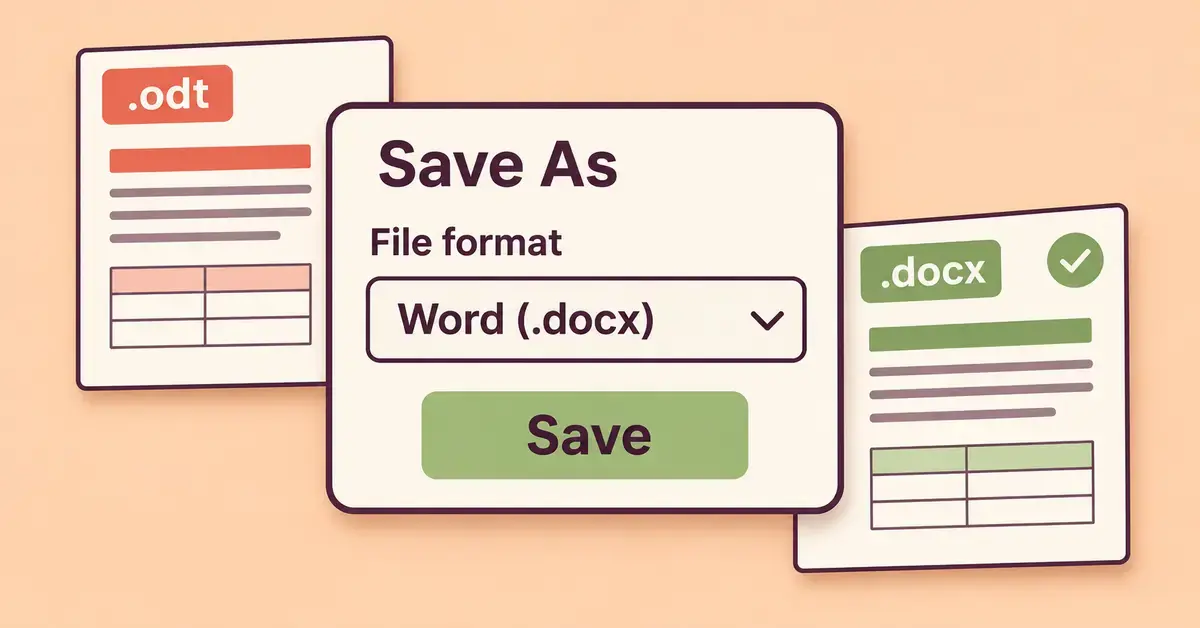
Yes – you can convert an ODT file to Microsoft Word (DOCX) for free: open the .odt in LibreOffice Writer or Microsoft Word, choose File > Save As, and pick Word (.docx). An ODT is an OpenDocument Text file, the default format of free word processors like LibreOffice Writer and Apache OpenOffice Writer; DOCX is Microsoft Word’s standard format. The four reliable free methods below work on Windows, Mac and Chromebook, and some need nothing more than a web browser. Pick the one that matches the software you already have, and check the formatting afterwards, because no conversion between the two formats is ever perfectly identical.
What converting ODT to Word actually changes
Converting ODT to Word rewrites your document from the OpenDocument standard into Microsoft’s Office Open XML standard, so a Word user can open and edit it without extra software. The words, headings, tables, images and most styles carry across, but the two formats describe some features differently, so small shifts in spacing, fonts, numbered lists or complex layouts can appear. Microsoft’s own documentation lists which elements map fully, partly or not at all between the formats, so treat a converted file as a draft to proof-read rather than a pixel-perfect copy.
If you want the background on each format first, see our explainer on what an ODT file is and the companion guide to the DOCX file format. If your end goal is a fixed, non-editable copy instead of an editable Word file, you may actually want to convert the ODT to PDF – a different job with its own method.
Method 1: Convert ODT to Word in LibreOffice Writer
LibreOffice Writer gives the most faithful ODT-to-DOCX conversion because it is built around the OpenDocument standard and has a mature Word export filter. It is free and open source, so this is the method to choose when formatting matters or the document is long or complex.
- Open the .odt file in LibreOffice Writer. If you do not have it, download LibreOffice from the official site first.
- Go to File > Save As.
- In the File type (or “Save as type”) list, choose Word 2007-365 (.docx). Choose Word 97-2003 (.doc) only if the recipient uses a very old version of Word.
- Pick a location, click Save, and when LibreOffice asks whether to keep the Word format, confirm that you want to keep the Word (.docx) format.
That warning simply means a handful of Writer-only features may not survive the trip; for everyday letters, reports and CVs it rarely matters. If you have a whole folder to convert, LibreOffice can also run from the command line without opening each file – see the batch section below.
Method 2: Open and save the ODT in Microsoft Word
Microsoft Word can open an ODT file directly and save it as DOCX, so if you already have Word you need nothing else. This works in Word for Microsoft 365 and in Word 2016, 2019, 2021 and 2024.
- Open Word, then choose File > Open > Browse.
- In the file-type dropdown next to the filename box, pick OpenDocument Text, select your .odt file and open it.
- Choose File > Save As, set the type to Word Document (*.docx), and save.
Word may show a note that it has opened the file in the ODT format and that some content might look different; once you save as DOCX you are back in Word’s native format. If you do not own Word, the free web version of Word can also open and re-save documents in your browser.
Method 3: Convert ODT to Word with Google Docs
Google Docs converts ODT to Word without installing anything, which makes it ideal on a Chromebook, a locked-down work laptop or a borrowed computer. You only need a free Google account.
- Open Google Drive in your browser and choose New > File upload to upload the .odt file.
- Right-click the uploaded file and choose Open with > Google Docs. Google converts it to an editable document.
- With the document open, choose File > Download > Microsoft Word (.docx) to save the Word copy to your device.
Because the file travels to Google’s servers, this route is best for documents that are not confidential. If the content is sensitive – personal data covered by New Zealand’s Privacy Act 2020, for instance – prefer the offline methods above. For a fuller feature contrast, see our comparison of Google Docs vs Microsoft Word.
Method 4: Use a free online ODT to Word converter
A browser-based converter is the quickest option when you have no office software at all: you upload the ODT, the site returns a DOCX, and nothing is installed. Reputable tools such as CloudConvert handle ODT-to-DOCX in your browser and let you download the result in seconds.
The trade-offs are privacy and fidelity. Your file is uploaded to a third-party server, so avoid these tools for anything confidential and check the site’s data-handling and file-deletion policy first. Formatting on complex documents is also less reliable than LibreOffice’s export, so proof-read the result. Stick to well-known services and never pay for a basic ODT-to-Word conversion – every method on this page is free.
Can Apache OpenOffice save a file as Word (DOCX)?
No – Apache OpenOffice cannot save to the modern DOCX format. It can open DOCX files and it can save to the older Word 97-2003 (.doc) format, but the .docx option is missing from its Save As list, a long-standing limitation that LibreOffice does not share.
So if you only have Apache OpenOffice, you have two honest choices: save as .doc, which almost every version of Word can still open, or install LibreOffice alongside it and use Method 1 to produce a true .docx. For most people wanting a Word file today, LibreOffice is the simpler answer.
How to convert several ODT files to Word at once
You do not have to open each file by hand when you have a whole folder of ODT documents. There are two practical free routes for batch conversion.
LibreOffice from the command line is the fastest for a large batch and keeps everything on your own computer. Open Command Prompt (or Terminal) in the folder with your files and run soffice –headless –convert-to docx *.odt; every ODT in the folder becomes a DOCX in seconds, with no windows opening. Mac and Linux use the same command. This needs LibreOffice installed but no coding knowledge beyond typing one line.
Microsoft Word with a macro or the Open-and-Save loop also works if Word is your only tool: open each ODT, save as DOCX, repeat. For dozens of files a short recorded macro can automate the Save As step. Online converters, by contrast, usually cap free batch jobs and send every file to a server, so they are the weakest choice for bulk or confidential work.
Whichever route you pick, keep the original ODT files until you have checked the Word copies – conversion never deletes the source, and the originals are your fallback if a layout comes out wrong.
Which method should you choose?
The best method depends on what you already have installed and how much the formatting matters. The table compares the four free routes on cost, whether they work offline, how well they preserve layout and who each one suits.
Comparison
| Method | Cost | Works offline | Formatting fidelity | Best for |
|---|---|---|---|---|
| LibreOffice Writer | Free | Yes | Highest | Long or complex documents; best overall quality |
| Microsoft Word | Paid (or free web version) | Yes (desktop) | High | People who already own Word |
| Google Docs | Free | No | Good | Chromebooks and computers with no office software |
| Online converter | Free | No | Variable | One-off conversions of non-confidential files |
Common mistakes when converting ODT to Word
Most conversion problems come from a few avoidable habits. Watch for these before you send the file on.
- Choosing the wrong Word version. Saving as the old .doc when the recipient has modern Word, or vice versa, can cause needless compatibility prompts. Use .docx unless you know they need .doc.
- Letting fonts be substituted. Unusual fonts may be swapped for defaults on the recipient’s computer, which shifts the layout; stick to common fonts, or convert to PDF if the exact look must be fixed.
Sources
- Microsoft Support – Use Word to open or save a document in the OpenDocument Text (.odt) format
- Microsoft Support – Differences between the OpenDocument Text (.odt) format and the Word (.docx) format
- LibreOffice Help – Save As (choosing a file type)
- LibreOffice Help – Load/Save General options (default file format)
- LibreOffice Help – Starting LibreOffice with parameters (–headless, –convert-to)
- Apache OpenOffice Community Forum – No DOCX save option
- Apple Support – Convert to Word, PDF, or another file format in Pages on Mac
- CloudConvert – ODT to DOCX online converter
Frequently Asked Questions (FAQ)
Why do my Word documents keep saving as ODT?
Your default save format has been set to OpenDocument. In Word, go to File > Options > Save and change “Save files in this format” to Word Document (*.docx). In LibreOffice, go to Tools > Options > Load/Save > General and set the default for text documents to Word 2007-365 (.docx). After that, new files save as Word by default.
Will I lose formatting when I convert ODT to Word?
Usually only minor shifts in spacing, some list styles or very complex layouts, because the two formats describe them differently – see What converting ODT to Word actually changes above for the detail and always check the converted file before sending.
How do I convert ODT to Word on a Mac?
The same methods work on macOS. LibreOffice and Microsoft Word both run on Mac and follow the identical File > Save As steps, and Google Docs works in any Mac browser. Apple’s Pages can also open an ODT and export it as a Word document from File > Export To > Word.
Can I convert ODT to Word on a phone?
Yes. The easiest way on iPhone or Android is Google Drive: upload the ODT, open it with the Google Docs app, then download it as a Word (.docx) file.
Is an ODT file the same as a Word file?
No. An ODT uses the open OpenDocument standard, while a Word file uses Microsoft’s DOCX format. Modern versions of Word can open ODT files, and LibreOffice can open both, but they are different formats – which is exactly why converting between them is sometimes needed.
