
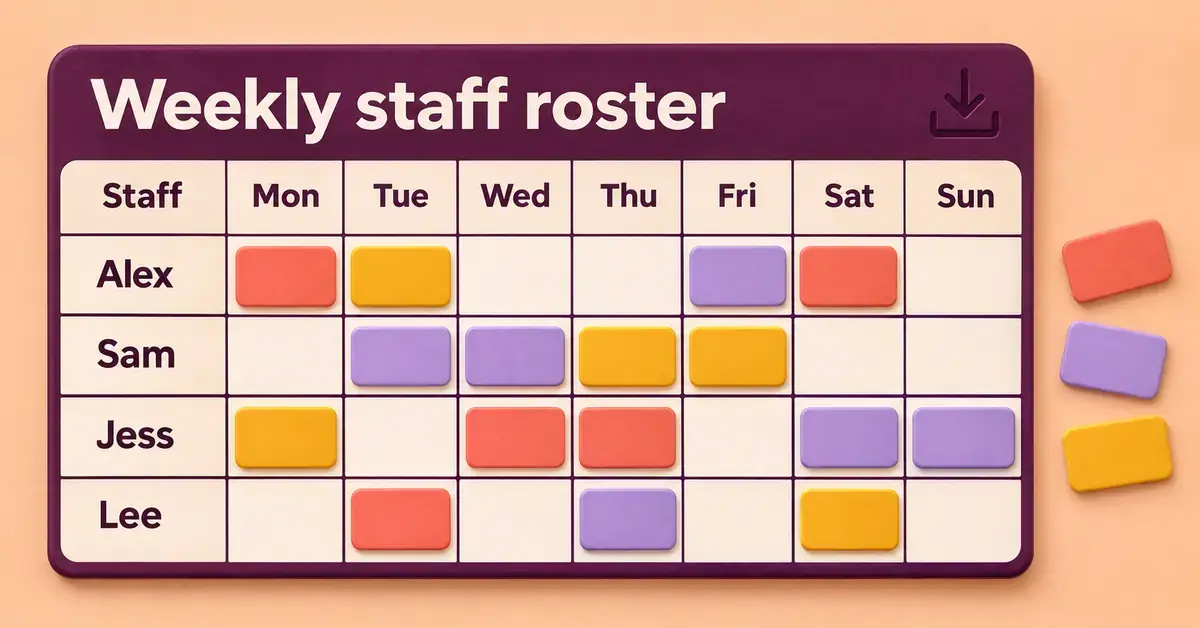
You can download a free staff roster template in New Zealand in a couple of minutes, open it in a spreadsheet you already have, and set up your first week of shifts without building anything from scratch. A roster template is simply a ready-made grid – staff down one side, days across the top – with the hour totals and layout already in place, so you only fill in who works when.
Key points
- You can download a free staff roster template from official Excel and Google galleries or long-standing template sites – no NZ-specific file is needed.
- Choose .xlsx for portability, a Google Sheets copy for shared online editing, or .ods for LibreOffice and OpenOffice.
- Set up shifts in five steps: dates, staff, shift times, unpaid break, then read the totals.
- Copy a master week forward for recurring or rotating shifts, and add a daily count to check coverage.
- Roster around the rules: rest and meal breaks, public holidays (time-and-a-half plus a day in lieu), the $23.95 adult minimum wage from 1 April 2026, and notice for shift changes.
- A template suits small, settled teams; larger or 24/7 operations may need rostering software.
Where can you download a free staff roster template in NZ?
Yes – several reputable sources give away free staff roster and shift-schedule templates, and you do not need a New Zealand-specific file to use them. A roster is just a grid of names, dates and shift times, so an Australian, UK or US template works fine once you swap in your own staff and apply the local rules covered further down. The safest sources are the companies that make the software you open the file in, plus a few long-standing template libraries.
Stick to official galleries and well-known template sites. Avoid random “free download” pages that wrap a simple spreadsheet in an installer, an email wall or a macro-enabled file – a plain roster needs no macros at all. If you would rather design the layout yourself, our companion guide on how to build a staff roster from scratch in Sheets and Excel walks through the formulas and formatting step by step.
Where to download a free roster template
| Source | What you get | Cost | Works offline? | Best for |
|---|---|---|---|---|
| Microsoft free Excel schedule templates | Employee shift and team roster templates you edit in Excel for the web or desktop | Free | Yes, in desktop Excel | Teams already using Microsoft |
| Google Sheets template gallery (open Sheets, then Template gallery) | Schedule and calendar templates you copy to your own Google Drive | Free | Limited (Sheets offline mode) | Live sharing and multi-editor rosters |
| Vertex42 employee schedule | A 4-to-6-week shift template in .xlsx and Google Sheets, no macros | Free (private use) | Yes | Marking shifts across several weeks |
| Build your own in Sheets, Excel or Calc | A roster you design around your exact shifts and layout | Free | Yes | Full control over the design |
If you do not already own Excel, you can open any of these files for free in LibreOffice Calc – download LibreOffice and it reads and saves the same spreadsheet formats. Teams that want desktop Excel and cloud sharing together can look at Microsoft 365 for business, but it is not required for a roster.
Which file format should you download?
Pick the format that matches where you will edit the roster, because the wrong one means re-typing everything. The three you will meet are:
- .xlsx (Excel): the default for most downloads. Opens in Excel, LibreOffice Calc, OpenOffice Calc, Google Sheets and WPS Office, so it is the most portable choice.
- Google Sheets copy: templates in the Google gallery are used by making your own copy to Google Drive. Best when several managers edit the same roster online and you want the latest version to be the only version.
- .ods (OpenDocument): the native format of LibreOffice and OpenOffice Calc. Choose it if your team standardises on those free suites; everyone else can still open it.
Whatever you pick, save a clean, empty master copy and work on a duplicate each week, so you never overwrite the template itself. A roster is a forward plan of who is rostered on; it is not a record of hours actually worked – for that you need a timesheet template instead.
How to set up shifts in a downloaded roster template
Setting up shifts in a downloaded template takes five short steps, and most of the maths is already wired in. Work through them in order the first time, then each new week is just a copy-and-edit.
- Enter your date range. Change the week-starting date in the header cell; good templates roll the day columns forward automatically. If yours does not, type the seven dates once and reuse the file.
- List your staff. Put one person per row, with their role beside the name. Keep phone numbers and personal contact details in a separate, access-controlled file rather than on the shared roster – that is the sensible reading of the Privacy Act 2020 for a document you pin up or share widely.
- Type the shift times. Enter a start and finish for each person-day, for example 9:00-17:00. Use 24-hour time or be consistent with am/pm so the hour totals add up. For a shift that runs past midnight, check the template handles the overnight calculation; many need the finish time entered as the next day.
- Mark the unpaid break. Subtract any unpaid meal break from the paid hours, or use the template’s break column if it has one. Paid rest breaks stay in the total; unpaid meal breaks come out.
- Read the totals. Let the template sum hours per person and per day. The daily total tells you whether each shift is covered; the weekly total per person flags anyone over or under their agreed hours.
Set up recurring and rotating shifts
For a fixed weekly pattern, build one “master” week and copy the whole sheet into a new tab for each upcoming week, then adjust only the exceptions – leave, sickness or a swap. For a rotating roster, where staff move through early, late and days-off in a set cycle, set up as many week tabs as the cycle is long (a four-week rotation needs four tabs) and copy that block forward. Colour-code each shift type so a glance shows the pattern, and if you plan months ahead a Google Sheets calendar template alongside the roster helps you line shifts up with busy dates and public holidays.
Check your roster covers every shift
Before you publish, confirm every opening hour has enough people on. Add a row under each day that counts how many staff are rostered at peak times and compare it with the cover you actually need – a cafe might need two on the floor from 7am and three over the lunch rush. Templates that total by day make this easy; if yours does not, a simple count formula does the job.
What a New Zealand roster must account for
A template gives you the grid, but you still have to set the shifts within New Zealand’s employment rules – the file will not do this for you. The four that shape almost every roster are breaks, public holidays, minimum wage and short-notice changes. The figures below were current at the time of writing; always confirm against the official pages before you rely on them, and note this is general information, not legal advice.
Rest and meal breaks
Roster the breaks in, because the law sets minimum entitlements by shift length. Under the Employment Relations Act 2000, the minimum paid rest breaks (10 minutes) and unpaid meal breaks (30 minutes) are:
- 2 to 4 hours: one paid rest break.
- More than 4 and up to 6 hours: one paid rest break and one unpaid meal break.
- More than 6 and under 10 hours: two paid rest breaks and one unpaid meal break.
- 10 to 12 hours: three paid rest breaks and one unpaid meal break.
- More than 12 and up to 14 hours: three paid rest breaks and two unpaid meal breaks.
Rest breaks are paid and meal breaks are unpaid, so only subtract the meal break from the hours you pay. Employer and employee should agree when breaks fall; if they cannot, the default is to space them reasonably through the shift.
Public holidays and shift pay
Factor public holidays into the roster separately, because working one costs more and can earn a day off in lieu. If a public holiday falls on a day an employee would otherwise have worked, and they do not work, they get a paid day off. If they do work, they must be paid at least time-and-a-half, and if that holiday was an “otherwise working day” for them they also get an alternative holiday – a full paid day off to take later. New Zealand’s public holidays include New Year (1 and 2 January), Waitangi Day, Good Friday, Easter Monday, Anzac Day, King’s Birthday, Matariki (a movable date each winter – Friday 10 July in 2026), Labour Day, Christmas Day and Boxing Day, plus your regional anniversary day. Some holidays are “Mondayised” when they land on a weekend, so check the observed date before you roster around them.
Minimum wage when you cost a roster
Use the current minimum wage to turn rostered hours into a labour cost. From 1 April 2026 the adult minimum wage is $23.95 an hour before tax, and the starting-out and training rates are $19.16 an hour (80% of the adult rate). Multiply each person’s weekly hours from the template by their rate to estimate the wage bill, and keep the total inside your labour budget – a free budget template is handy for tracking it against revenue.
Short-notice changes and availability
Do not treat a published roster as freely changeable. If an employment agreement lets you cancel a shift, it must set reasonable notice and, where notice is short, compensation; and you can only require staff to be available for extra shifts if their agreement has a proper availability provision with reasonable compensation. Build in enough lead time when you publish so last-minute changes are the exception.
Who should download a template, and who needs software?
A downloaded spreadsheet template suits small, stable teams. If you run a cafe, a shop, a clinic, a community group or a small trade crew with up to roughly 15 to 20 staff and fairly settled shifts, a free template is usually all you need – it costs nothing, works offline and no one has to learn a new app. The trade-offs appear as the team grows: staff cannot see their roster on their phone, swaps are manual, and there is no built-in alert when someone is double-booked or heading into overtime. Larger teams, 24/7 operations, or anywhere staff request shifts and leave through an app will get more from dedicated rostering software – but there is no harm starting with a template and moving on only when the spreadsheet starts to creak.
Disclaimer
This article is general information about staff rosters and New Zealand employment rules, not legal or payroll advice. Wage rates, break entitlements and public-holiday rules change and can depend on the individual employment agreement. Confirm the current figures and how they apply to your situation with Employment New Zealand or a qualified adviser before making pay or rostering decisions.
Sources
- Employment New Zealand – Rest and meal breaks
- Employment New Zealand – Minimum wage rates
- Employment New Zealand – Public holidays and anniversary dates
- Employment New Zealand – Alternative holidays
- Employment New Zealand – Rostering (shift cancellation and availability)
- Employment New Zealand – Record keeping
- Microsoft – Free Excel scheduling templates
- Vertex42 – Employee schedule template
Frequently Asked Questions (FAQ)
Can I open a downloaded Excel roster template in LibreOffice or OpenOffice?
Yes. An .xlsx roster template opens in LibreOffice Calc, Apache OpenOffice Calc, Google Sheets and WPS Office, not just Microsoft Excel. The grid, hour totals and colours come through, and you can save back to .xlsx or to the OpenDocument .ods format. Very heavy use of advanced Excel functions can occasionally need a tidy-up, but a plain roster rarely does.
How far ahead should I give staff their roster?
As a practical rule, give as much notice as you reasonably can – more notice is both fairer and safer. Publishing a week or two ahead lets staff plan and reduces last-minute changes, which matter because cancelling or shortening a published shift can require notice and compensation under the employment agreement. Settle on a regular publishing day and stick to it.
Does a free roster template work out pay or run payroll?
No. A roster template plans who works when and totals the hours, but it does not calculate PAYE, KiwiSaver, holiday pay or run payroll. Use the hour totals as an input, then apply the correct pay rates in a timesheet and a payroll system. Keep the roster and pay records separate.
Do I have to keep my staff rosters?
Keeping them is wise. New Zealand employers must hold wage, time, holiday and leave records, and a saved roster supports those records if a shift or payment is ever questioned. Save each week’s roster as a dated copy rather than overwriting one file, so you keep a clear history of who was scheduled when.
