
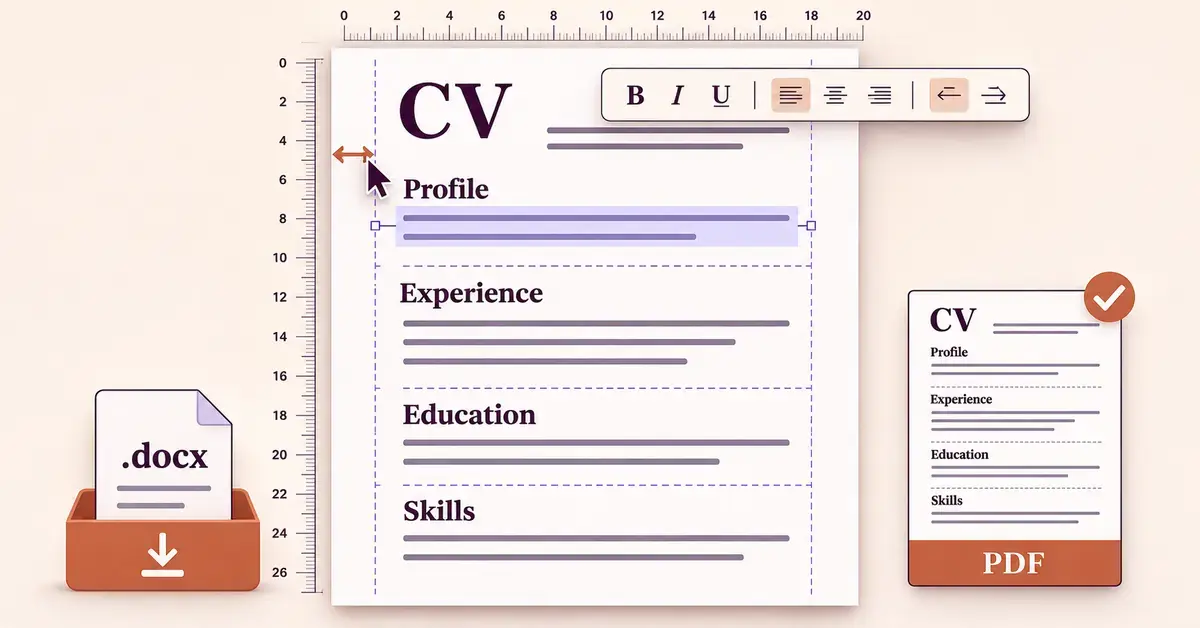
A free CV template is simply a pre-formatted document you download and type your own details into. The tricky part is not finding one — it is opening it in the right program and keeping the layout tidy while you edit. This guide shows you how to download a free New Zealand CV template and format it properly in Microsoft Word, the free Word Online, Google Docs, or LibreOffice and OpenOffice Writer, then export a clean PDF that looks the same on the employer’s screen as it does on yours.
If you also need help choosing a template and deciding what to write in each section, see our companion guide to a free CV template for NZ and how to fill one in. This article focuses on the mechanics: downloading, opening, formatting and saving.
Key Points
- A free CV template is just a pre-formatted document — you download it as a Word (.docx) file or open it from the Google Docs template gallery.
- Microsoft Word, the free Word Online, Google Docs, LibreOffice and OpenOffice Writer can all open and edit the same .docx template.
- Type over the placeholder text and keep the template’s built-in styles, rather than retyping headings or adding blank lines, so the layout stays intact.
- Export the finished CV to PDF unless the employer asks for a Word file — a PDF looks the same on their screen as on yours.
- Keep the design simple so an applicant tracking system (the software that scans CVs) can read it.
Where to download a free, editable CV template in NZ
Download your template from an official or well-known source so the file is safe and genuinely free to edit. Three reliable options cover most people:
- Tahatu Career Navigator (New Zealand government): free Word (.docx) CV templates and matching examples, built for the local job market. Get them from the government’s how to write a CV page.
- Microsoft: a large set of free Word resume and CV templates you can download as .docx or open in the browser, at Microsoft’s free resume templates.
- Google Docs: several resume layouts in the built-in Google Docs template gallery, ready to edit in your browser with no download at all.
All three are free and safe. Avoid sites that ask for payment before you can edit a basic template, or that email you a file from an unfamiliar address. Once you have a template, how you open and format it depends on which program you use.
Which program should you use to format your CV template?
Any of the main word processors can open a .docx CV template — the right one depends on what you already have and whether you want to work online or offline. The table below compares the realistic options on cost, file handling and who each suits.
Comparison
| Program | Cost | Opens .docx template | Exports PDF | Works offline | Best for |
|---|---|---|---|---|---|
| Microsoft Word (desktop) | Paid (Microsoft 365 or Office) | Yes | Yes | Yes | People who already have Office installed |
| Word Online (web) | Free with a Microsoft account | Yes | Yes | No | Quick edits without installing anything |
| Google Docs | Free with a Google account | Yes (converts the file) | Yes | Limited (offline mode) | Cloud editing, sharing and easy PDF export |
| LibreOffice Writer | Free | Yes | Yes | Yes | Fully offline editing on your own device |
| OpenOffice Writer | Free | Yes (saves as .odt or .doc) | Yes | Yes | Older or lower-spec computers |
In short: if you already pay for Microsoft 365 or Office, use Word. If you want something free, Google Docs is easiest for editing in a browser and sharing, while LibreOffice and OpenOffice Writer let you work entirely offline on your own computer. For a deeper look at the two most common choices, our comparison of Google Docs vs Microsoft Word covers formatting, offline use and pricing.
How to open and format a CV template in Microsoft Word
To use a downloaded template in Word, open the .docx file and type over the placeholder text rather than deleting whole sections. This keeps the template’s fonts, spacing and heading styles in place, which is what makes a template worth using.
Opening a template in Word (desktop or free Word Online)
On a computer with Word installed, double-click the downloaded .docx file, or open Word and choose File then Open. If you do not have Word, you can use the free online version of Word: sign in with a free Microsoft account at office.com, upload the template to OneDrive and open it in Word for the web. The online version handles a standard CV template well, though a few advanced layout features are missing compared with the desktop app.
Replacing the placeholder text without breaking the layout
Click directly into each placeholder (for example “Your Name” or “Company, Location”) and type your own details. Do not press Enter to push text down or add blank lines to create space — that quickly throws the layout out. If a section does not apply to you, delete the text inside it and, if needed, remove the empty heading, but leave the surrounding structure alone.
Formatting: fonts, margins and spacing
Keep formatting simple and consistent so the CV stays easy to read:
- Font: use one clear font throughout, such as Calibri, Arial or Georgia, at around 10–12 points for body text. Avoid decorative fonts.
- Margins: 2–2.5 cm on all sides is a safe range. Shrink them slightly only if you need to pull content onto one fewer page.
- Spacing: use the paragraph spacing controls (Line and Paragraph Spacing) rather than blank lines, so gaps stay even.
- Headings: reuse the heading styles the template already applies instead of manually bolding and resizing text; consistent styles look more professional and are easier to adjust later.
- Bullet points: keep each one to a line or two, starting with an action verb.
Exporting your Word CV to PDF
When the CV is ready, save a PDF to send to employers. In Word, choose File then Save As (or Export) and pick PDF as the file type. A PDF locks the layout so it looks the same everywhere, which a .docx cannot guarantee. Keep the original .docx too, so you can edit it later or send a Word version if an employer specifically asks for one.
How to open and format a CV template in Google Docs
Google Docs lets you format a CV template in your browser for free, either from its own gallery or by importing a Word file. You need only a free Google account.
Starting from the Google Docs template gallery
Open Google Docs, click Template Gallery at the top and choose one of the resume layouts (such as Serif, Coral or Modern Writer). The document opens ready to edit, and every change saves automatically to Google Drive. This is the fastest route because there is nothing to download or convert.
Uploading and converting a Word template to Google Docs
To use a .docx template you downloaded, upload it to Google Drive first. You can edit an Office file directly, but for full formatting control it is better to convert it to Google Docs format. The simplest way is to turn on conversion in Drive: open Settings and tick “Convert uploaded files to Google Docs editor format”, then upload the template. You can also right-click an uploaded .docx in Drive and choose Open with Google Docs, then use File then Save as Google Docs. Converting changes how some elements behave, so always scroll through and check the result — see the section on format drift below.
Formatting and downloading as PDF or Word
Format a Google Docs CV the same way as in Word: one consistent font, even paragraph spacing, and the built-in heading styles from the Styles menu. When you are done, choose File then Download and pick either PDF Document (.pdf) to send to employers, or Microsoft Word (.docx) if one asks for an editable file. Google Docs exports both cleanly from the same document.
Moving a CV template between Word and Google Docs
You can move the same CV between Word and Google Docs, but expect small formatting shifts each time you convert it. Word and Google Docs do not render every feature identically, so a template designed in one can look slightly different in the other.
The things most likely to shift are:
- Fonts: if a template uses a font the other program does not have, it substitutes a different one, which changes line breaks and page length.
- Tables and columns: templates that place content in invisible tables or columns can misalign after conversion.
- Spacing and margins: line spacing and indents may tighten or loosen a little.
Because of this, convert once, then do your final formatting and proofreading in whichever program you will export from — and always check the PDF before sending it. If you only need to view or lightly edit a Word file, Google Docs can work with it in Office compatibility mode without converting, though converting gives you the full set of editing tools. It helps to understand what a .docx file is and how different apps interpret it, since that is the format nearly every CV template ships in.
Editing a CV template free in LibreOffice or OpenOffice Writer
If you want to format a CV template completely offline and free, LibreOffice Writer and OpenOffice Writer both open .docx templates on Windows, Mac and Linux. They are a good fit for older or lower-spec computers and for anyone who prefers not to work in the cloud.
To use one, install the suite — our guide on how to download LibreOffice covers the safe official source — then open the .docx template from File then Open. Replace the placeholder text, keep the existing styles, and export a PDF directly with File then Export As PDF. One practical difference to note: OpenOffice Writer can open a .docx template but saves to its own OpenDocument (.odt) or the older .doc format rather than .docx, so if an employer needs an editable Word file, export a PDF or use LibreOffice, which can save back to .docx. For a complex, graphics-heavy template, a free office suite may re-flow the layout slightly, so check every page before you export.
Formatting a CV template to pass applicant tracking systems
Many employers use an applicant tracking system (ATS) — software that scans and sorts CVs before a person reads them — so your template needs to be machine-readable, not just good-looking. Heavily designed templates can confuse these systems, which is the main reason a visually impressive CV sometimes gets overlooked.
To keep a template ATS-friendly:
- Use a standard single-column layout for your main content; avoid putting key details inside text boxes, graphics or sidebars that scanners may skip.
- Keep contact details in the body of the document, not in the header or footer, which some systems do not read.
- Use real heading text (“Work experience”, “Education”) rather than icons or images.
- Stick to common fonts so text is captured correctly.
- Save as .docx or PDF — both are widely accepted; follow the job ad if it names one.
If a template relies on columns or graphics you cannot easily remove, pick a simpler one. A plain layout that a scanner reads cleanly beats a striking design it cannot parse.
Common formatting mistakes when using a CV template
Most template problems come from editing rather than the template itself. Watch for these:
- Leftover placeholder text: sending a CV that still says “Your Name” or “Lorem ipsum” is a common and avoidable slip — read every line before exporting.
- Breaking the layout with blank lines: adding empty paragraphs to move text around unbalances the spacing; use the paragraph and spacing controls instead.
- Mixed fonts and sizes: pasting text from another document can import its formatting; paste as plain text, then apply the template’s styles.
- Running over length: a standard NZ CV runs to two or three pages (one to two if you are early in your career); trim detail rather than shrinking the font to fit.
- Font substitution on another device: if you send a .docx and the recipient lacks your font, the layout can shift — exporting a PDF prevents this.
- Sending the wrong file type: default to PDF unless the employer asks for Word, and name the file clearly, such as “Jordan-Smith-CV.pdf”.
Sources
Frequently Asked Questions (FAQ)
Do I need to pay for Microsoft Word to use a CV template?
No. You can format a .docx CV template for free in several ways: the free Word Online in your browser with a Microsoft account, Google Docs with a Google account, or the free desktop suites LibreOffice and OpenOffice Writer. Paid Microsoft Word is only one option among several.
Can I open a Word CV template in Google Docs without losing the formatting?
Mostly, yes, but check it. Upload the .docx to Google Drive and convert it to Google Docs format, then scroll through every page. Fonts that Google Docs does not have are swapped for similar ones, and templates built on tables or columns can shift slightly. Do your final formatting in Google Docs and review the PDF before sending.
Why does my CV template look different on another computer?
Usually because of fonts. If you send an editable Word or ODT file and the other computer does not have the template’s font, it substitutes another, which changes spacing and can push content onto an extra page. Exporting your CV to PDF locks the layout so it appears the same everywhere.
Can I format a CV template on my phone or tablet?
Yes. The Microsoft Word, Google Docs, OpenOffice-compatible and LibreOffice-compatible mobile apps can open and edit a .docx template, and Google Docs also works in a mobile browser. A phone is fine for small edits, but a larger screen makes it much easier to check spacing, bullet alignment and page breaks before you export the final PDF.
